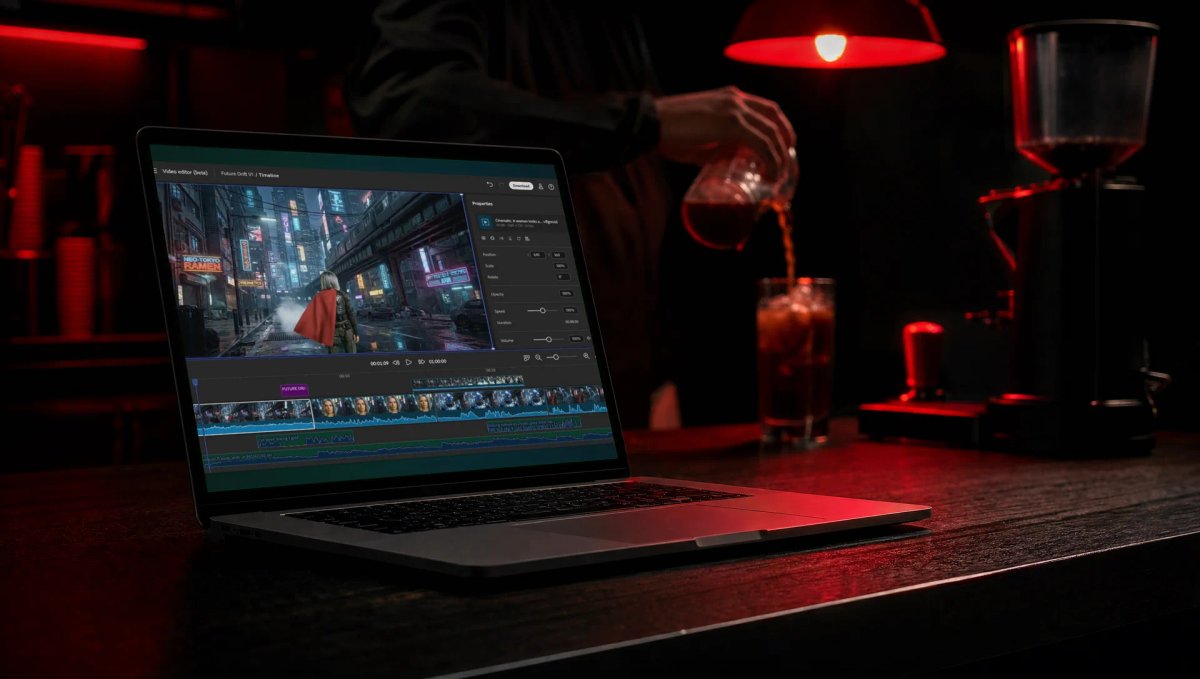

OpusClip 4.0: edit a talking-head video with Auto-edit and Recipes
OpusClip 4.0 edits a whole talking-head video: cuts, captions, B-roll and motion graphics, with Recipes to reuse your settings. The full how-to, pricing, what to review and why Darija is a problem.
MoBenFreelance video creator
Contents
- What is OpusClip 4.0?
- How do you edit a talking-head video with Auto-edit, step by step?
- Which Auto-edit settings should you turn on, and what does each one do?
- How do you create, save and reuse a Recipe?
- What should you check and fix after the automatic edit?
- Does OpusClip caption Darija and Arabic?
- How much does OpusClip cost, and how many credits does Auto-edit use?
- What are the limits of OpusClip Auto-edit?
- What are the alternatives to OpusClip for editing a talking-head video?
- Should you hand your talking-head edits to OpusClip?
- Frequently asked questions
OpusClip 4.0, announced on 2 November 2026, now edits a whole video, not just short clips. With Auto-edit, you upload a raw talking-head take and the tool proposes an edit with cuts, captions, B-roll and motion graphics; with Recipes, you save those settings for your next videos. You still need to review the result, and according to the official help center, Arabic (and therefore Darija) is not supported for captions.
You have just filmed your talking-head video and the whole edit is still ahead: the cuts, the captions, the B-roll, the animations. It is the step many people put off, and it is the one OpusClip now wants to take on.
The official link to the tool: opus.pro. The app itself opens at clip.opus.pro. Everything below was checked on OpusClip’s website, help center and announcement in November 2026.
What is OpusClip 4.0?
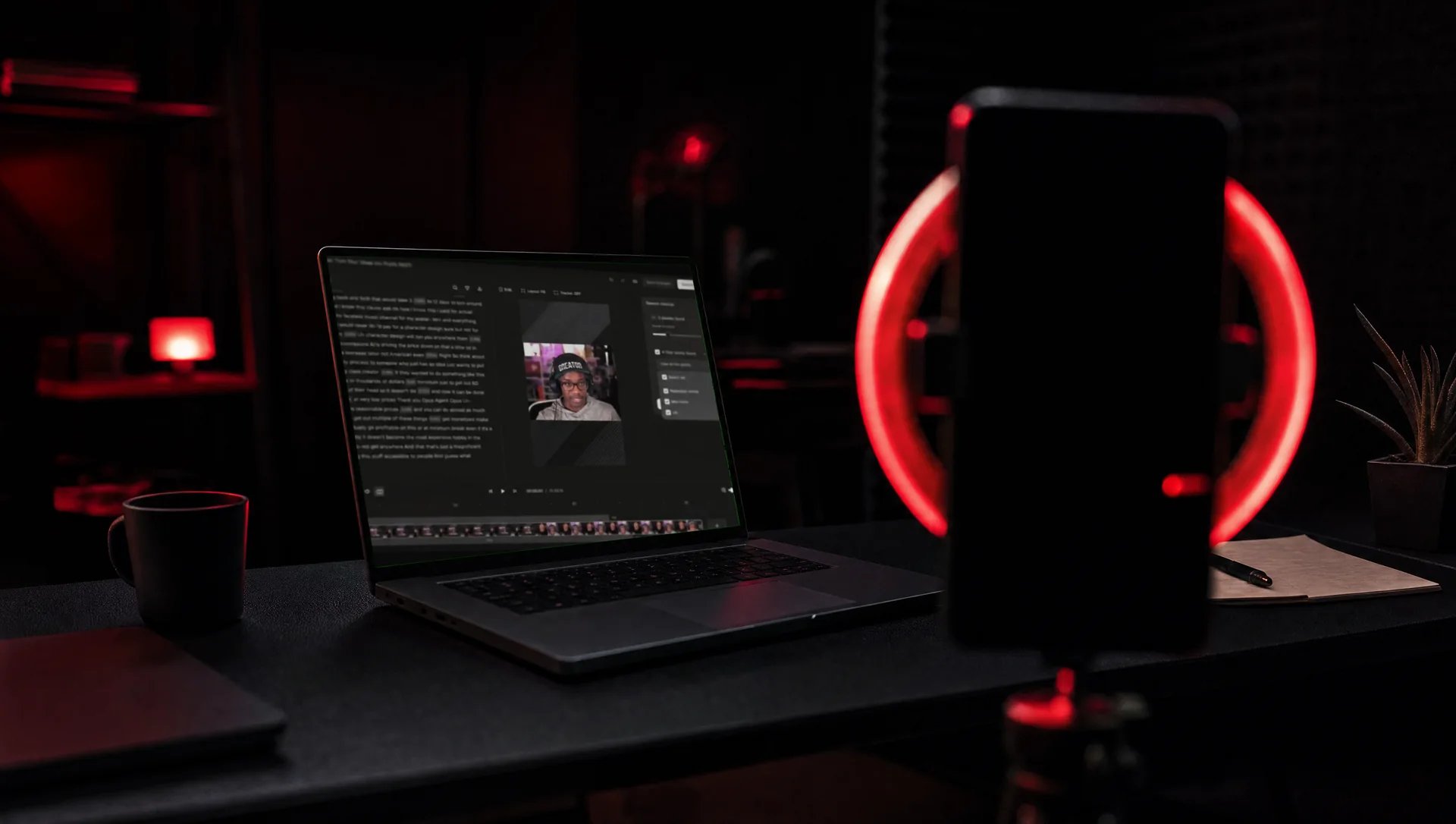
OpusClip is known for cutting long videos (podcasts, talks, live streams) into short clips for Reels, TikTok and Shorts. Version 4.0, introduced on the official blog by its co-founder, adds the editing of the video itself, starting from a take nobody has edited yet.
“Built for talking videos. Drop in raw footage or paste a link, then switch on speech cleanup, captions, B-roll and more.” (OpusClip)
The announcement lists five new features:
- Auto-edit: automatic editing of a talking video, from a file or a link.
- Every format: one edit turned into 60 to 90 second highlight clips, a 3 to 5 minute extended cut or a quick lo-fi update.
- Recipes: your editing setup saved, or one of OpusClip’s, so the next video gets edited the same way.
- Viral Hook and Motion Graphics: a hook style for the first seconds from a template library, and animated icons, numbers and charts based on what you say.
- AI Producer: a plugin to drive the edit from a chat assistant, by showing it a style to match.
How do you edit a talking-head video with Auto-edit, step by step?
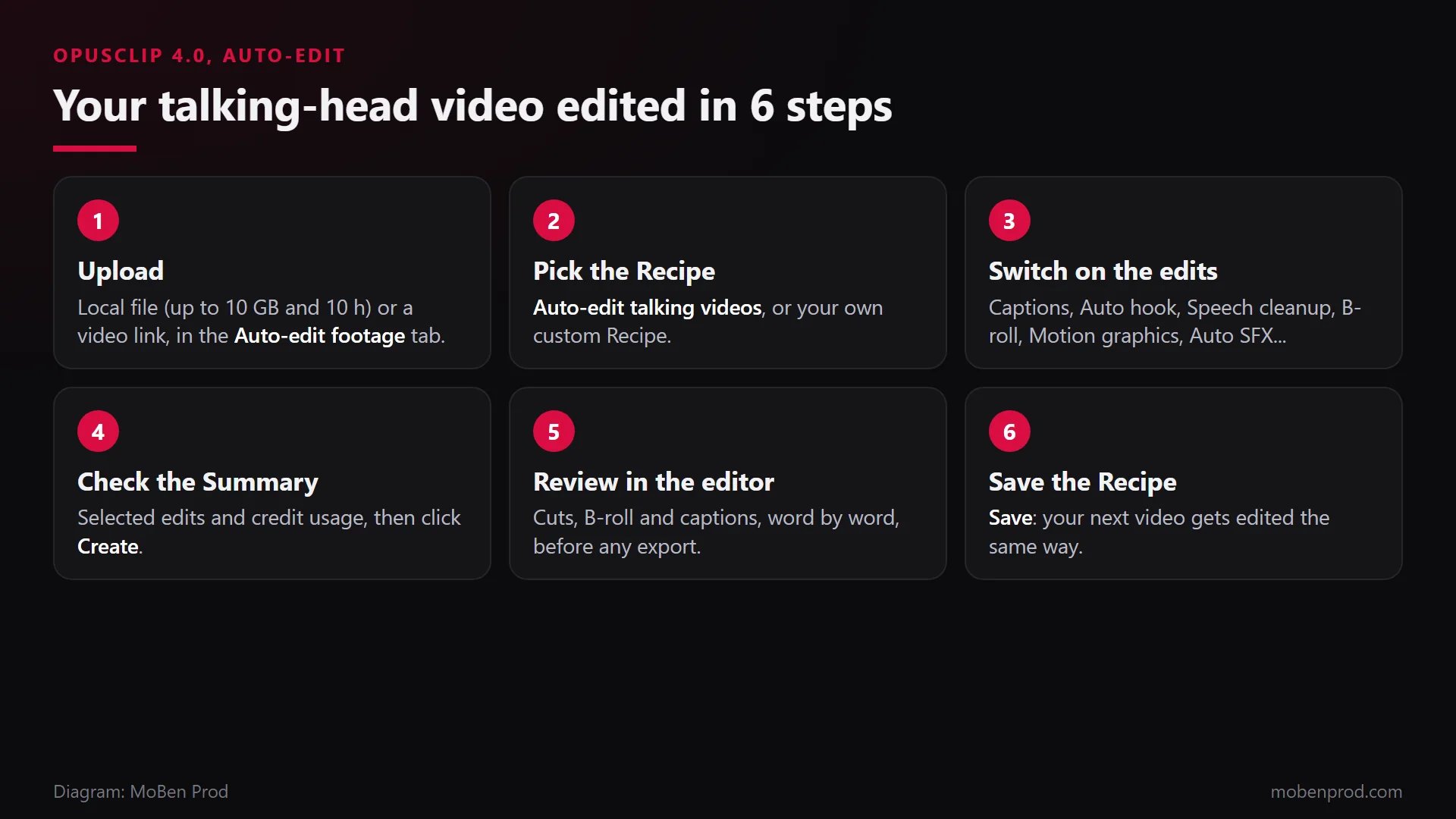
- Create an account on opus.pro (Sign Up button). The pricing page advertises a free trial with no credit card required.
- Upload the raw take. On the dashboard, open the Auto-edit footage tab (next to Clip long video), then drop the file or paste a link. Limit: 10 GB and 10 hours per file. Non-integer frame rates such as 29.97 fps are not supported: the help center suggests uploading to YouTube first and pasting the link.
- Pick the Recipe. On the Submit video page, choose Auto-edit talking videos, or click See all Recipes for the full list.
- Pick the Brand kit, or No brand kit to set styles directly on the Recipe page. The Brand kit holds your logo, caption and headline styles, intro, outro and music.
- Pick the output ratio: 9:16, 16:9, 1:1 or 4:5. Each run creates one ratio; run the Recipe again for another one.
- Switch on the edits you want in Recipe settings: Captions, Auto hook, Speech cleanup, B-roll, Motion graphics, Auto SFX and the others, detailed below.
- Check the Summary: it lists the selected edits and the credit usage. Then click Create.
- Review in the editor: cuts, B-roll, captions, hook and graphics. The checklist is further down.
- Export as MP4, or on Pro with Export to XML to finish the edit in Adobe Premiere or DaVinci Resolve.
- Save your settings as a Recipe if you like the result, so the next video is edited the same way.
OpusClip presents version 4.0 in its own video:

Which Auto-edit settings should you turn on, and what does each one do?
Each setting is a toggle in the Recipe. Here is what each one does according to OpusClip’s help center, with the plan required when it is stated.
- Captions: animated captions. Their style comes from the Brand kit, or from the Recipe page if you chose No brand kit. A Brand kit does not turn them on by itself: the toggle has to be on.
- Auto hook: either a Viral hook (an animated template over the first seconds, filled with your own words, with zoom and sound effects) or a Headline (one line of text at the start). You cannot have both. Viral hook needs the trial, Pro, Max or Business.
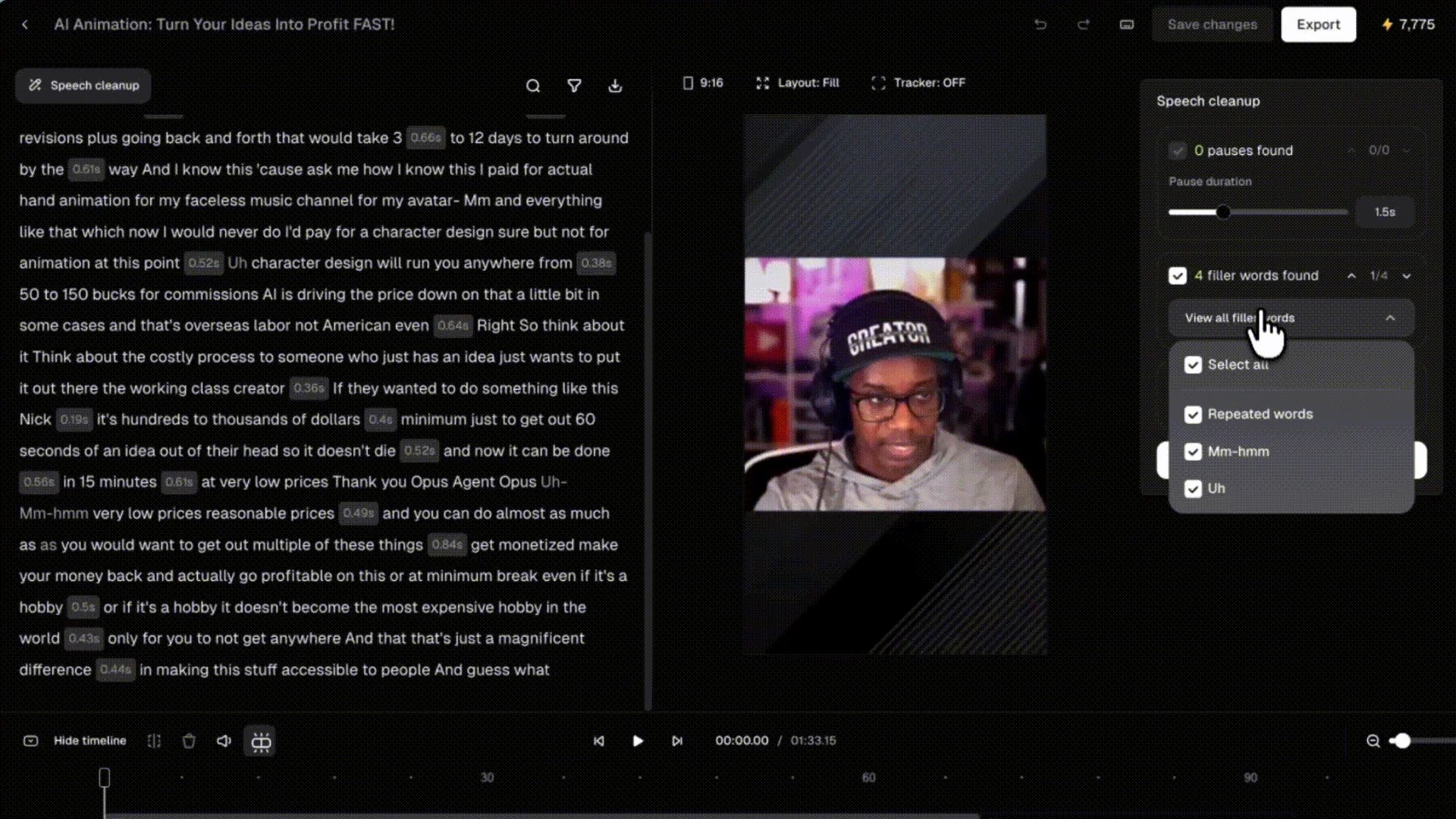
- Speech cleanup: removes filler words (“um”, “uh”, “you know”, stutter repeats), pauses (0.5 seconds by default, adjustable with a slider) and bad takes (restarts, self-corrections) with the Detect now button.
- B-roll: illustration shots as AI images, AI video or stock video. Images and stock from Starter, AI video on the trial, Pro, Max or Business. No B-roll on the free plan.
- Motion graphics: names, numbers and dates spotted in the transcript, turned into animated graphics. Trial, Pro, Max or Business.
- AI emojis and keyword highlighter: emojis and highlighted keywords in the captions.
- Auto SFX: sound effects placed on key moments, taken from a curated library. Pro, Max, Business or trial.
- Enhance audio (Speech enhancement): noise reduction, voice isolation and a volume boost, with two sliders in the editor. Trial, Pro, Max or Business.
- Auto color correction: white balance, brightness and contrast fixed, with an intensity slider (100% by default). Free for now according to the help center, on the trial, Pro, Max or Business.
The built-in Clean up recording Recipe combines speech cleanup, audio enhancement, color correction and eye contact correction, with no styling on top: a good starting point if you want to keep control of the look.
How do you create, save and reuse a Recipe?
A Recipe saves the way you edit: the output ratio, which edits are on or off, their options (custom prompt, caption style, B-roll type, hook type) and the Brand kit selection, including No brand kit. To create one:
- On the dashboard, click See all Recipes to open Manage Recipes.
- Click Create new Recipe and give it a clear name.
- Choose a Brand kit, or No brand kit.
- Turn on the edits you want and set the options for each one.
- Save. The Recipe appears under My custom Recipes, with no need to submit a video.
You can also start from a built-in Recipe: change its settings, click Save next to “Save your Recipe updates?” and name your version. The original stays unchanged.
To reuse it, pick it on the Submit video page, or switch with the Recipe picker at the top of the page. The ••• menu on each custom Recipe offers Edit, Rename, Duplicate and Delete. Custom Recipes are shared within your workspace.
Two limits to know: a Recipe is created from the dashboard or the Recipe page, not from the editor, and changes made while editing a clip cannot be saved to a Recipe. My advice: one Recipe per use, for example “Talking head 9:16, captions and cleanup” and a copy that also adds B-roll, as the help center suggests.
What should you check and fix after the automatic edit?
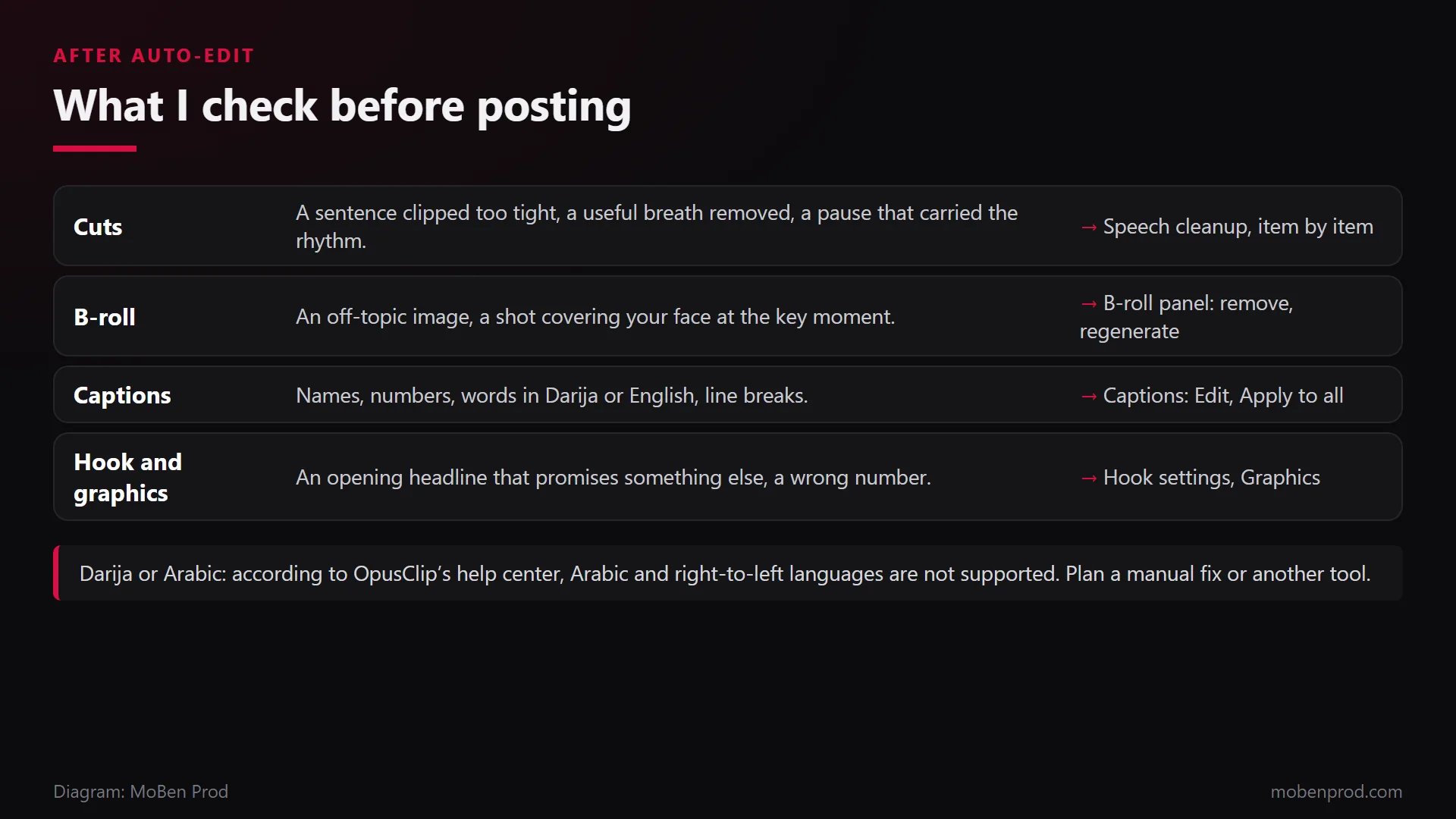
Auto-edit gives you a first cut, not a video to post blindly. I always review these four points.
The cuts
Open Speech cleanup at the top left of the editor. Filler words are highlighted in the transcript: untick the ones that are part of how you speak. Set the pause length with the slider, then listen: a pause you keep often gives a sentence its weight. For bad takes, Detect now flags them in orange; remove them one by one rather than with Remove all. The Filter out menu then hides the deleted parts.
The B-roll
In the B-roll panel, look at each spot: an off-topic image, or a shot covering your face just as you say the key point, can be removed or regenerated with another prompt. Recent B-roll takes you back to an earlier result. A stock shot cannot be extended past its original length.
The captions
Click a word, then Edit, to correct it. Apply to all fixes the same word everywhere in the clip, and the Add to brand vocabulary box adds it to your vocabulary. For brand and product names, open Asset Library, then Brand Vocabulary and Add proper nouns. Each word’s timing can be adjusted with its handle. There is no bulk caption edit: each clip is reviewed on its own. For line breaks and display time, I explain my method in my guide to readable captions.
The hook and the graphics
The hook uses your first words: check that it promises what the video delivers. In Hook settings, you can change the text, hide captions while the hook plays and turn off its sound effects. Also check every number shown by the motion graphics. For the opening itself, see my notes on visual hooks.
Does OpusClip caption Darija and Arabic?
No. OpusClip’s help center says it plainly: the tool does not support any language that reads right to left, including Arabic, Hebrew, Kurdish and Persian. The language list has more than 25 languages, including French and English; many are still in beta.
So for a talking-head video in Darija, reviewing the captions is not enough: there are no automatic Arabic captions to fix. If you mix French and Darija, expect only the French parts to be transcribed properly. One help page also says filler word detection only works in English; test it on your own voice.
What I would do for a video in Darija:
- Keep OpusClip for cuts, B-roll, sound and color, but turn Captions off in the Recipe.
- Caption in a tool that handles Arabic (see the alternatives below), or in your editing software after Export to XML.
- Write your own SRT file: the help center says the uploaded file replaces OpusClip’s transcript. Since Arabic script is not supported, I would only use it for Darija written in Latin letters, and check the result before posting.
- Request the feature on OpusClip’s feature request board, as the help center invites you to.
How much does OpusClip cost, and how many credits does Auto-edit use?
Processing a video costs 1 credit per minute of the original video: a video under one minute counts as 1 credit, and partial minutes are rounded down. Here are the plans listed on the pricing page in November 2026:
- Free: $0, 60 credits a month, watermark, no editing, clips exportable for 3 days, up to 1080p.
- Starter: $15 a month (monthly only), 150 credits a month, no watermark, filler and silence removal, 1 Brand kit.
- Pro: $29 a month, or $14.50 a month billed annually ($174 a year for 3,600 credits). 300 credits a month per pack, Viral Hook, Motion Graphics, image, video and stock B-roll, XML export, multiple ratios, speech enhancement.
- Business: custom pricing, with API and integrations.
Some edits use extra credits, according to the help center:
- Motion graphics in Auto-edit: 6 credits per minute of video.
- Auto SFX: 7 credits per minute of clip, nothing if no sound is added.
- Speech enhancement: 3 credits per 30 seconds.
- Viral hook: 2 credits in the editor, 20 credits for up to 10 clips.
- AI B-roll: charged per minute when you create a project, with the cost shown first; stock B-roll is free.
The Summary shows the total before you run it. On a monthly plan, credits last 60 days; on a yearly plan, 12 months. At the 4.0 launch, OpusClip also offered 40% off the first month of monthly Pro.
What are the limits of OpusClip Auto-edit?
- It is designed for talking videos. Viral hook and Motion graphics work best with a single person on camera.
- No Arabic or right-to-left language, and several languages still in beta.
- One ratio per run, and no Recipe saving from the editor.
- XML export is Pro only and recommended up to 1.5 hours of video. Animated captions arrive in Premiere as an overlay you cannot edit, with a separate .srt file.
- On the free plan, a watermark and clips lost after 3 days.
- Processing time: the help center mentions about 30 seconds to find B-roll spots or to run Auto SFX on most clips, longer for a long video. No overall time is given.
What are the alternatives to OpusClip for editing a talking-head video?
I checked these tools on their official pages in November 2026. When Arabic is mentioned, it is the vendor’s page that says so; always test Darija on a short sample before a project.
Editing a whole talking video
- Descript: editing through the transcript. Its help center lists 26 languages, all in the Latin alphabet: no Arabic. One language per file, and filler word detection in English only.
- CapCut: automatic captions; its official guides say the feature supports Arabic.
- Captions: a captioning and editing app. Its help center lists Arabic among caption languages and offers a “multiple languages” option for videos that mix languages.
- Adobe Premiere and DaVinci Resolve: both take OpusClip’s XML export, so you can finish the edit, set the rhythm and redo the captions.
Adding animated captions
- Submagic: animated captions, B-roll and clipping. Its language page lists 118, including Arabic.
Cutting a long video into clips
- Vizard: turns a long video into short clips ready for social media.
- Klap: cuts vertical clips with a virality score, active-speaker reframing, captions and scheduling; its website says it transcribes in 99+ languages, including Arabic.
For a wider look at the tools I use, see my tools for video editing and graphic design.
Should you hand your talking-head edits to OpusClip?
For regular talking videos in French or English, yes, as a starting point. The tool does not edit in your place: it takes away the repetitive tasks (cutting silences, first captions, first B-roll) so you spend your time on what matters, the rhythm, the take to keep, what the picture should say. Recipes make that gain consistent from one video to the next.
For a talking-head video in Darija, it is not yet the right tool for captions. In every case, measure the real time saved, review included, with my method for testing a tool before using it for clients.
Frequently asked questions
Is OpusClip 4.0 free?
There is a free plan with 60 credits a month, but with no editing, a watermark and clips exportable for 3 days. Viral hook, Motion graphics, AI video B-roll and Auto SFX need the trial or the Pro plan.
Can you use a Recipe without a Brand kit?
Yes. Choose No brand kit and set the styles directly on the Recipe page. With a Brand kit selected, the kit controls the caption and headline styles.
Can you continue an OpusClip edit in Premiere?
Yes, on Pro, with Export to XML. You get the original video, an .xml file with the cuts, reframing and B-roll, and an .srt file. Animated captions come in as an overlay you cannot edit: fix them in OpusClip before exporting, or start again from the .srt.
Does OpusClip remove filler words in French?
One help page says filler word detection only works in English. The Speech cleanup panel shows what it found before cutting: run a test on one of your videos and cut by hand what it missed.
A tool can propose a first cut; deciding what the video should say is still the editor’s job. If you want Reels and short-form content edited with that eye, here is how I work on short-form content.
Go further