
Missed a shot on set? Generate it with Firefly inside your edit
The Firefly video editor (Video, then Edit multi-track video) generates a shot from a text prompt and places it next to your footage. Here are the exact steps, the settings, the credit cost, 21 prompts ready to copy and how to make the shot match.
MoBenFreelance video creator
Contents
- What is the Firefly video editor?
- How do you generate a missing shot in Firefly, step by step?
- Which settings should you use: shot size, angle, motion, style?
- How many credits does a generated shot cost?
- Which prompts work for a missing shot?
- How do you keep the shot consistent with the rest?
- Can you use these shots in an ad for a client?
- What other options are there for a missing shot?
- My view as an editor
- Frequently asked questions
Yes, you can generate a missed shot without going back to shoot. In Adobe Firefly, open Video, then Edit multi-track video, import your footage, open the Generate media panel, describe the missing shot and pick the shot size, camera angle, motion and style. You then drag the generated clip onto the timeline, next to your own footage. It uses Firefly credits, and the editor is still in beta.
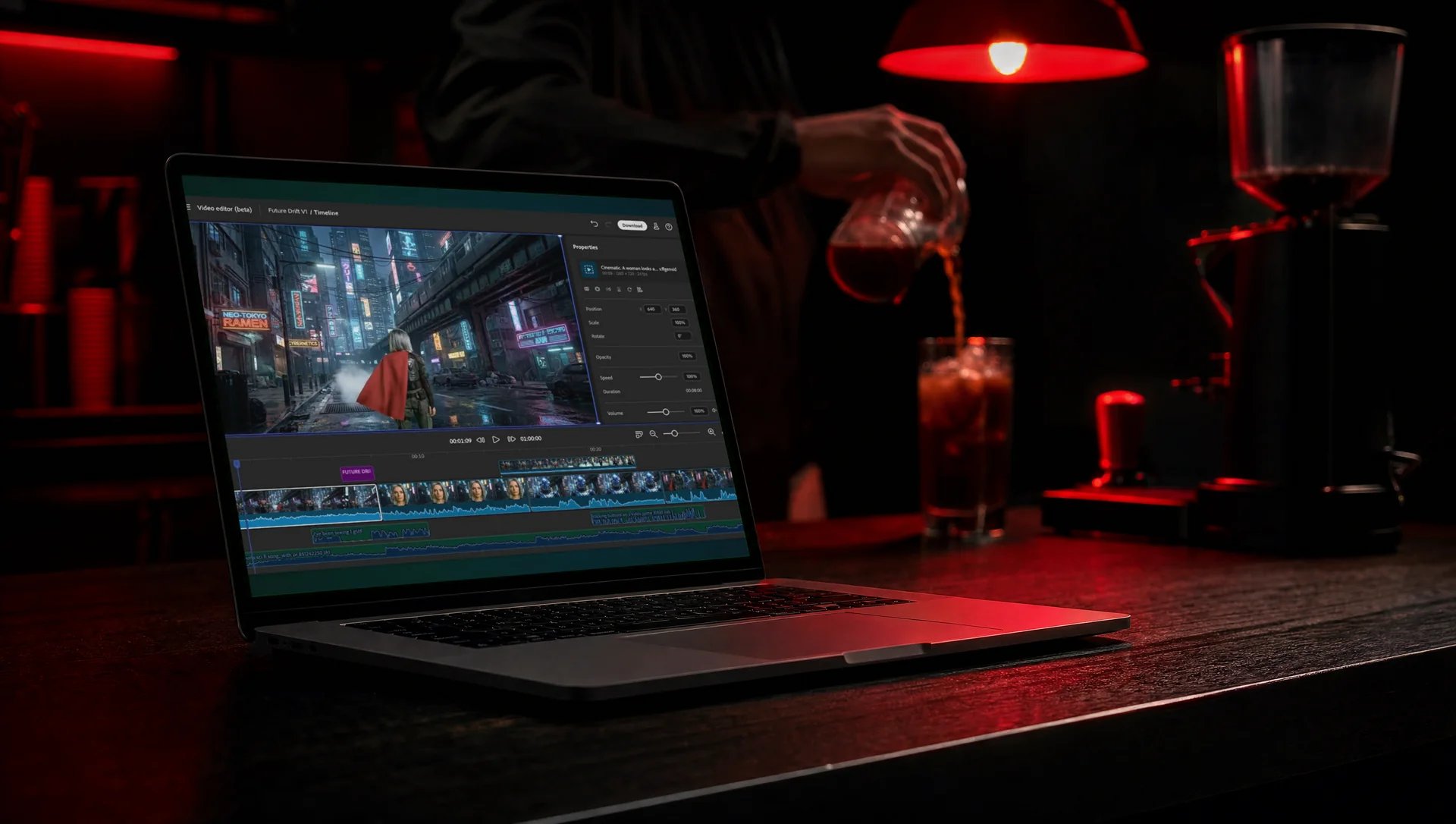
I know the situation well: the shoot is over, you start editing, and you realise an important shot is missing. The coffee being poured in the restaurant ad, the product close-up, the view of the building. And no time to go back. That is exactly what this feature is for.
What is the Firefly video editor?
It is an editing app that runs in the browser, at firefly.adobe.com. Adobe released it as a public beta in December 2025 under the name Firefly video editor, and its help pages now call it Timeline. According to Adobe's overview, it handles several tracks (video, audio, text), text-based editing from the transcript, and clip generation without leaving the editing screen.
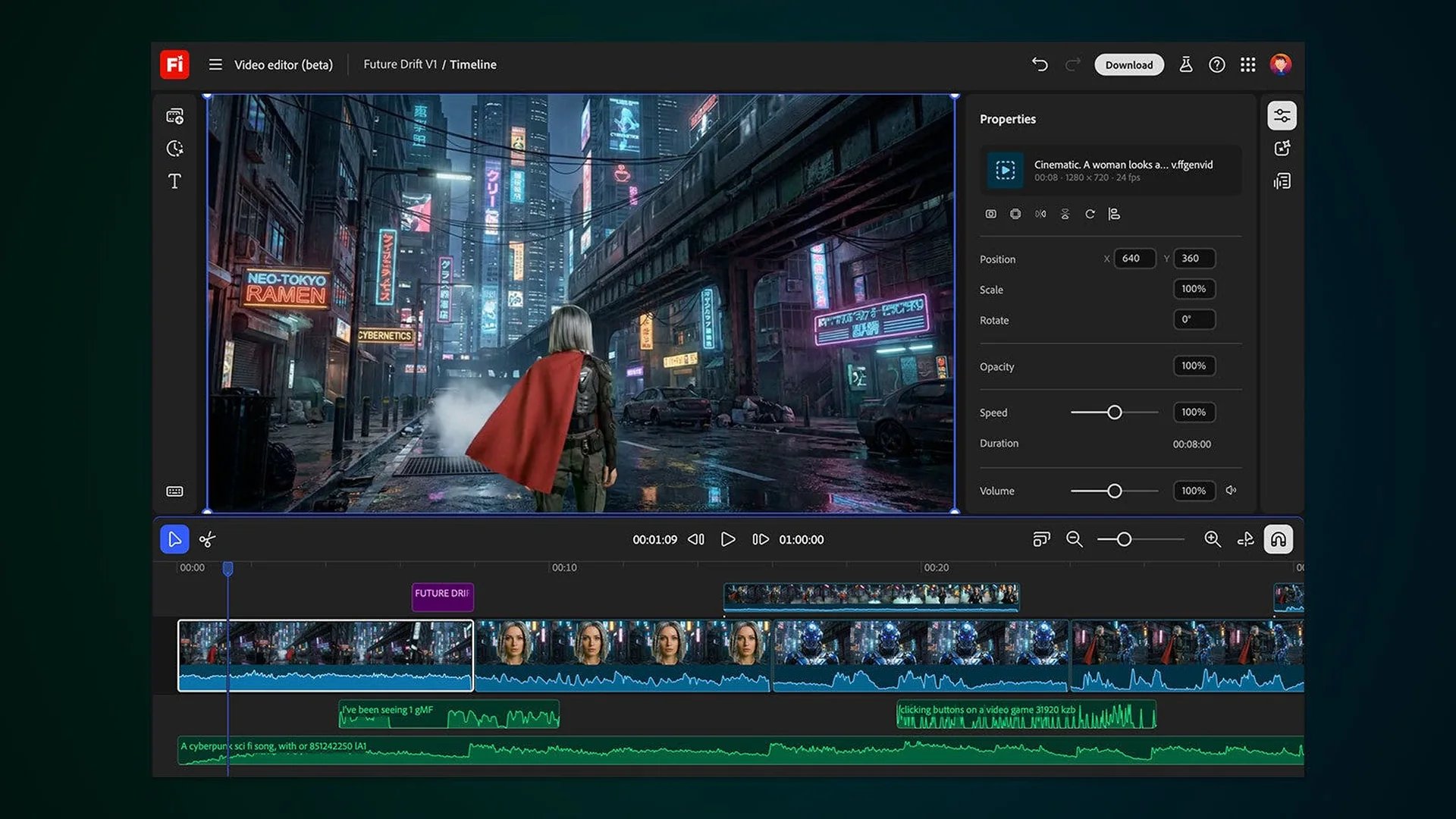
A few limits to know before you start, from the known limitations Adobe published in November 2026:
- Supported browsers: Chrome and Edge. Firefox and Safari may not give access to every feature.
- Computers: Macs (Apple silicon or Intel) and Windows PCs with Intel processors.
- Each imported file must be under 20 GB, under 4 hours long and no larger than 4096 x 4096 pixels.
- Animated GIF and WebP files only show their first frame on the timeline.
How do you generate a missing shot in Firefly, step by step?
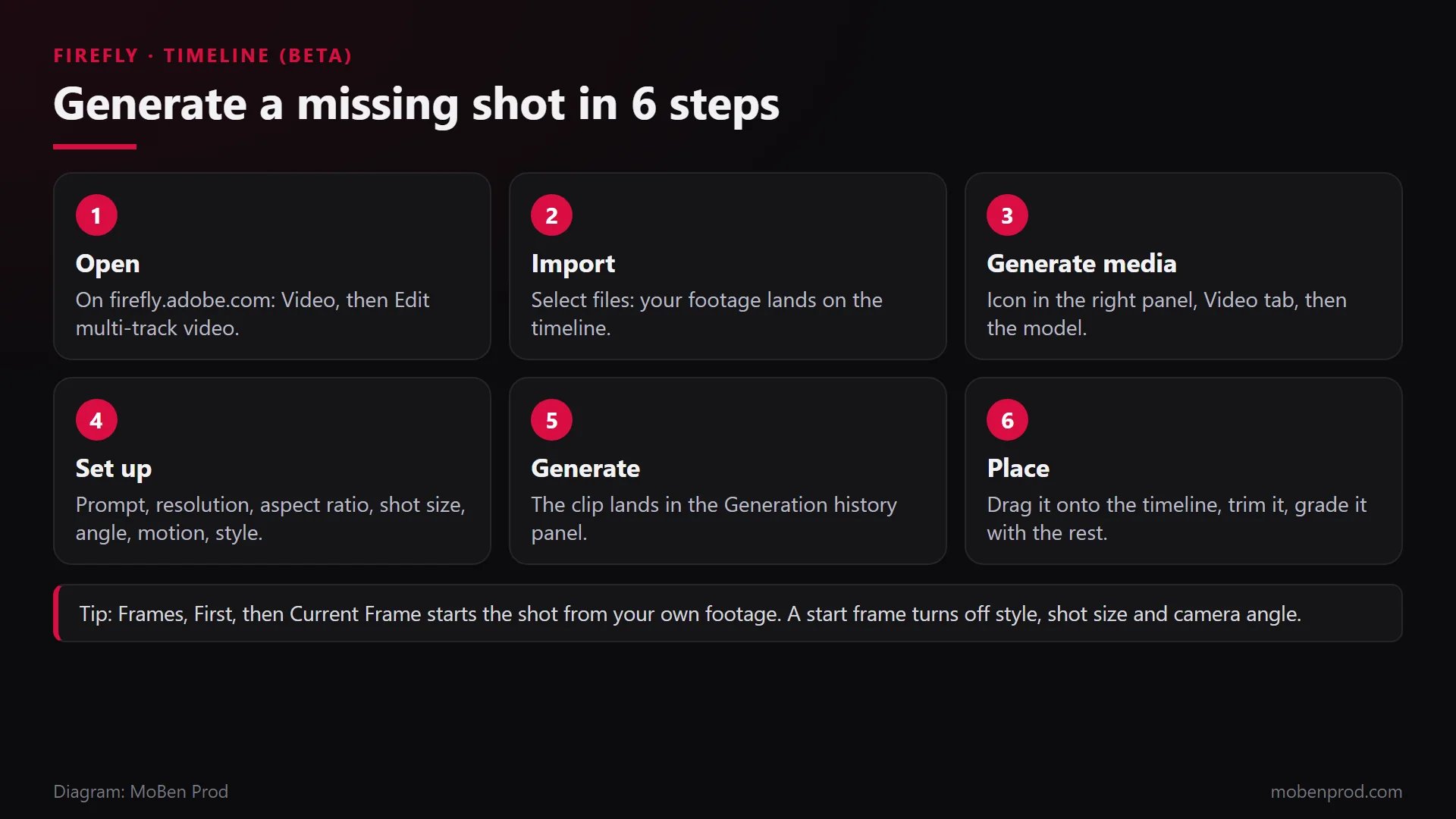
Here is the exact path, with the menu names as they appear in the interface and in Adobe's help:
- Open Firefly at firefly.adobe.com in Chrome or Edge and sign in with your Adobe account.
- On the home page, choose Video, then Edit multi-track video. This is the multi-track editor.
- Import your footage. In the timeline panel, click Select files: files can come from your computer, your Adobe cloud storage or Adobe Stock, and they are added to the timeline. Another route: the menu (three lines), then Import, then Your device.
- Put the playhead where the gap is. You will need it to start from the right frame.
- Open Generate media. It is the icon in the right panel. Select the Video tab if needed.
- Choose the model in the Model menu under General settings: Firefly Video, or a partner model (Veo, Kling, Luma, Runway).
- Write the prompt describing the missing shot. Ready-to-copy prompts are further down.
- Set Resolution and Aspect ratio. For Firefly Video, resolution goes from 540p to 1080p. By default, the clip lasts 5 seconds at 24 frames per second. Use the same aspect ratio as your timeline, for example 16:9 or 9:16.
- Start from your own frame if you want (Frames). Under Frames, add a first frame (First), a last frame (Last) or both. First or Last, then Current Frame, grabs the exact frame under the playhead. Note: a first or last frame turns off the composition reference, the motion reference, Shot size, Camera angle and Style.
- Set the camera. Under Composition, Reference lets you upload a video whose layout Firefly follows. Under Camera: Motion reference copies the camera move of a reference video, Shot size sets the framing, Camera angle the angle and Motion the movement.
- Pick a style (Style) if you want one: 2D, 3D, Anime, Black and white, Cinematic, Claymation and more. Picking a style turns off the first and last frames in return.
- Set a Seed in Advanced settings if you plan several tries. Same seed, same prompt and same settings give similar clips.
- Click Generate. The clip lands in the Generation history panel. Drag it onto the timeline where the gap is, then trim it like any other shot.
- Export. Download button at the top right, or the menu, then Export: 720p, 1080p or 4K resolution, High, Medium or Low quality, MP4 file. You can also send the project to Adobe Premiere on desktop to finish the edit.
Which settings should you use: shot size, angle, motion, style?
With the Firefly Video model, these settings are menus. Adobe's video generation help lists these options:
- Shot size: None, Extreme close up (a detail, an eye, a hand), Close up shot, Medium shot, Long shot (the whole subject in its setting), Extreme long shot (wide view of the place).
- Camera angle: None, Aerial shot (drone view), Eye level shot (subject height), High angle shot (looking down), Low angle shot (looking up), Top down shot (straight down from above).
- Motion (camera movement): Zoom in, Zoom out, Move left, Move right, Tilt up, Tilt down, Static (locked camera), Handheld (slightly unsteady). Without a choice or a description in the prompt, no camera movement is imposed.
- Style: visual presets (2D, 3D, Anime, Black and white, Cinematic, Claymation and others). To match real footage, I usually leave style empty and describe the light in the prompt.
- Composition reference and Motion reference: you upload a video and Firefly follows its layout or its camera move. Handy when your footage has a similar shot.
- Seed: a number that fixes the starting point of the randomness, to make close variations.
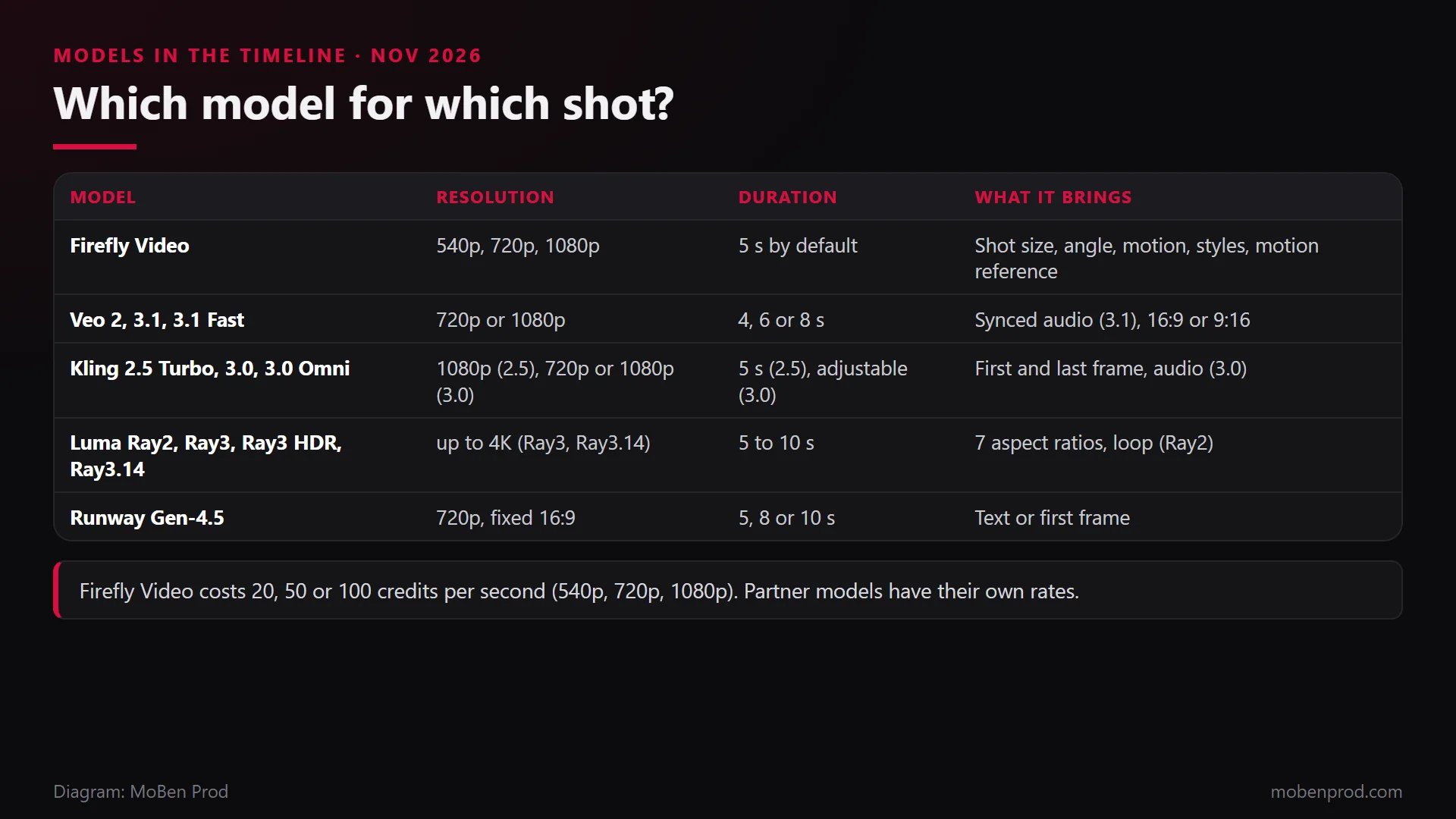
Partner models have their own settings, summarised in the table below from the help pages for Veo, Kling, Luma and Runway. Their pages do not list the Shot size, Camera angle and Motion menus: with them, framing and movement go in the prompt. Veo 3.1 and Kling 3.0 can also generate sound (Audio option).
Adobe shows these settings (framing, camera motion, composition reference, styles) in this tutorial on its official channel:

How many credits does a generated shot cost?
Video generation is paid with generative credits. According to Adobe's credits FAQ, updated on 10 November 2026, the Firefly Video model costs:
- 540p at 24 fps: 20 credits per second, so 100 credits for a 5 second clip.
- 720p at 24 fps: 50 credits per second, so 250 credits for 5 seconds.
- 1080p at 24 fps: 100 credits per second, so 500 credits for 5 seconds.
Partner models have their own rates, depending on the model, resolution and duration. Credits are taken when you start; if a generation fails, Adobe says they usually come back within minutes, sometimes up to 24 hours for video. You can queue up to 20 video generations at a time.
As for plans, here are the Firefly plans shown for Morocco in November 2026 (prices in dirhams):
- Firefly Free: free, a few generations per day.
- Firefly Standard: 101 MAD per month, 2,000 credits, up to 20 five-second videos according to Adobe.
- Firefly Pro: 203 MAD per month, 4,000 credits (up to 40 five-second videos).
- Firefly Pro Plus: 507 MAD per month, 10,000 credits (up to 100 five-second videos), with unlimited generations on some video models, including Kling 2.5 Turbo, for the first year.
- Firefly Premium: 2,028 MAD per month, 50,000 credits and unlimited access to the Firefly Video model.
Creative Cloud plans without a Firefly plan only give a few tries, for example 2 video generations. Adobe also runs occasional promotions: check the pricing page on the day you subscribe.
Which prompts work for a missing shot?
I keep prompts in English: it is the language of the interface and of Adobe's own examples. Here is the structure I use, filled in this order:
[Shot size] of [subject + one clear action], [place], [light: source, direction, time of day], [camera angle + movement], [lens + depth of field], [colour grade], [texture], no text, no logos.
One subject, one action and no on-screen text: that is what comes out best. With Firefly Video, also set Shot size, Camera angle and Motion in the menus so they agree with the prompt. Here are 21 prompts ready to copy, grouped by use. Change the setting, colours and light to match your footage.
Restaurant and café
- Coffee poured into a glass: Close-up shot of hot black coffee being poured from a small metal pitcher into a clear glass, inside a warm modern café, soft window light from the left, eye level, slow push in, 50mm lens, shallow depth of field, warm amber tones, subtle film grain, no text.
- Iced coffee: Extreme close-up of iced coffee being poured over ice cubes in a tall glass, condensation on the glass, dark wooden counter, backlit by warm pendant lights, static camera, macro lens, slow motion feel, rich brown and gold tones, no text.
- Plating in the kitchen: Top down shot of a chef's hands plating grilled chicken with fresh herbs on a white plate, stainless steel kitchen counter, soft overhead light, static camera, natural colours, no faces, no text.
- Table service: Medium shot of a waiter placing a steaming tajine on a restaurant table, warm evening light with candles, eye level, slight handheld movement, 35mm lens, soft bokeh background, warm cinematic grade, no text.
- Pastry: Close-up of a croissant being torn in half, flaky layers and crumbs falling onto a marble table, morning sunlight from a window, slow push in, shallow depth of field, soft pastel tones, no text.
Product
- Rotating bottle: Close-up of a glass perfume bottle rotating slowly on a black reflective surface, single soft key light from above, dark background, slow orbit around the product, 85mm lens, high contrast, clean commercial look, no label text, no logos.
- Product in hand: Medium shot of a hand picking up a plain white skincare jar from a bathroom shelf, soft daylight, eye level, static camera, shallow depth of field, clean neutral colours, no text.
- Cold can: Extreme close-up of water droplets running down a cold plain aluminium can resting on ice, dark background, rim light, macro lens, slow motion feel, crisp contrast, no brand, no text.
Real estate
- Villa from above: Aerial shot of a modern white villa with a swimming pool surrounded by palm trees at golden hour, slow move forward, wide lens, warm natural colours, clear sky, no text.
- Bright living room: Wide shot of a bright empty living room with large windows and light wooden floor, morning sunlight, eye level, slow move right, 24mm lens, clean neutral grade, no people, no text.
- Opening onto the terrace: Medium shot of a glass door opening onto a sunny terrace with a sea view, camera slowly moving forward through the doorway, soft afternoon light, natural colours, no people, no text.
City and nature B-roll
- Coastal city: Aerial shot of a coastal city at sunrise, waves rolling onto a long sandy beach, slow move forward, soft pink and orange sky, light haze, natural colours, no text.
- Busy street: Long shot of a busy old medina street with people walking past colourful shops, late afternoon light, eye level, handheld, 35mm lens, warm tones, faces out of focus, no text.
- Desert: Extreme long shot of desert dunes with wind blowing sand off the crests, golden hour, static camera, telephoto lens, warm orange tones, no text.
- Leaves: Close-up of tree leaves moving in the wind with sunlight flickering through them, low angle shot, slow tilt up, shallow depth of field, soft green tones, no text.
Transitions
- Whip pan: Fast whip pan to the right across a warm café interior, strong motion blur, warm tones, 24 fps, no text.
- Dive into black: Top down shot, the camera slowly zooms into the dark surface of a cup of black coffee until the frame is completely black, shallow depth of field, no text.
- Light to overlay: Soft orange light leaks and lens flares drifting across a pure black background, no objects, no text. Adobe suggests this kind of element on a black background so you can blend it over your footage with a blend mode.
Close-ups and details
- Tea steam: Extreme close-up of steam rising from a glass of mint tea, dark background, side light, static camera, macro lens, slow motion feel, no text.
- Hands on a keyboard: Close-up of hands typing on a laptop keyboard on a wooden desk, soft window light, shallow depth of field, slow move left, neutral colours, no readable screen, no text.
- Signature: Extreme close-up of a pen signing a paper document on a desk, soft daylight, static camera, shallow depth of field, warm neutral tones, no readable text.
How do you keep the shot consistent with the rest?
This is what decides whether the shot passes or sticks out. A generated shot has to disappear into the edit, like a good invisible cut. What I check:
- Start from your own frame. Frames, First, then Current Frame: the shot starts on a real frame from your shoot. It is the best way to keep the set and the light, at the cost of the style and framing menus.
- Same light. Write the direction (from the left, backlit), the colour (warm, cool daylight) and the time (morning, golden hour, night) of your footage.
- Same lens. If you shot at 50 mm with a soft background, write 50mm lens and shallow depth of field. A shot sharp from front to back next to soft shots is spotted at once.
- Same frame rate. Generated clips are 24 frames per second. If your timeline is 25 or 30, check the movement frame by frame: a stutter gives the shot away.
- Same resolution. Generate in 1080p if you deliver in 1080p. A 540p clip scaled up looks soft next to your footage, and a 4K export adds no detail.
- Same grain. Generated shots are often cleaner than real ones. A light grain over the whole edit puts everything on the same level.
- Keep it short. 1 to 3 seconds as a cutaway. Cut before artefacts show up, and avoid faces, close-up hands, text and logos.
- Real sound. Add the room tone or a sound effect: sound makes the eye accept the picture.
Grading: how do you match the colour?
- First fix the exposure of the generated shot so it matches the shots around it (look at the waveform, not just the screen).
- Set the white balance on a neutral element in the scene: a white wall, a plate, a tablecloth.
- Adjust saturation and contrast: compare the blacks and highlights with the neighbouring shots.
- Then apply the same look or LUT as the rest of the edit, last.
- Add grain and, if your footage is a little soft, a slight blur rather than extra sharpening.
For precise grading, I finish in Adobe Premiere: the Firefly editor can send the project to Premiere on desktop.
Can you use these shots in an ad for a client?
For Adobe's own model, yes, according to Adobe. Its FAQ on generating in Premiere puts it this way:
“Adobe Firefly models are designed to be commercially safe and are trained on licensed and public domain content.” (Adobe)
- Partner models: Adobe says it is up to you to judge whether a partner model suits your project. Some are not yet open to business plans.
- Your files: according to Adobe, your prompts, media and reference frames are not used to train Adobe's models or partner models.
- Content Credentials: Adobe builds in this provenance information to show how content was made. You set your preferences on the Adobe Content Authenticity site.
My view as an editor: tell the client, and keep what you sell real. A generated coffee to set the mood of a restaurant is fine. A generated dish shown as the dish on the menu is not: the ad would show something the client does not serve.
What other options are there for a missing shot?
Firefly is not the only route. Here are the alternatives, checked on their official pages in November 2026.
In Adobe Premiere
- Generative Extend: lengthens a shot that is too short by up to 2 seconds of video, and the background sound by up to 10 seconds (not dialogue). Cost: 125 credits per second at 1080p and 30 fps, for example. Ideal when the shot exists but ends too early.
- Generative Media Tool: you select a range on the Premiere timeline, write the prompt and choose the model (Firefly or partners such as Veo, Kling and Luma). It can start from frames of your sequence and shows the estimated credit cost before generating.
In Firefly
- Prompt to Edit: according to Adobe's December 2025 announcement, it fixes a generated clip with a written instruction (remove an object, change the sky) using Runway's Aleph model, without regenerating everything.
- Adobe Stock: the editor imports videos straight from Adobe Stock. A real stock shot sometimes matches better than a generated one.
Online video generators
- Runway: the Gen-4.5 model makes a clip from text or an image, and Aleph edits an existing video.
- Google Flow: Google's tool built on Veo 3.1. According to Google, it generates between a first and a last image (Frames to Video), extends a shot (Extend) and follows several reference images (Ingredients to Video).
- Kling AI: the Kling 3.0 and 3.0 Omni models handle first and last frames and synced sound.
- Luma Dream Machine: the Ray3 models go up to 4K, with an HDR version.
- Higgsfield: a platform that brings several video models together. I covered one of its features in my article on Higgsfield Content Factory.
My view as an editor
For a 2 second cutaway (a coffee, a shopfront, a detail), it is a real rescue, and it costs less than half a day of shooting. For a main shot, a talking face or the client's product, I still prefer to reshoot or use a real stock shot.
Plan several tries per shot, so several times the credit cost. Before you adopt it, test it on a real project and measure the time saved, as I explain in my method for testing a tool. And the best fix is still not to miss the shot: a clear shot list on set, as in shooting for the edit, prevents most of these gaps.
Frequently asked questions
Is the Firefly video editor free?
The editor opens with an Adobe account, and the Firefly Free plan gives a few generations per day. To generate shots regularly you need credits, so a paid plan from 101 MAD per month (Standard). The editor is still in beta.
How long is a generated shot?
With Firefly Video, 5 seconds at 24 frames per second by default. Veo offers 4, 6 or 8 seconds, Runway Gen-4.5 5, 8 or 10 seconds, and Luma 5 to 10 seconds. To go longer, Adobe suggests using the last frame of one clip as the first frame of the next.
Can I start from a frame of my own footage?
Yes. Under Frames, choose First or Last, then Current Frame to grab the frame under the playhead, or upload an image. The shot then starts or ends on your frame, but the Style, Shot size and Camera angle menus are turned off.
Will the generated shot be 4K?
Firefly Video generates up to 1080p. In the timeline, only the Luma Ray3 and Ray3.14 models offer 4K. The editor exports up to 4K, but that adds no detail to a clip generated in 1080p.
Preparing an ad and missing footage, or want to avoid the problem from the shoot onwards? I can handle the shoot, the edit and the extra shots: see what I offer for video ads.
Go further