AI tools for video editing and graphic design: the 15 worth knowing
Captions, silences, short-form clips, background removal, generated visuals: here are 15 AI tools for video editing and graphic design, grouped by use, from Premiere Pro, Descript and CapCut to Photoshop, Canva and Photoroom. What each one really does, what’s free, and how to choose.

MoBenFreelance video creator
Contents
- Quick comparison: which AI tool for which job?
- AI video editing tools: transcription, audio and color
- AI plugins to cut silences and edit podcasts
- AI tools for Reels, TikTok, Shorts and short ads
- AI tools for graphic design: generate and retouch visuals
- AI tools to remove the background from an image
- How to choose the right AI tool for editing or design
- Using AI without losing your creativity
- Key takeaways
- FAQ
The most useful AI tools for video editing and graphic design are the ones that take repetitive work off your plate: transcribing and captioning (Premiere Pro, Descript), cutting silences (FireCut, AutoPod), pulling short clips from long videos (OpusClip, CapCut), cutting out and retouching images (Photoshop, remove.bg, Photoroom) or generating visuals (Firefly, Canva). Here are 15 tools grouped by use, with what they actually do, what’s free or paid, and a simple way to choose.
AI doesn’t replace an editor’s eye, a sense of pacing or a designer’s art direction. What it gives you back is time on the work that takes no taste: finding one sentence in an hour of footage, removing dozens of silences, cutting out a batch of product photos. You reinvest that time in shot selection, pacing and visual identity.
Features and plans checked on each vendor’s official website in October 2026. They change fast, so check the current terms before you subscribe.
Quick comparison: which AI tool for which job?
One line per tool, with the pricing model the vendor announces.
- Premiere Pro: pro editing, transcription, translated captions, footage search. Adobe subscription, free trial.
- Descript: text-based editing for podcasts and talking-head videos. Free plan, paid tiers.
- DaVinci Resolve: editing, color, effects and audio in one app. Free version; advanced AI tools in the paid Resolve Studio.
- FireCut: silences, captions, zooms and chapters in Premiere Pro and DaVinci Resolve. Free trial, then paid.
- AutoPod: automatic multicam podcast editing in Premiere Pro. Monthly subscription, 30-day free trial.
- CapCut: Reels, TikTok and Shorts, auto captions, long video to shorts. Free download (mobile, desktop, web).
- OpusClip: short clips from long videos, animated captions, scheduled posting. Free sign-up, paid tiers.
- Runway: video generation and prompt-based editing of existing footage. Free to try, then paid credits.
- Photoshop (Generative Fill): add, remove or expand parts of an image. Adobe subscription.
- Adobe Firefly: generated images, vectors, video, sound effects and voices. Limited free plan, paid credits.
- Canva AI: social visuals, images and videos generated inside the editor. Free, some AI features need Canva Pro.
- Figma AI: design directions, mockups and prototypes. Monthly AI credits included, even on the Starter plan.
- remove.bg: automatic background removal, Photoshop and Figma plugins. Free preview, credits for high resolution.
- Adobe Express: image and video background removal, then layout. Free plan.
- Photoroom: product photos, generated backgrounds and scenes, batch editing. Free to start, Pro plan.
AI video editing tools: transcription, audio and color
These three editors build AI straight into your workspace: no exports, no back-and-forth between apps.
Adobe Premiere Pro: transcription, search and Generative Extend
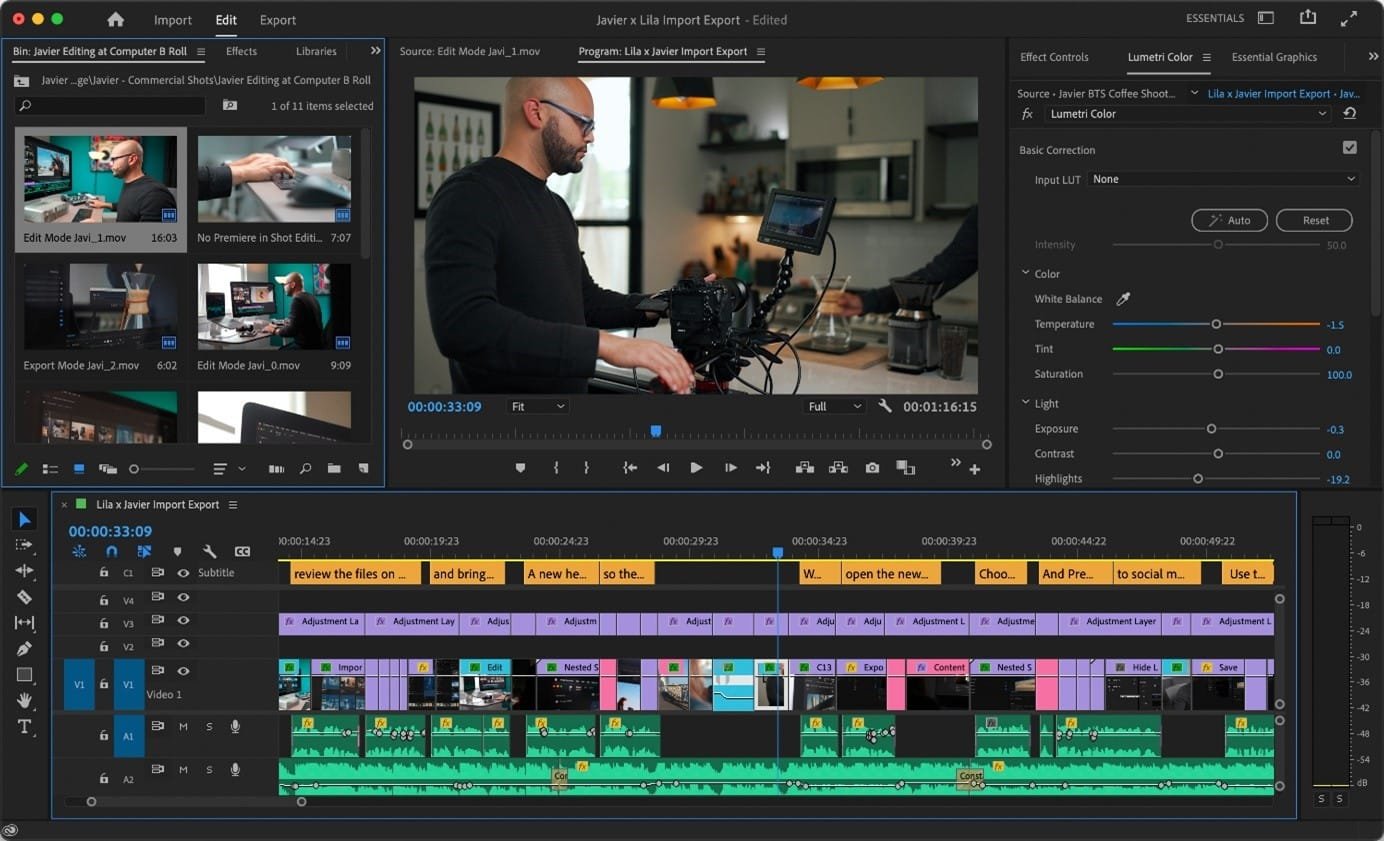
Premiere Pro’s AI features cover the whole logging stage: automatic transcription in more than 18 languages, text-based editing, captions translated into 27 languages and Media Intelligence, which finds clips from a plain-language description. Enhance Speech cleans up dialogue recorded in noise, Auto Reframe turns 16:9 into 9:16 while keeping the subject in frame, and Object Mask masks and tracks a subject with one click.
On the generative side, Generative Extend, powered by Firefly, adds a few frames to the start or end of a clip or lengthens ambient sound that runs short. Adobe notes that free use of these generative features is limited. For an interview or a video podcast the gain is concrete: instead of hunting for one sentence in 40 minutes of footage, you find it in the transcript and build your rough cut from the text.
Descript: edit video like a text document
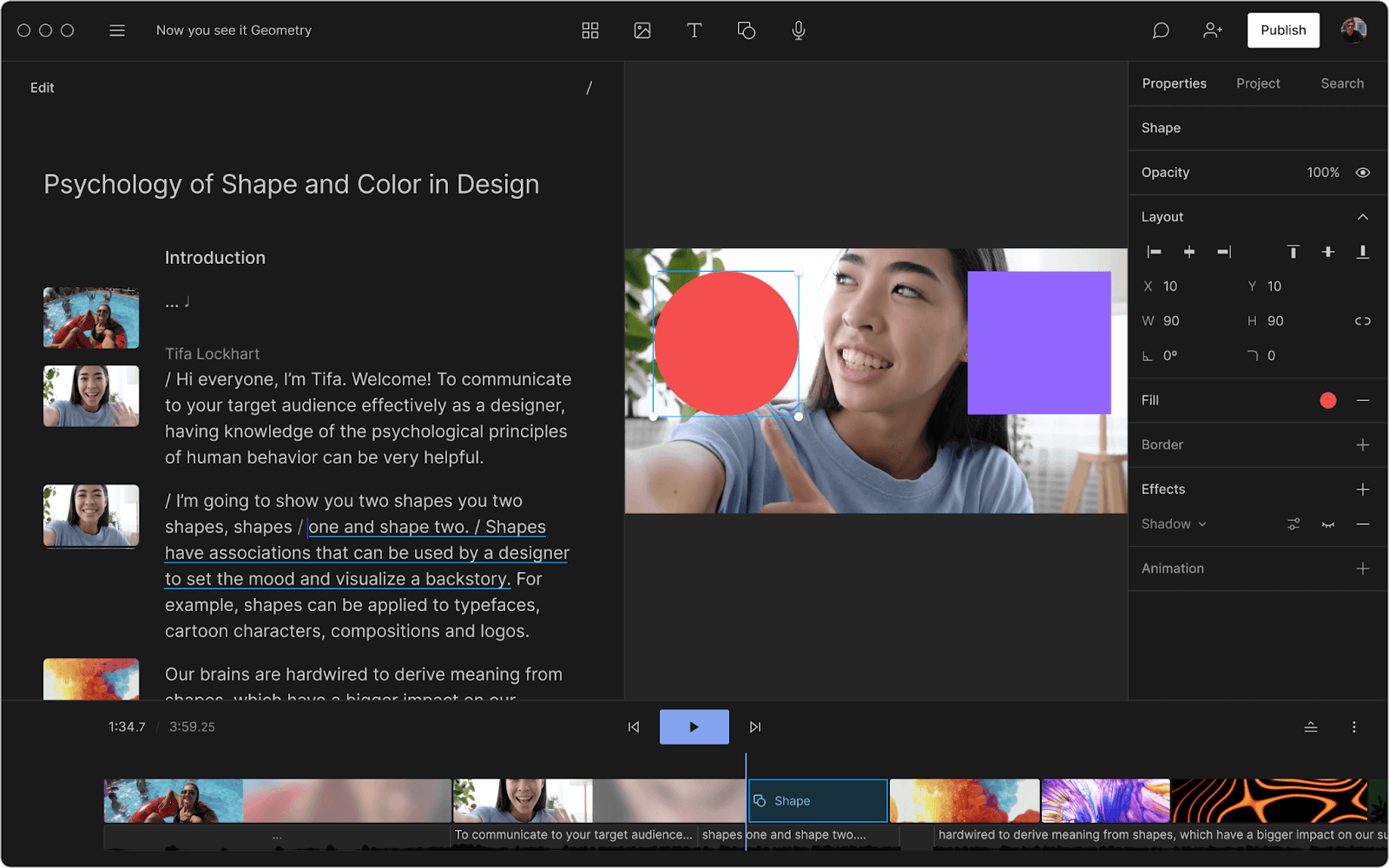
Descript transcribes your video and lets you edit it by deleting words in the text, like a word processor. It adds Studio Sound to clean up voices, Remove Retakes, Eye Contact correction, captions and clip creation, plus an AI agent, Underlord, that chains several of these tasks. A free plan lets you start.
One limit to know if you edit in other languages: according to Descript’s help article on filler words, automatic detection of “um” and “uh” only works on English transcripts. For a French or Arabic podcast, you remove hesitations from the transcript by hand.
DaVinci Resolve: editing, color and AI in one app
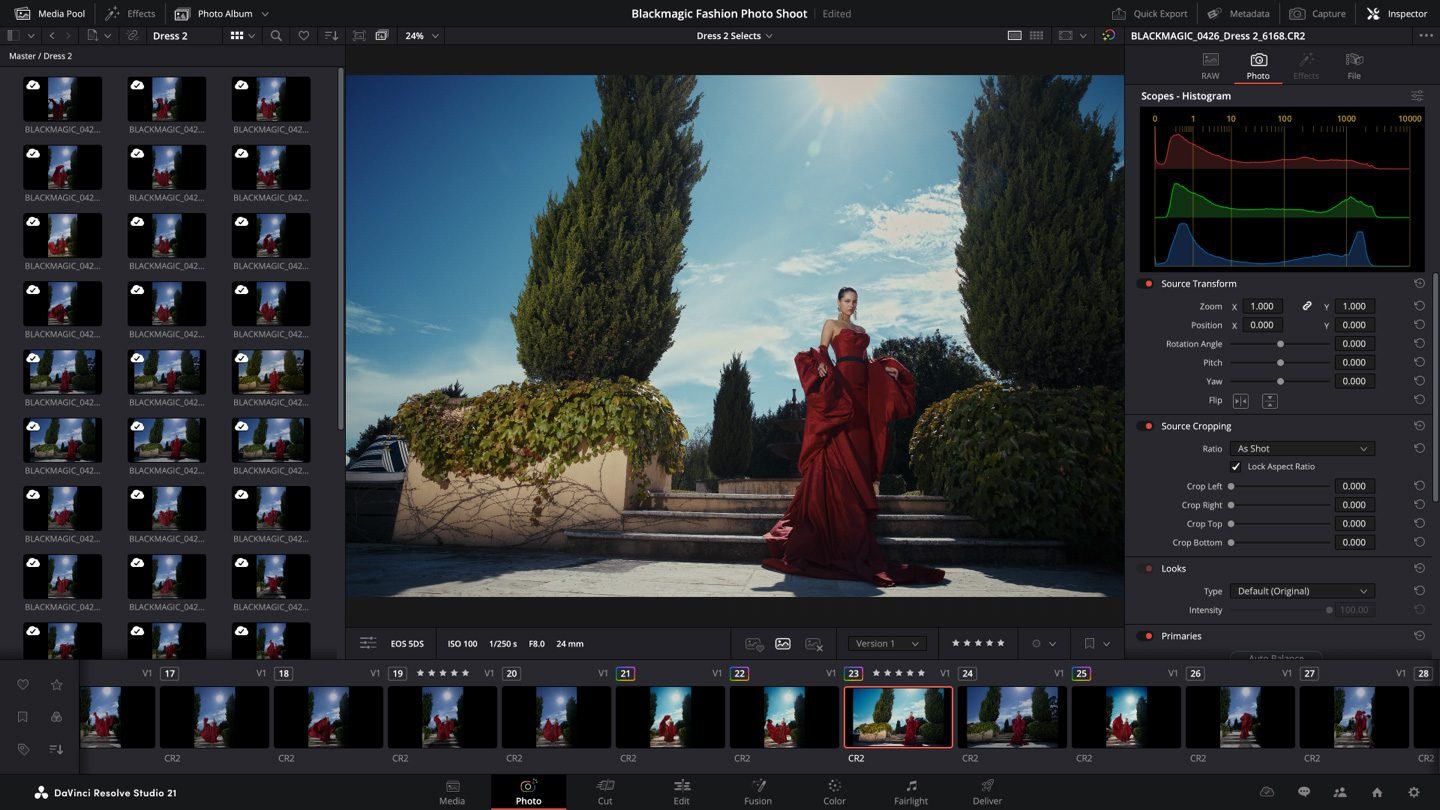
DaVinci Resolve combines editing, color grading, visual effects, motion graphics and audio post in a single app, and version 21 even adds a Photo page for grading RAW stills. The free version is enough to edit and grade in Ultra HD at up to 60 fps. The main AI tools, grouped in the DaVinci AI Neural Engine (Magic Mask, text-based editing, AI noise reduction, smart reframing, Speed Warp), are reserved for the paid DaVinci Resolve Studio.
It’s the logical pick if you grade a lot or want one tool from import to export. For audio, the Fairlight page adds AI effects such as Voice Isolation.
AI plugins to cut silences and edit podcasts
FireCut and AutoPod install inside your editing software and automate the first pass, the one where you clean up hours of footage.
FireCut: automatic silence cutting, captions and zooms
FireCut is a plugin for Premiere Pro and DaVinci Resolve. It cuts silences, generates captions (transcription in 50+ languages), adds zoom cuts at the right moments, detects chapters and offers an automatic first draft, the “Magic cut”. It can also switch podcast camera angles based on the content. A free trial lets you test it on your own footage.
It shines on talking-head videos, courses and long-form content: you generate a clean base, then rework the pacing by hand where an automatic cut lands too early or clips a breath.
AutoPod: multicam podcast editing in Premiere Pro
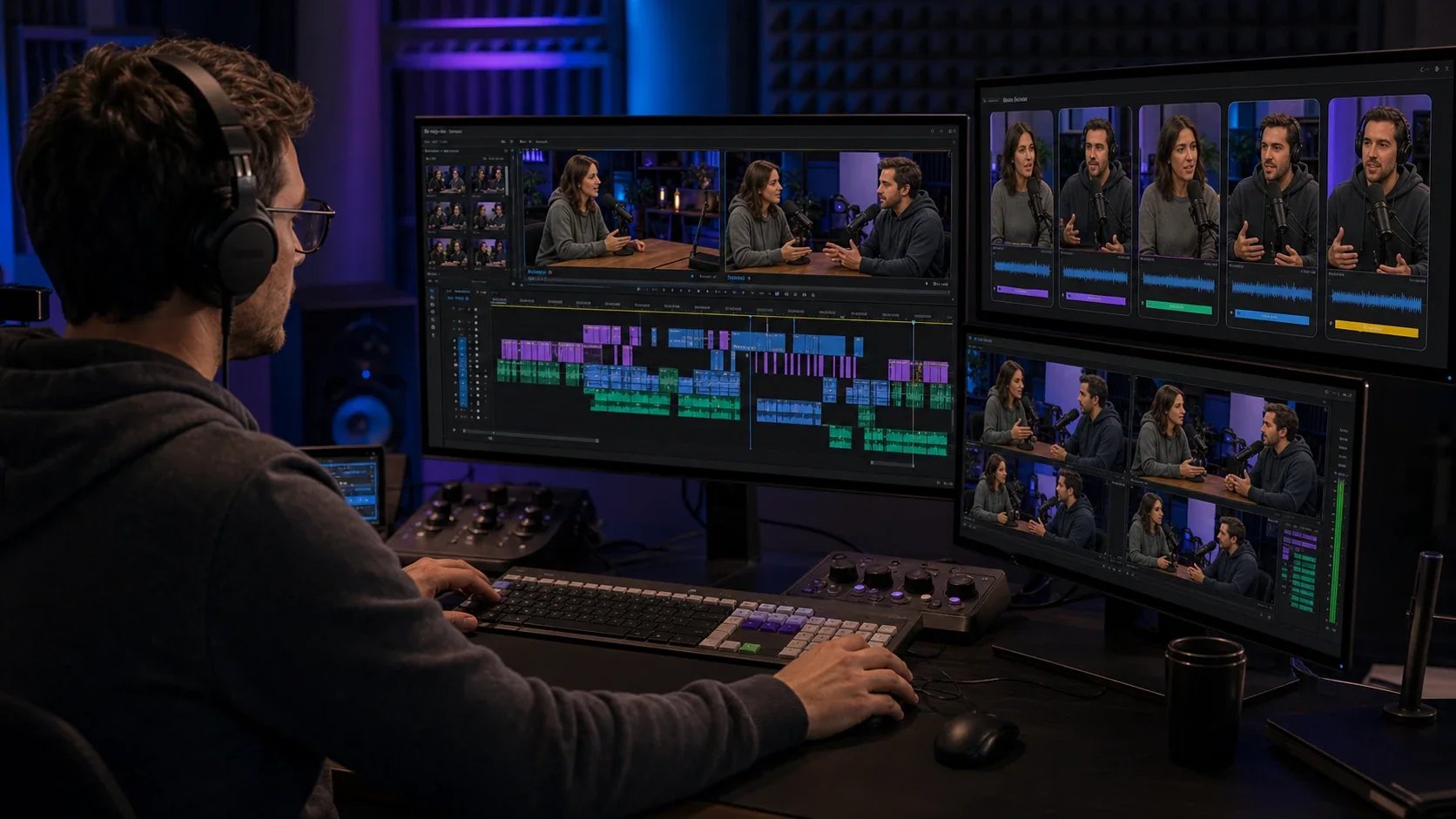
AutoPod is a plugin suite for Premiere Pro (2023 or newer). The Multi-Camera Editor automatically edits a podcast shot with up to 10 cameras and 10 mics, the Social Clip Creator turns a sequence into 16:9, 4:5 and 9:16 versions, and the Jump Cut Editor cuts silences based on a decibel threshold you set for your mics. The monthly subscription starts with a 30-day free trial.
You get a first multicam version in minutes. Then check the angle changes, the reactions and the moments when two people talk at once: that’s where automation gets it wrong most often.
AI tools for Reels, TikTok, Shorts and short ads
Here the goal is to produce fast and in volume for social media without sacrificing the first seconds of each video.
CapCut: auto captions and fast editing
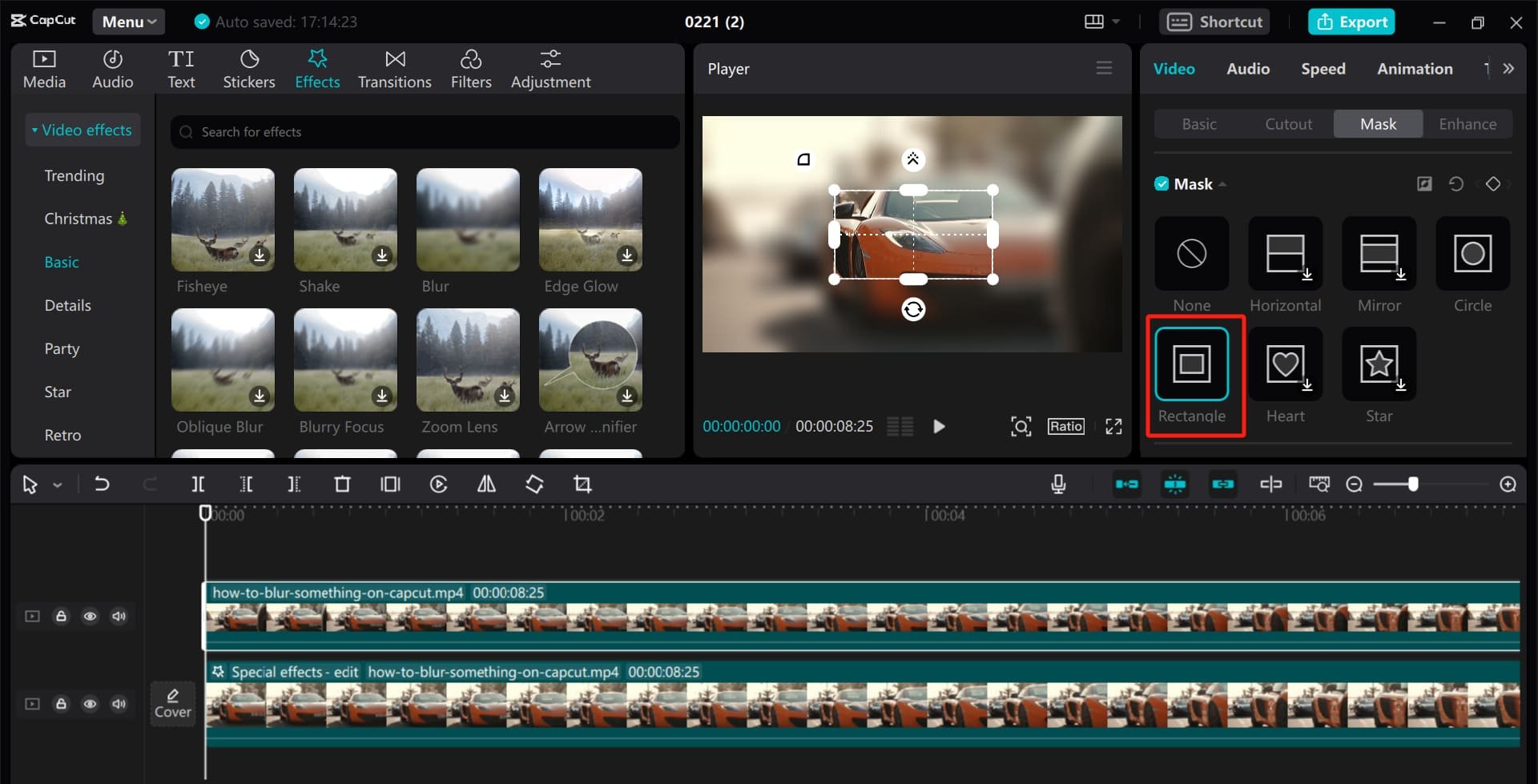
CapCut runs on mobile, desktop and the web, and is free to download. Its AI tools cover most short-form needs: auto captions, text to speech, noise reduction, background removal for images and video, reframing that keeps the subject in frame, and turning a long video into shorts.
Its strength is speed: templates, styled captions and direct export in the right format. For a small brand posting several Reels a week, it’s often the best time-to-result ratio; for finer color or audio work, Premiere Pro or DaVinci Resolve stay more precise.
OpusClip: turn one long video into short clips
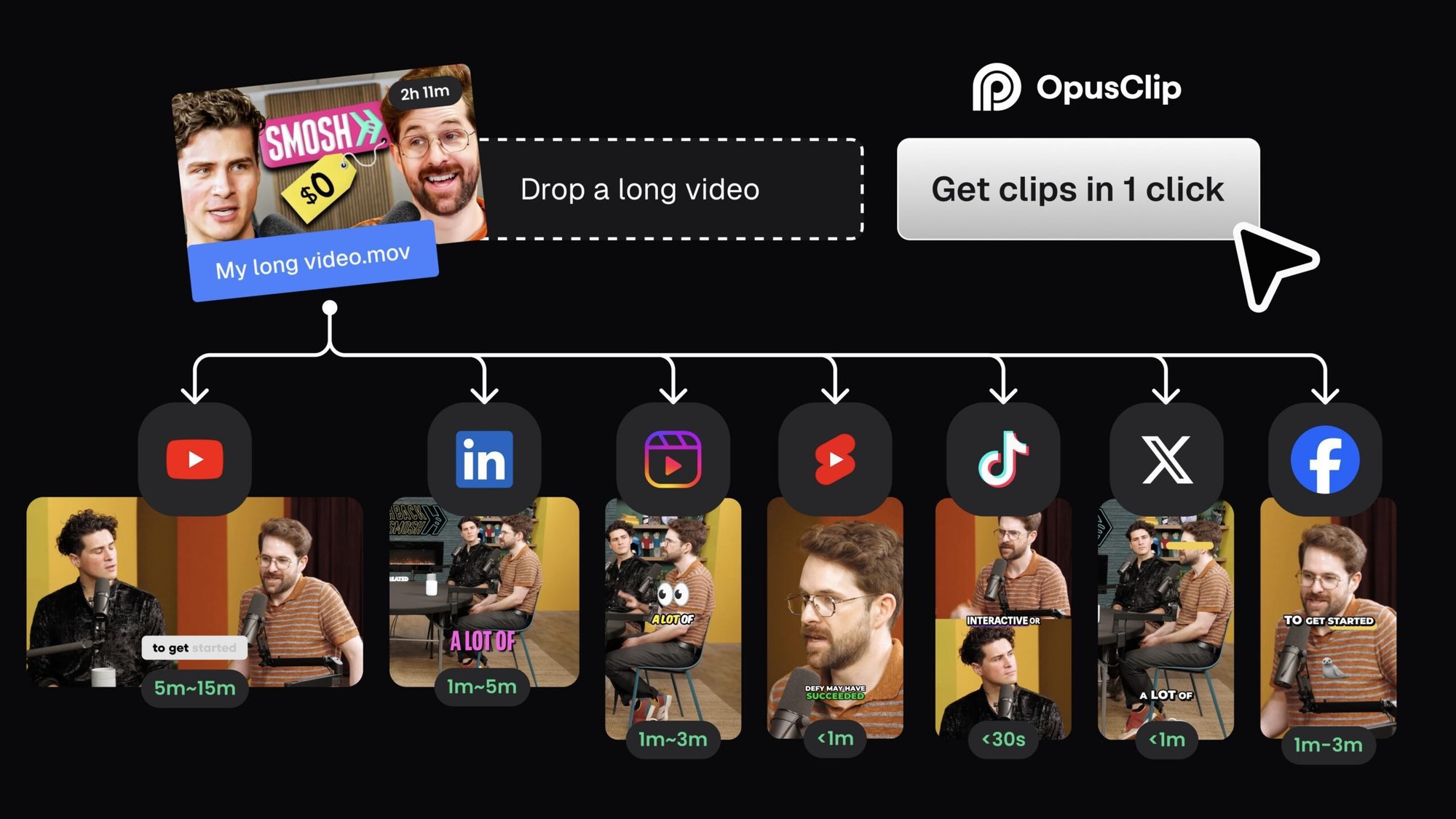
OpusClip analyzes a podcast, a webinar or a YouTube video and pulls out several short clips (ClipAnything), with animated captions, automatic reframing (AI Reframe) and AI B-roll. A built-in scheduler then posts the clips to your social accounts, and XML export lets you finish a clip in Premiere Pro or DaVinci Resolve. Sign-up is free.
The tool spots highlights, but it doesn’t know your audience or your message: review every clip, rework the visual hook in the first seconds and cut whatever doesn’t serve the idea.
Runway: generate or edit video with a prompt
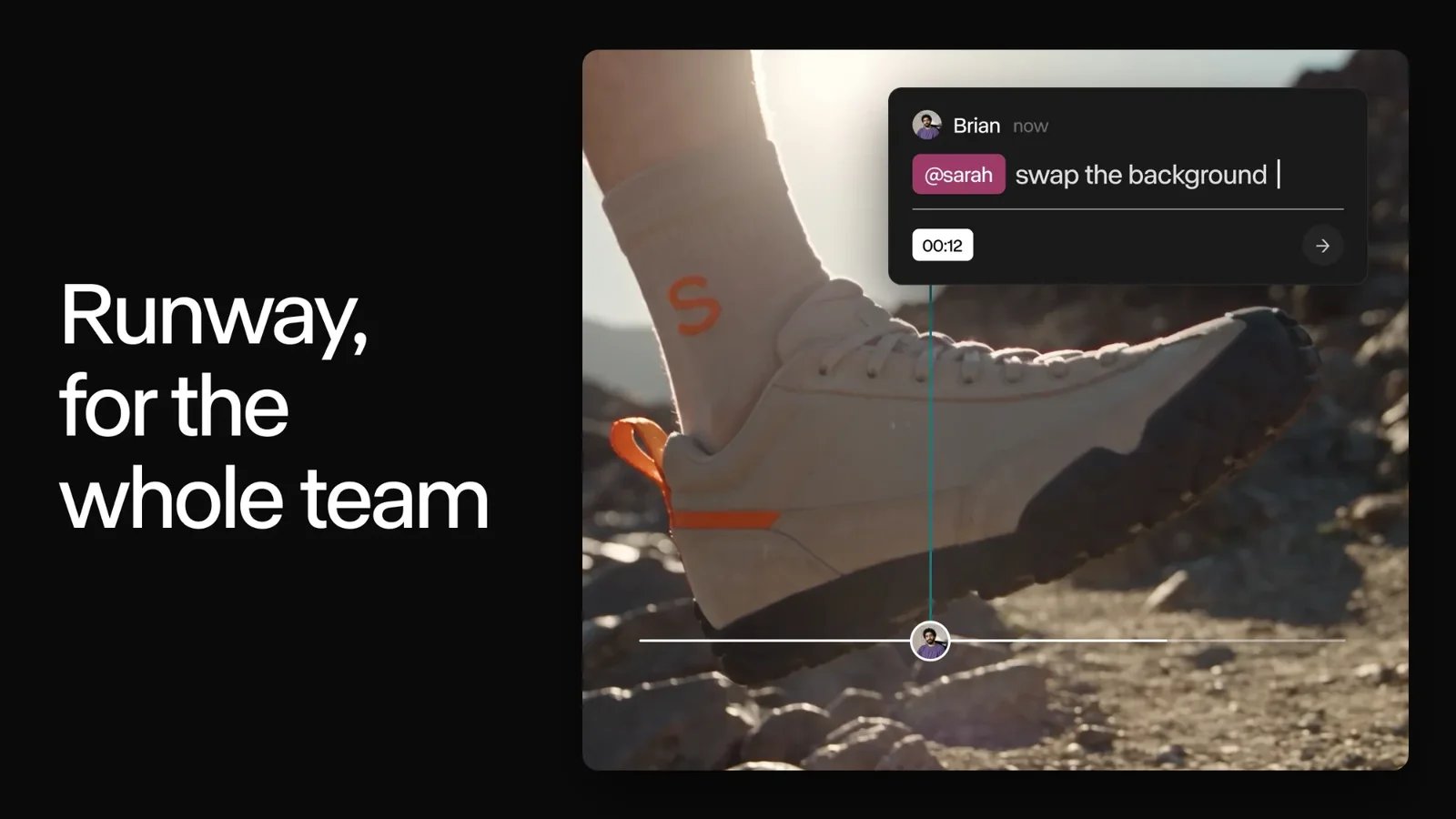
Runway is an AI video creation platform. Its Gen-4.5 model generates shots from text or an image, and Aleph 2.0 edits existing footage: swap a background, remove objects, apply a new style or turn a scene to winter, changing only what you describe. Aleph handles clips up to 30 seconds at 1080p, long enough for an ad or a social post.
It’s the tool for visual projects: ad concepts, seasonal versions of the same ad, generated backgrounds or style effects. You can try it for free, but plan for tests: every generation uses credits and results have to be judged shot by shot.
AI tools for graphic design: generate and retouch visuals
Photoshop, Firefly, Canva and Figma answer four different needs: retouching an existing image, generating a visual starting point, producing social visuals fast and designing interfaces.
Photoshop Generative Fill: add, remove or expand an image
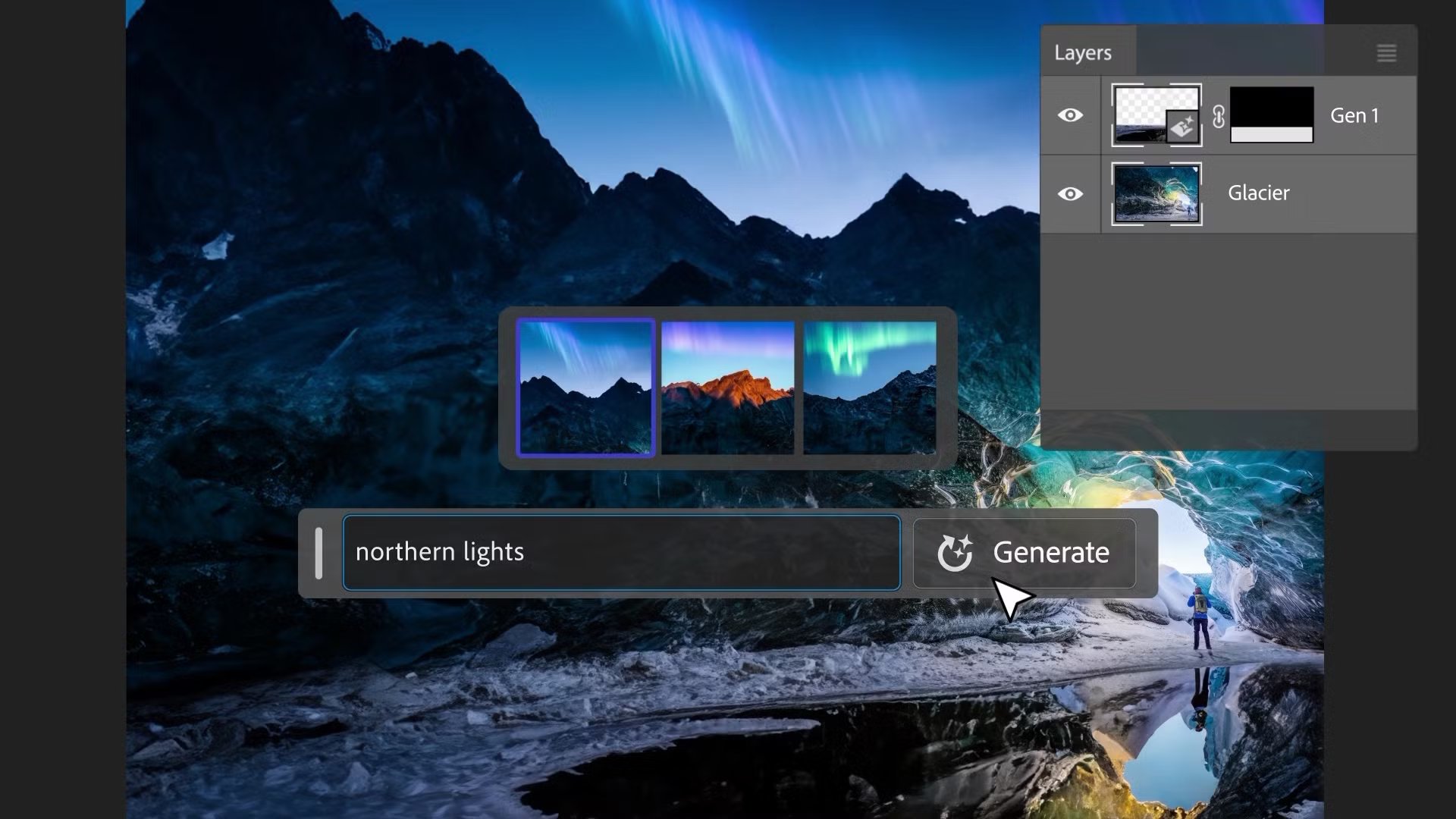
With Photoshop’s Generative Fill, you select an area, describe what you want, and Photoshop adds or replaces content on a separate layer, so your original image stays intact. Adobe uses its Firefly models and also offers partner models, including Gemini and FLUX. Generative Expand extends the canvas and the Remove tool erases distractions. Typical uses:
- removing a passer-by, a cable or a stain;
- extending a 16:9 visual to get a 4:5 or 9:16 version;
- creating a background variation for a campaign;
- fixing a composition without reshooting.
For a designer, the time saved is huge whenever an idea has to be adapted to several formats or an image fixed without starting over.
Adobe Firefly: generated images, video and audio
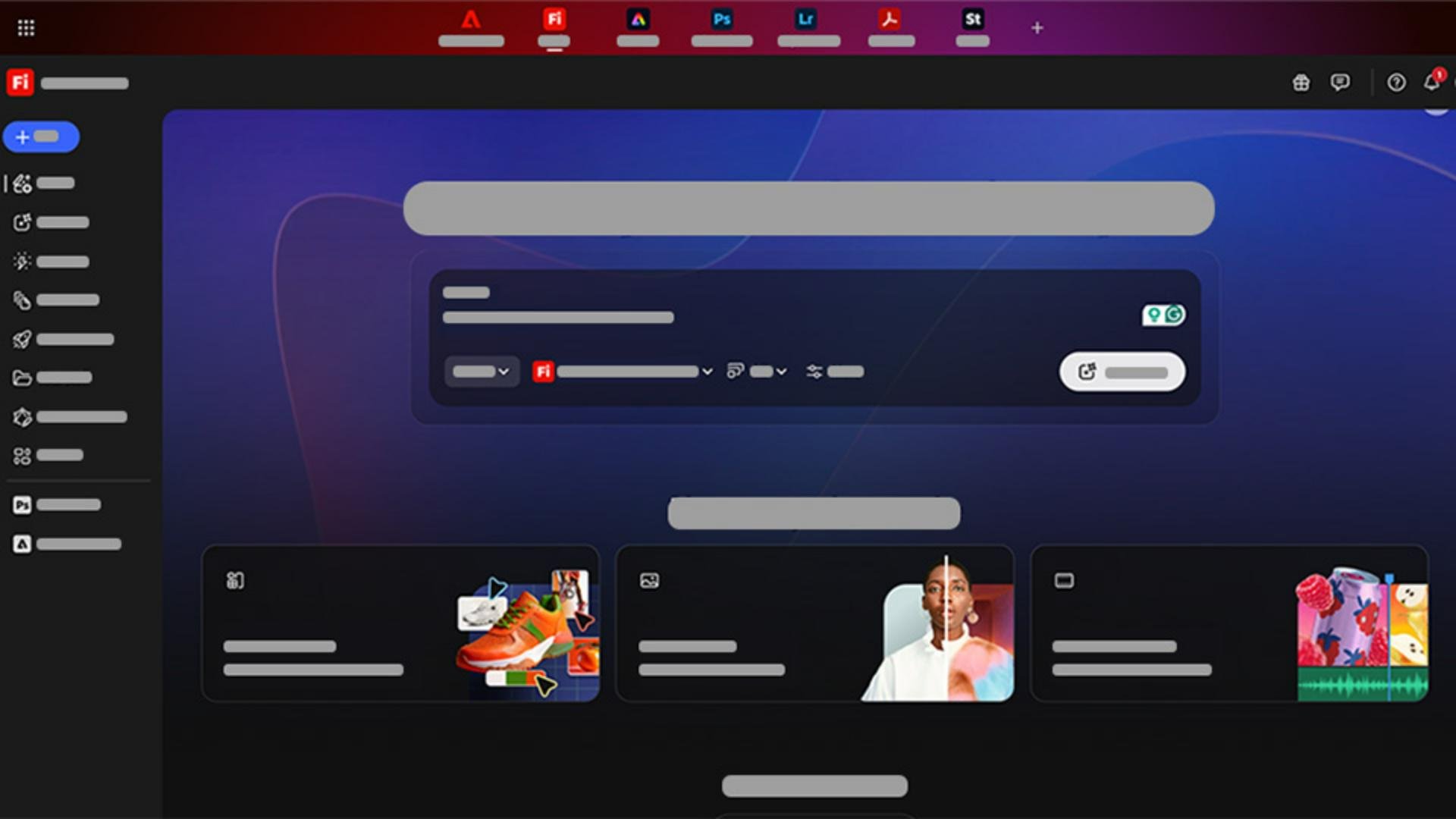
Adobe Firefly creates and edits images, vector graphics, video clips (from text or an image), sound effects, music and speech, and translates audio or video into more than 20 languages. Besides Adobe’s own models, it gives access to partner models (Google, OpenAI, Runway, ElevenLabs, Luma AI and others). Adobe says its own models are trained on licensed Adobe Stock content and public domain content.
Use it to explore: moodboards, reference images, art direction options. Finishing then happens in Photoshop, Illustrator, Premiere Pro or After Effects. The free plan gives you a few generations a day; beyond that you need credits.
Canva AI: social visuals in minutes
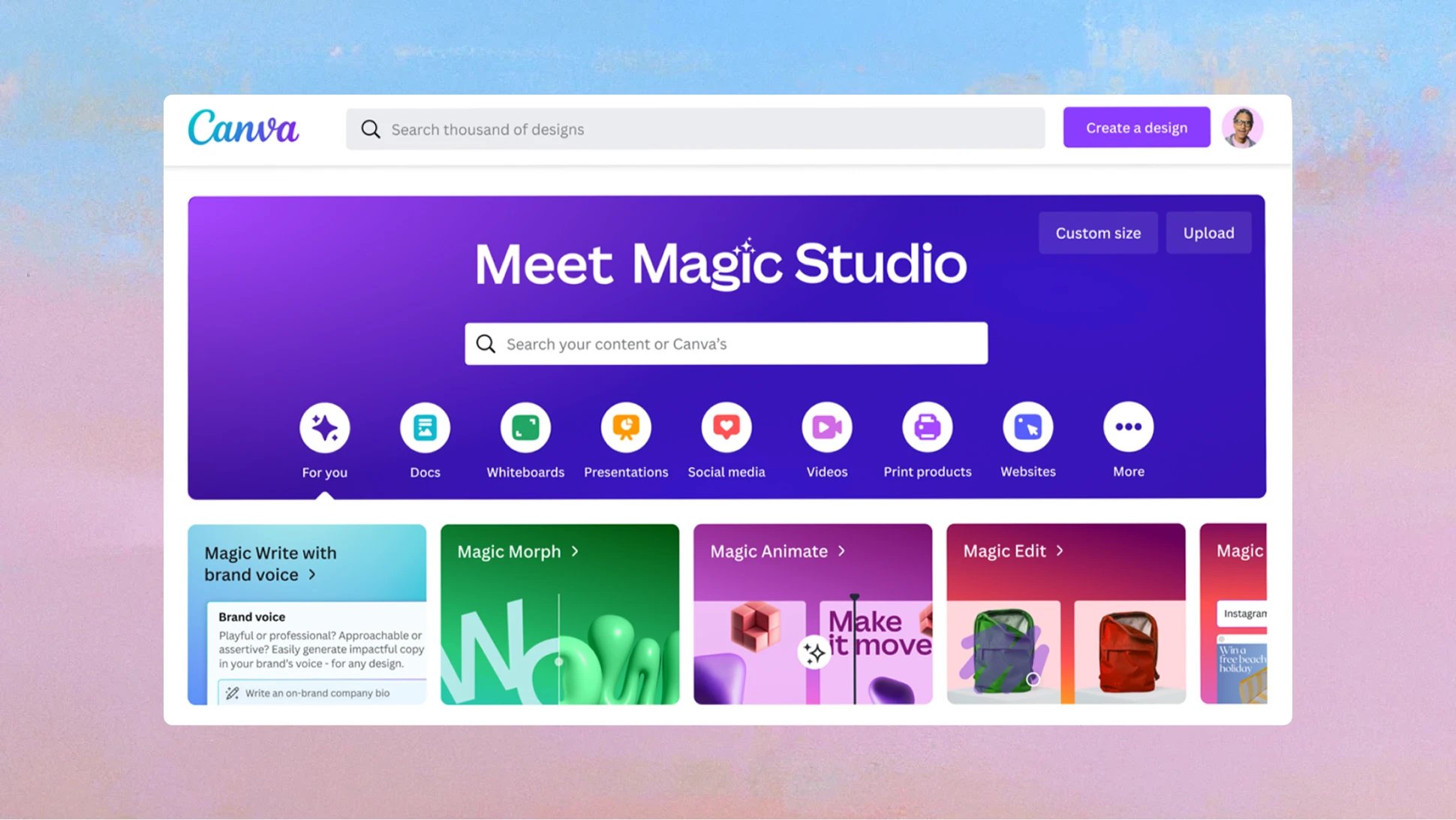
Canva AI generates images, graphics and even videos from a prompt, right inside the editor. Magic Edit replaces or changes part of an image, Magic Eraser removes distractions, Magic Expand extends an image in any direction and Magic Resize adapts a design to other formats. Canva is free, but several AI features, such as Magic Expand, require Canva Pro. It’s best for:
- Instagram posts and stories;
- YouTube thumbnails;
- LinkedIn carousels;
- simple flyers and promotional visuals.
Canva doesn’t replace art direction, but it greatly speeds up simple, clean visuals, especially once the brand’s colors and fonts are set.
Figma AI: design directions and mockups, faster
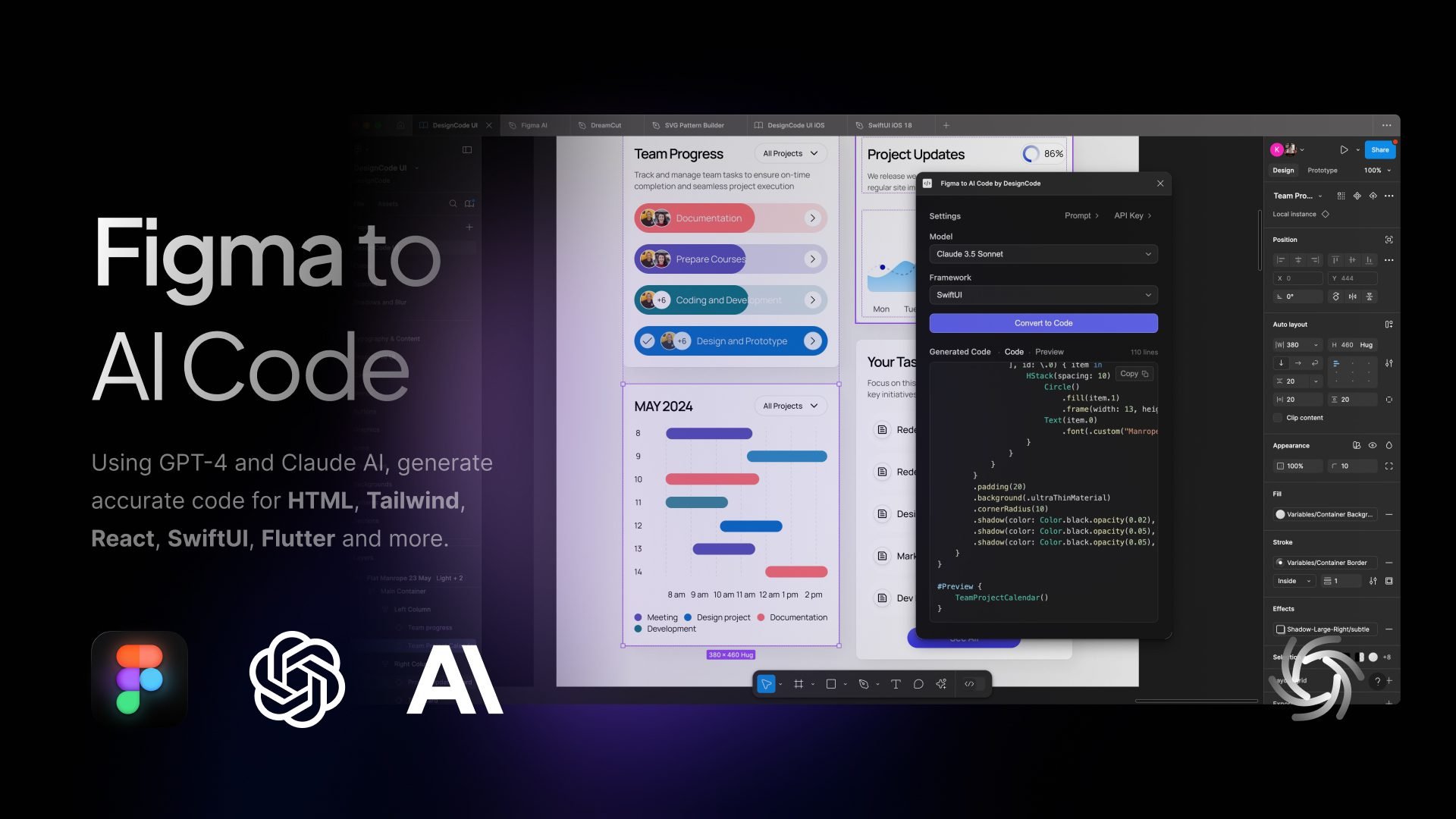
For interfaces, websites and landing pages, Figma AI offers an agent that generates new design directions, creates diagrams, edits images and searches your files. Figma Make turns a prompt or an existing design into a prototype or a web app. Every seat gets monthly AI credits: 500 on the Starter plan, 3,000 for a Full seat on Professional.
Useful for testing section variations or going from an idea to a first mockup faster; keeping it consistent with your visual identity is still your job.
AI tools to remove the background from an image
Cutting out a product or a portrait with the pen tool used to take minutes. These three tools do it in seconds, each with its own strengths.
remove.bg: one-click automatic background removal
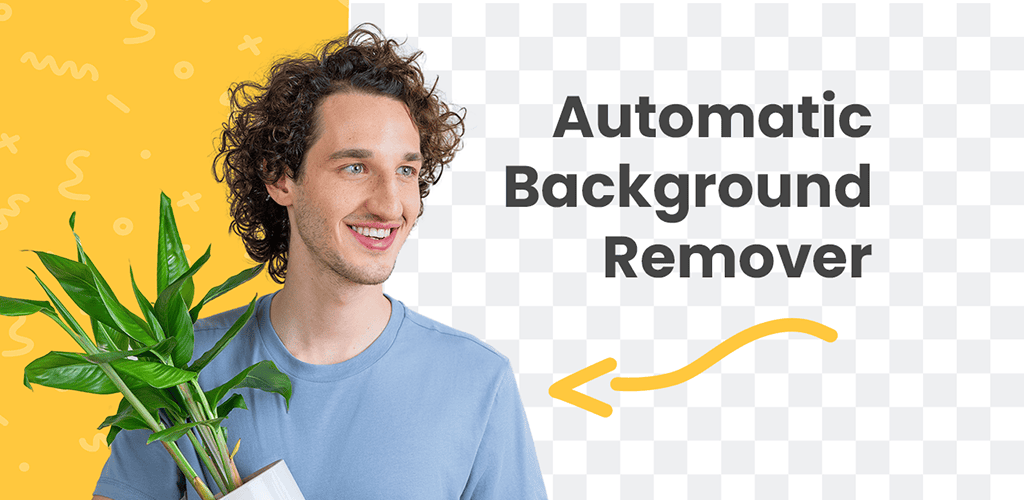
remove.bg removes a photo’s background automatically, then lets you replace it with white, a color or an AI-generated background. Preview images are free (up to 0.25 megapixels); high resolution, up to 50 megapixels, uses credits. Integrations for Photoshop, Figma and Zapier, an API and bulk processing fit it into your workflow.
It’s ideal for product photos, thumbnails, posters and client presentations.
Adobe Express: remove the background, then design
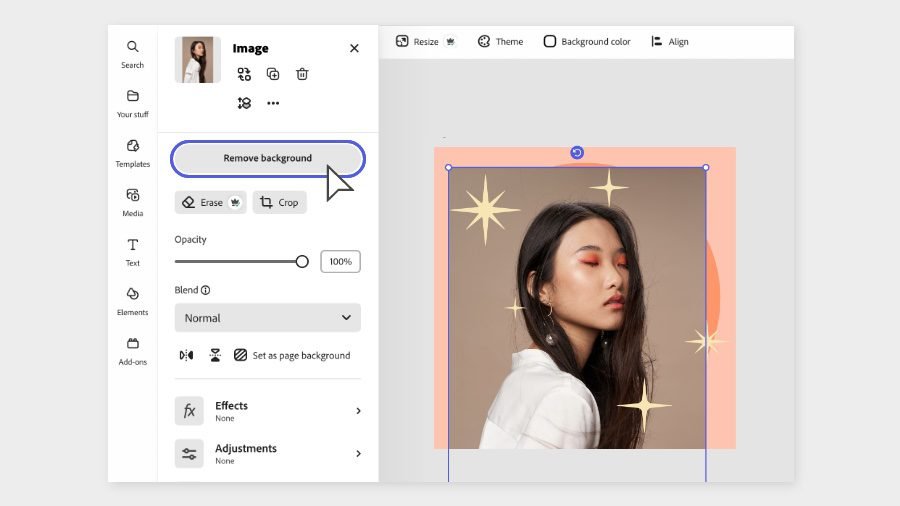
Adobe Express has a Remove Background quick action for images and another for videos. The advantage: you cut out the subject and keep designing in the same place, whether it’s a post, a flyer, a cover or a carousel. The free plan includes the basic tools and a limited number of generative AI credits.
It’s a good choice when you want a clean visual without opening Photoshop.
Photoroom: e-commerce-ready product photos
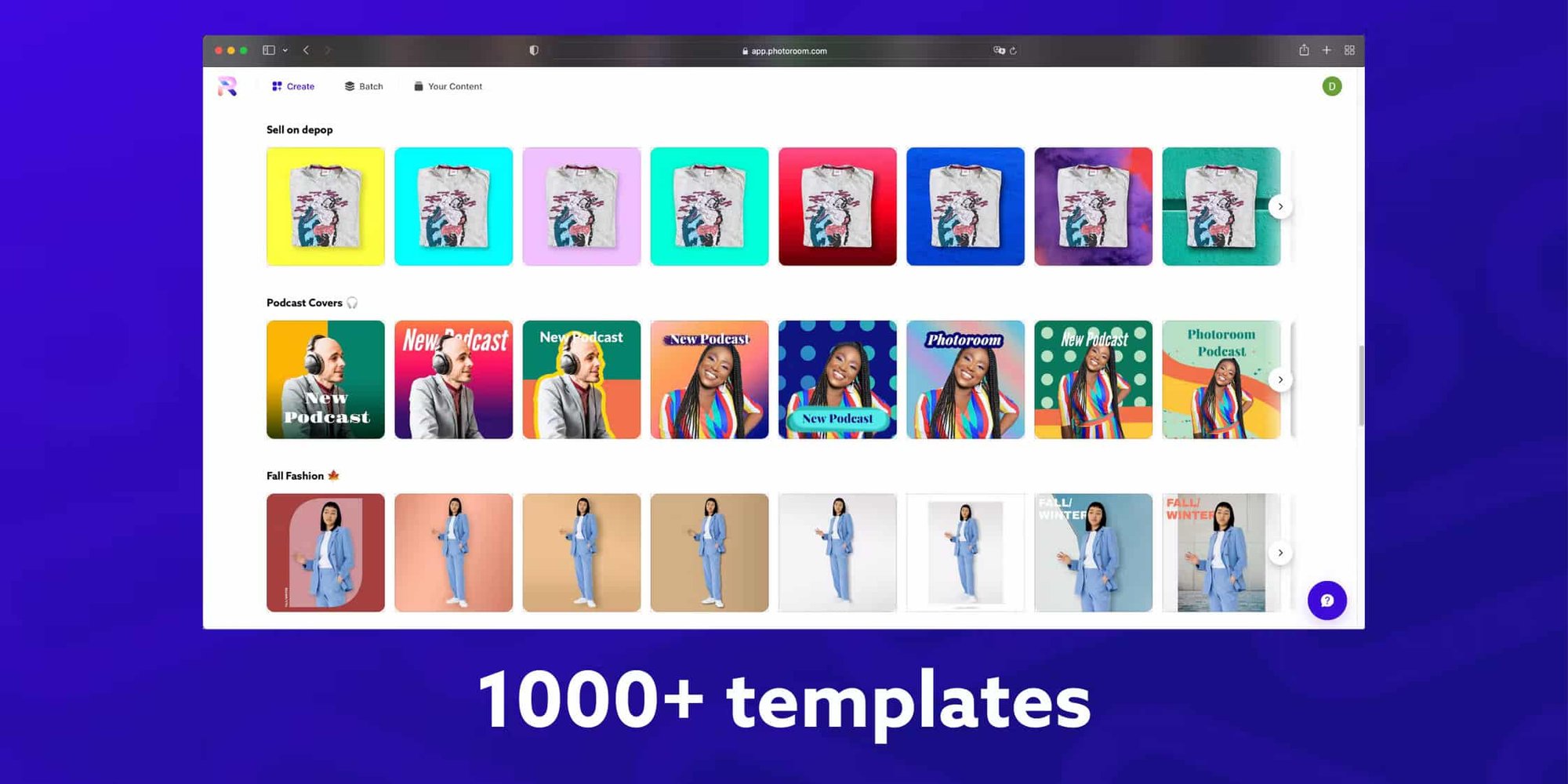
Photoroom is built for product visuals: instant cutouts, AI-generated scenes and backgrounds, realistic shadows (AI Shadow), batch editing for thousands of images and video templates for Reels, TikTok and Stories. You can start for free, then move to the Pro plan.
For a shop, a restaurant or a small brand, it’s the fastest way to get consistent photos of products, menus or offers across a whole catalog.
How to choose the right AI tool for editing or design
- Start with the task that costs you the most time. Captions, silences, format variations or background removal: one tool chosen for that job pays off more than five tools tried on the surface.
- Stay in your software when you can. A built-in feature (Premiere Pro, DaVinci Resolve) or a plugin (FireCut, AutoPod) saves exports and round trips.
- Check the language. Premiere Pro transcribes more than 18 languages and FireCut more than 50, but Descript’s filler word detection is English only. Always test on a clip in your own language.
- Work out the real cost. Generative credits, export limits, resolution, watermarks: a free plan is enough to test, rarely to produce every week.
- Keep the edit editable. Favor tools that hand off to your editor, such as OpusClip’s XML export, so you can rework pacing and color afterwards.
- Think about rights and data. Before uploading a client’s footage to an online service or using a generated image in an ad, read the tool’s terms of use.
And if you bill for your time, the time saved should show in your rate: MoBen Prod’s free tools for freelancers and video creators help you recalculate your hourly rate.
Using AI without losing your creativity
The risk with AI is producing fast without intent. A visual generated in ten seconds isn’t necessarily a good visual, and an automatically edited video isn’t necessarily a good video. Keep this order:
- Hand the repetitive task to AI: transcription, silences, cutouts, variations.
- Take back control of style, pacing and art direction.
- Check everything: cuts, captions, names, hands and text in generated images.
- Adapt the result to your brand and your audience.
- Never publish raw output without correcting it.
To go further, read what AI speeds up in video editing and what stays human. And when a project needs more than a first draft (pacing, sound, color, brand consistency), that’s the job of professional video editing and a real brand visual identity.
Automatic captions are one of the most useful ways to use AI: the guide to captions for Reels, TikTok and Shorts explains how to check and style them.
Key takeaways
- AI saves time on repetitive tasks: transcription, captions, silences, short-form clips, background removal.
- For editing, Premiere Pro, Descript and DaVinci Resolve build AI into the software; FireCut and AutoPod automate the first pass.
- For social media, CapCut and OpusClip speed up short-form production; Runway is for visual and generative projects.
- For design, Photoshop, Firefly, Canva and Figma cover retouching, generation, social visuals and mockups; remove.bg, Adobe Express and Photoroom remove backgrounds in seconds.
- Choose by main task, language and real cost, and always review the result before publishing.
FAQ
What is the best free AI tool for video editing?
It depends on the task. CapCut is free to download and already handles auto captions, text to speech and long-to-short clips. DaVinci Resolve has a very complete free version, but its advanced AI tools are in the paid Studio version. Descript and OpusClip offer free plans to try text-based editing or short clips.
Can AI edit a whole video on its own?
It can produce a first draft: FireCut offers an automatic edit, AutoPod cuts a multicam podcast and Underlord, Descript’s agent, chains several editing tasks. But AI doesn’t know what emotion you want to create or which shot tells the story best. Always plan a human pass on pacing, cuts, sound and message.
Does Descript remove filler words in languages other than English?
Not automatically. According to Descript’s help center, filler word detection only works on English transcripts. For a podcast in French, Arabic or another language, delete hesitations by hand in the transcript, which Descript makes quick, and leave only the silences to a tool like FireCut or AutoPod’s Jump Cut Editor.
How can I remove an image background for free with AI?
remove.bg cuts out the subject automatically and its preview, up to 0.25 megapixels, is free; high resolution needs credits. Adobe Express’s free plan includes the Remove Background quick action, and Photoroom can be tried for free too. For a product photo meant to sell, check the edges (hair, glass, reflections) before exporting.
Can I use AI-generated images for client work?
Often, but it depends on each tool’s terms and the intended use. Adobe presents its Firefly models as safe for commercial use because they are trained on licensed and public domain content. For an ad, read the tool’s terms, avoid recognizable faces, brands and logos, and tell your client the image is generated.
Go further