J-cut and L-cut: the transition you are looking for is sound
A J-cut lets you hear the next shot before you see it; an L-cut keeps the sound of the previous shot when the picture changes. No visual effect: sound and picture simply don’t cut at the same moment.

MoBenFreelance video creator
Contents
J-cuts and L-cuts are two cuts where sound and picture don’t change at the same moment. In a J-cut, you hear the next shot before you see it; in an L-cut, the picture changes but the sound of the previous shot carries on. No zoom, no flash: that offset is often enough to make a transition feel natural.
Looking for a transition to connect two shots? What you are missing may not be visible. It is audible.
I touched on this in my article on invisible editing. Here I go further: the exact method in each editing app, when to choose one or the other, and the sound mistakes that give the cut away.
What is a J-cut?
The sound of shot B starts before its picture. The viewer hears a new place or a new person, then the picture follows. Example: you hear waves over a shot of the road, then you discover the beach. In an interview, the next person’s voice starts over the end of the previous shot, and you cut to them once they are already talking.
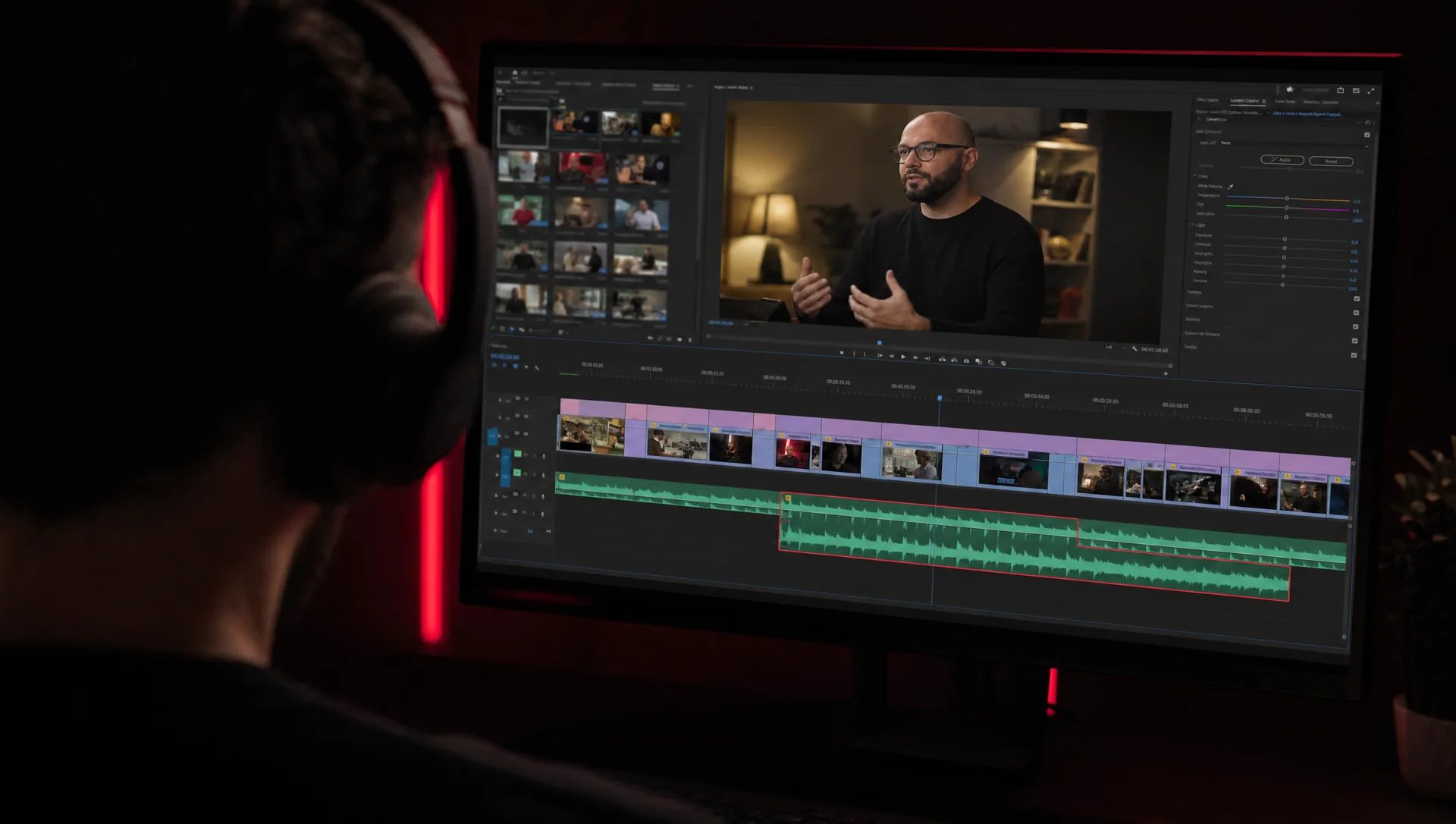
The name comes from the shape on the timeline: shot B’s audio extends to the left, under the previous shot, like the hook of a J.
What is an L-cut?
The picture changes, but the sound of shot A carries on. Example: someone explains something, their voice keeps going, and we now see what they are talking about. Or you show the listener’s reaction while the guest finishes their sentence. Shot A’s audio extends to the right, under the next shot: the shape of an L.
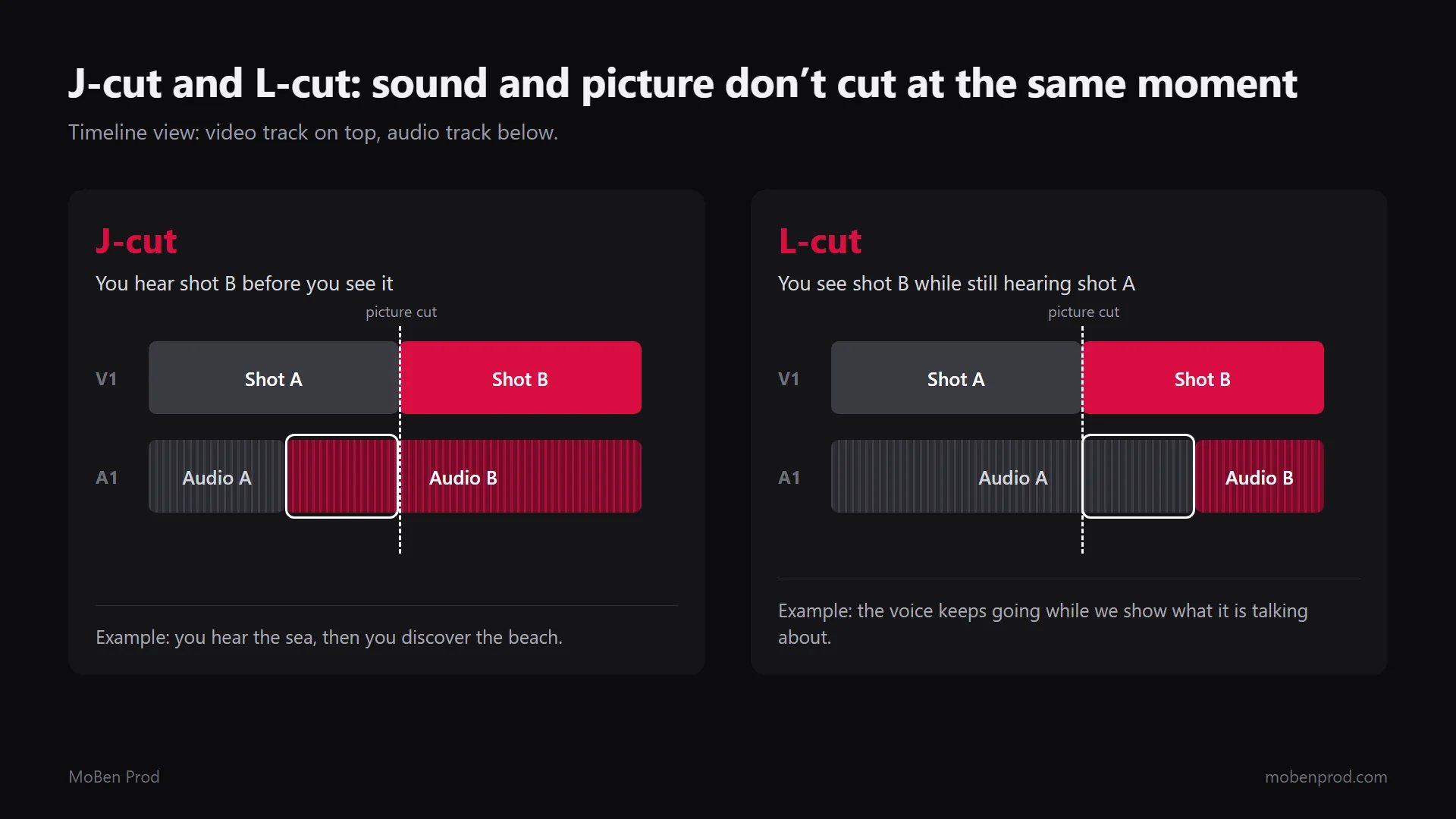
Apple groups both cuts under the name split edits in the Final Cut Pro guide and sums up why they matter in one sentence:
“Split edits help you create seamless edits from one shot to the next.” Final Cut Pro User Guide, Apple
When should you use a J-cut or an L-cut?
Choose based on what you want the viewer to hear and see at each moment, not only on the shape of the cut on the timeline.
- Interviews and testimonials: an L-cut lays illustration (B-roll) over the person while they keep talking, or shows the listener’s reaction. A J-cut brings in the answer before you cut to the person speaking.
- Documentary: a J-cut announces a new place through its ambience (street, market, sea) before showing it.
- Ads and Reels: a sound or voiceover that starts a few frames before the next shot pulls the viewer forward and keeps momentum.
- Video podcasts: in multicam, cutting to the person about to answer just before they speak, or staying a moment on the one who just finished, makes the conversation feel alive. See the video podcast editing workflow.
- Scene changes: the sound of the next scene arriving first acts as the transition, with no visual effect at all.
How do you make a J-cut or L-cut in Premiere Pro?
Two methods, both described in Adobe’s help.
Method 1: the Rolling Edit tool
- Place the two shots end to end, with picture and sound linked.
- Select the Rolling Edit tool (shortcut N). According to Adobe’s help, it moves the cut point between two clips without changing their combined duration.
- Hold Alt (Windows) or Option (macOS) and click the edit point on one track only, picture or sound.
- For an L-cut, drag the video edit point to the left: shot B’s picture arrives earlier while shot A’s sound continues underneath.
- For a J-cut, drag the audio edit point to the left: shot B’s sound starts under the end of shot A.
Method 2: temporarily unlink picture and sound
Adobe explains that Alt-click (Windows) or Option-click (macOS) selects only the audio or video part of a linked clip, and that the Linked Selection button at the top left of the timeline turns linked selection off. You can then shorten or extend each part separately. Turn linked selection back on afterwards so you don’t knock a clip out of sync by accident.
The Ripple Edit tool (shortcut B) is mainly for trimming a shot while closing gaps. For a clean J-cut or L-cut, Rolling Edit is the safer choice because it doesn’t shift the rest of the timeline. Adobe also covers both cuts in its guide to J-cuts and L-cuts.

How do you do it in DaVinci Resolve?
According to the DaVinci Resolve 20 Reference Manual:
- Edit page: turn off linked selection with the Link Audio/Video button (Shift-Command-L on Mac), or hold Option on Mac (Alt on Windows) while clicking an edit point to select only the video or only the audio. Then drag that edit point: picture and sound split apart.
- Cut page: enlarge the track, then hover over the edit point in the audio part of the clip. When the trim icon shows a musical note, drag: only the sound extends or shortens, the picture stays in place.
- Trim mode: for finer control, Option-click the outgoing video edit, then Command-click the incoming audio edit. Both points then move in opposite directions and create the offset.
How do you do it in Final Cut Pro?
According to Apple’s guide to split edits:
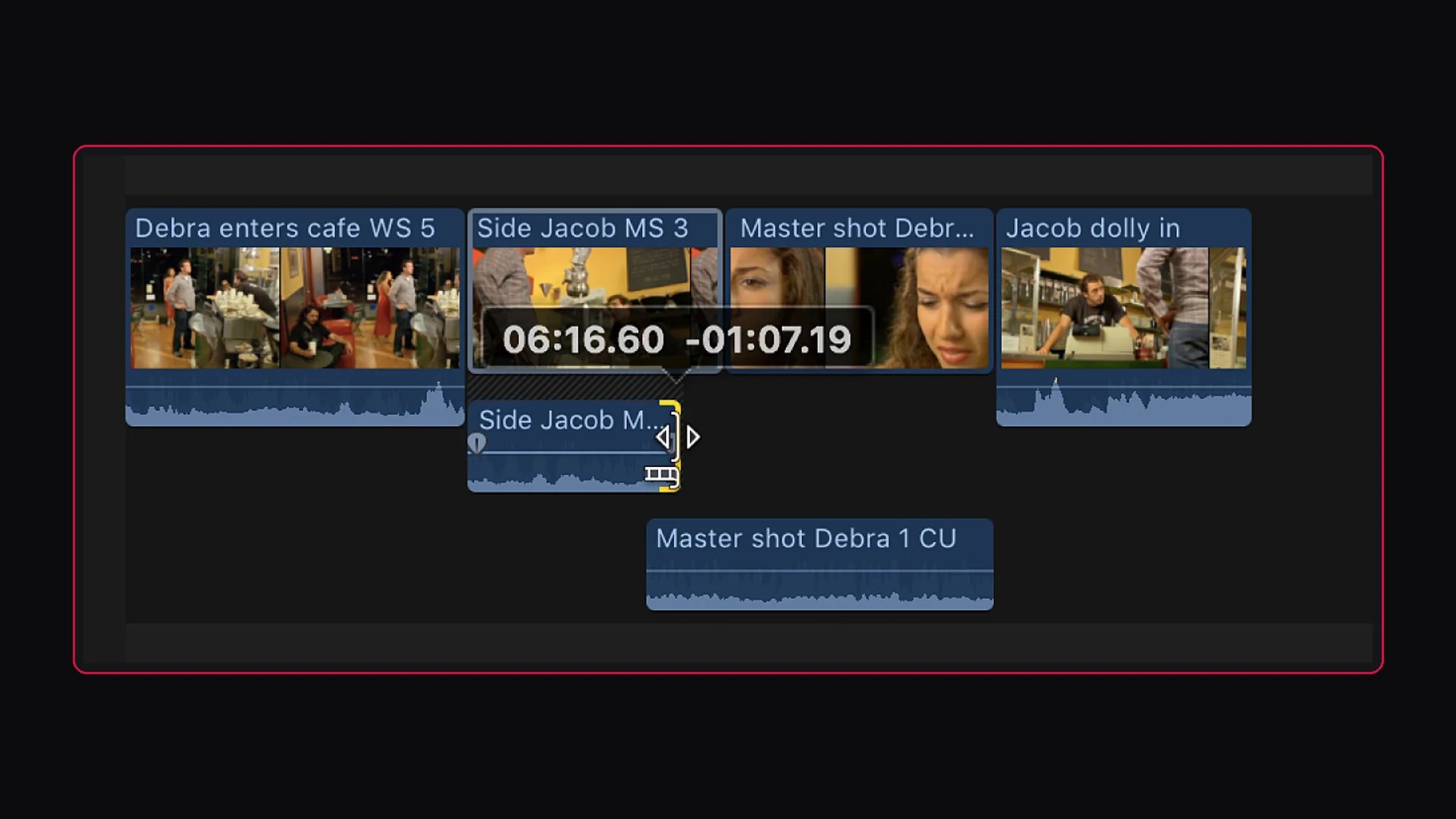
- Select the clip and choose Clip > Expand Audio (Control-S), or double-click the audio waveform. Picture and sound become editable separately while staying in sync.
- Drag the start of the video portion to the right (a roll edit): the shot’s sound starts before its picture, which is a J-cut. For an L-cut, do the opposite: extend the audio of the previous shot under the next one.
- Trim the end of the previous shot’s audio so the two voices don’t overlap, then adjust levels or audio fades.
- With the keyboard: put the playhead on the edit point, Shift-Backslash selects both sides of the audio edit, Backslash those of the video edit, then Comma and Period nudge it by one frame (with Shift, by 10 frames).
- Then collapse the clip with Clip > Collapse Audio.
Which mistakes give the cut away?
- A jump in sound level. If shot B’s voice comes in louder or duller than shot A’s, you can hear the cut. Match levels before you offset.
- Ambience that changes abruptly. Every room has its background noise (room tone). If it drops at the cut, people notice. Record a few dozen seconds of the room’s ambience on set and lay it under the edits.
- No audio fade. A short audio crossfade of a few frames at edit points avoids clicks and softens the sound coming in.
- Two voices overlapping. In a J-cut, trim the end of audio A so it doesn’t talk over B, unless that is the effect you want.
- Handles that are too short. To offset a cut you need extra frames before and after the shot. Shoot longer than you need, as I explain in shooting for the edit.
- Hidden sync drift. After unlinking picture and sound, check lip sync on every shot you changed, then turn linked selection back on.
Frequently asked questions
Why are they called J-cut and L-cut?
Because of the shape of the clips on the timeline: audio extending to the left draws a J, audio extending to the right draws an L. Apple and other software makers also call them split edits.
J-cut or L-cut: which one for interviews?
Both. The L-cut to illustrate what the person says or show a reaction, the J-cut to bring in the next answer before showing who is speaking.
Should you add a visual transition as well?
Rarely. A straight cut is enough: the sound offset is what softens the change. A picture dissolve mostly makes sense to mark a passage of time or a change of place.
How far should you offset the sound?
There is no fixed rule. It depends on the pace and on what you want the viewer to hear. Listen to the scene and offset until the cut no longer stands out.
Do you have interviews or a podcast to edit and want transitions nobody notices? That is my work in editing and post-production. Let’s talk about your project.
Go further