Lagging timeline: do you really need a new computer?
Before buying a new computer, try proxies: lightweight copies of your footage, linked to the originals. You edit smoothly, and by default the export uses the original files.

MoBenFreelance video creator
Contents
If your timeline stutters, the problem often comes from the files, not the machine. Proxies are lightweight copies of your footage that the software links to the original files: you edit with the copies, and the export uses the originals for final quality. In Premiere Pro you create them with Create Proxies, then switch between proxies and originals while you edit.
You hit play, the picture stutters, the sound drifts, and you start looking at prices for a new PC. Before you pay, ask yourself one question: is the machine too weak, or are the files too heavy to play?
What is a proxy in video editing?
Adobe puts it simply in its official help:
“Proxies are low-resolution copies of your high-resolution video files.” Adobe Help
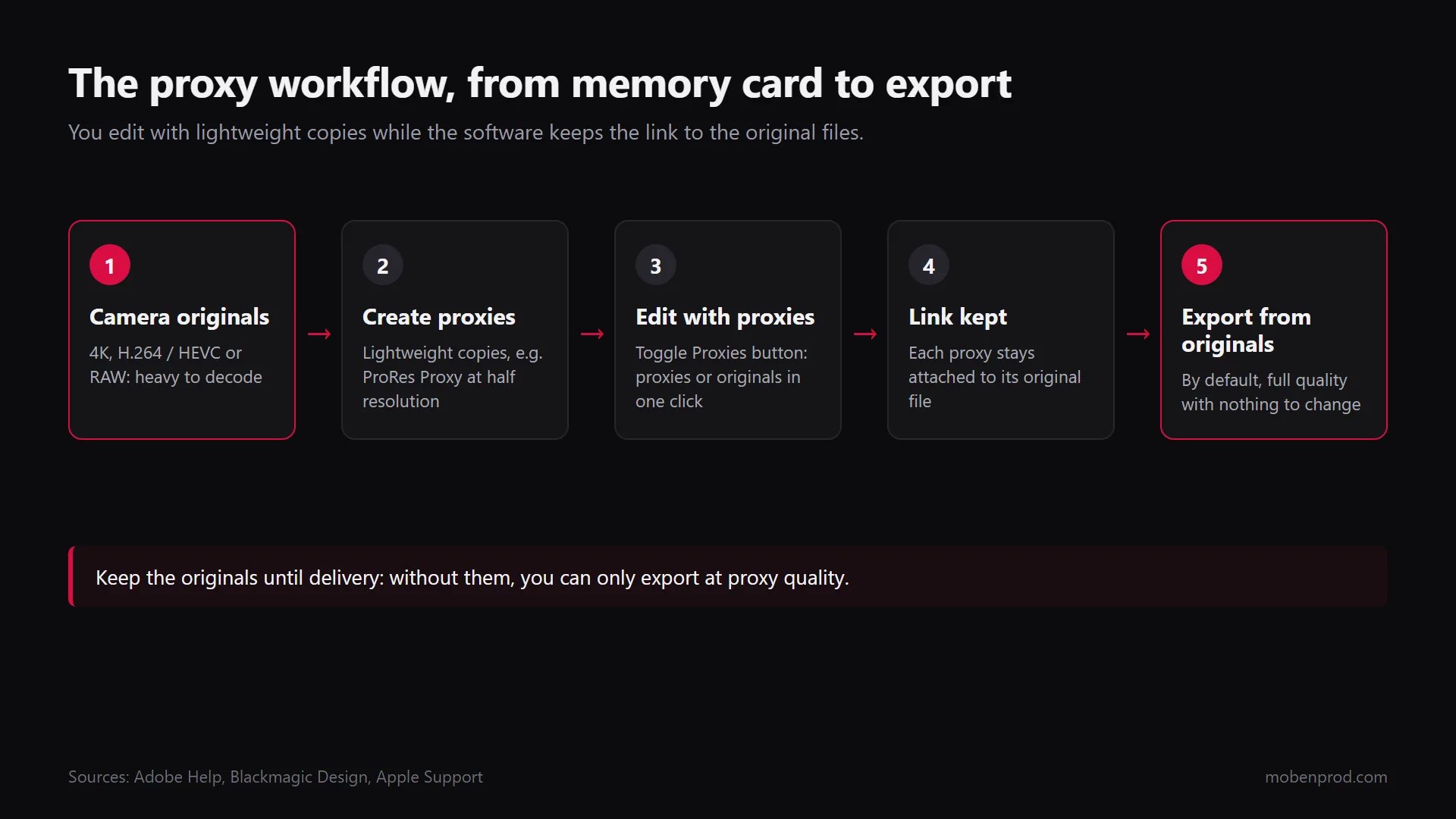
Blackmagic Design, the maker of DaVinci Resolve, describes them as more highly compressed, and potentially lower resolution, versions of your media, linked to the source files through metadata so you can switch back and forth easily. In practice, each clip now exists twice: the heavy original and its light copy. The software keeps the link between the two. You edit on the copy, and at export it goes back to the original.
Why does a timeline lag?
The most common camera codecs, such as the H.264 and HEVC (H.265) used by phones, mirrorless cameras and drones, compress heavily by relying on neighboring frames (known as long GOP). They take little space but need a lot of processing to play. Apple sums it up in its ProRes white paper (April 2022): H.264 gives excellent image quality at low data rates, but its complexity lowers performance in real-time editing with multiple streams and effects. ProRes codecs, on the other hand, encode and decode each frame independently.
That is why 4K H.264 footage can stutter on a decent computer, while a lighter copy that is easier to decode often plays without trouble.
How do you create proxies in Premiere Pro?
According to Adobe’s official help on creating proxies, updated January 7, 2026:
- Import your footage into the project.
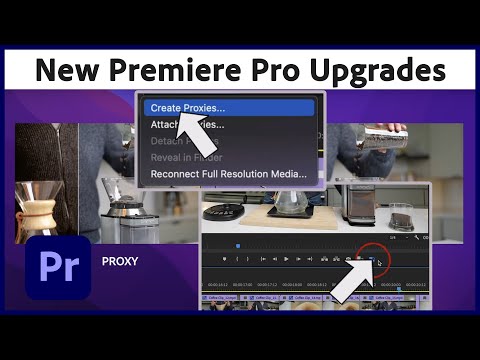
- In the Project panel, right-click the clips, then choose Proxy > Create Proxies.
- In the Create Proxies dialog, keep the default Half frame size and the default ProRes QuickTime Proxy preset, or pick another size and preset.
- Choose the destination. Adobe notes that the option next to the original media is rarely ideal with cameras that store each clip in its own folder, so prefer Choose Location and one folder for all proxies.
- Click OK. Premiere sends the jobs to Adobe Media Encoder, and you can keep editing with the originals while they process.
By default, Premiere appends “_Proxy” to the file name (for example scene01_Proxy.mxf) and puts it in a Proxies folder. An option adds a watermark to the picture in proxy mode, handy so you never mix them up. One limit: you can only create proxies for video clips without captions, and the media must be online.
To automate it, turn on proxy creation at import in File > Project Settings > Ingest Settings (Adobe help): Premiere then runs the job in the background as soon as you import footage.
How do you switch between proxies and originals?
Add the Toggle Proxies button under the Program Monitor with the Button Editor (the + icon). One click switches from proxies to originals. Edit in proxy, then switch back to the originals to check sharpness, grading or a precise reframe.
What happens at export?
This is the reassuring part. According to Adobe’s help on exporting, Premiere uses full-resolution media at export by default, even when proxies are enabled. To export from proxies you have to tick Use Proxies in the export settings on purpose, and that box is unchecked by default. As long as your originals are present and linked and you have not ticked that option, the final video is not at proxy quality.
How does it work in DaVinci Resolve?
According to the DaVinci Resolve 20 Reference Manual (chapter 8, Improving Performance, Proxies, and the Render Cache):
- Set Proxy Media Resolution (Original, Half, Quarter, Eighth, Sixteenth or Choose Automatically) and Proxy Media Format (ProRes and DNxHR variants, H.264, H.265) in Project Settings > Master Settings, Optimized Media and Render Cache section.
- Select the clips in the Media Pool, right-click, Generate Proxy Media.
- To switch on the Edit page: Playback > Proxy Handling, with three options: Disable All Proxies, Prefer Proxies, Prefer Camera Originals.
- At export, the Deliver page always reverts to the original media unless you tick Use proxy media in the advanced render settings.
Resolve also offers optimized media (right-click > Generate Optimized Media), managed internally and not exportable, and Timeline Proxy Mode (Playback > Timeline Proxy Resolution > Half or Quarter), which lowers the working resolution on the fly without creating files. Blackmagic sums it up: optimized media if you edit on one computer only, proxies if you need to share media with other people, programs or drives.

And in Final Cut Pro?
According to Apple’s user guide:
- At import, or later with File > Transcode Media, tick Create proxy media and choose the format, Apple ProRes 422 Proxy or HEVC, and a frame size from 12.5% to 100% of the original.
- To edit with proxies: the View pop-up menu at the top right of the viewer, Media Playback section, Proxy Preferred or Proxy Only.
- An important difference from Premiere and Resolve: Apple says to switch back to Optimized/Original before sharing your project to get the highest quality in the exported file.
Do proxies fix every slowdown?
No. Proxies make footage easier to play. If the slowdown comes from heavy effects (strong grading, noise reduction, stabilization, compositing), you need another fix. Blackmagic says it plainly: the render cache is for clips whose effects slow playback, even at the timeline resolution.
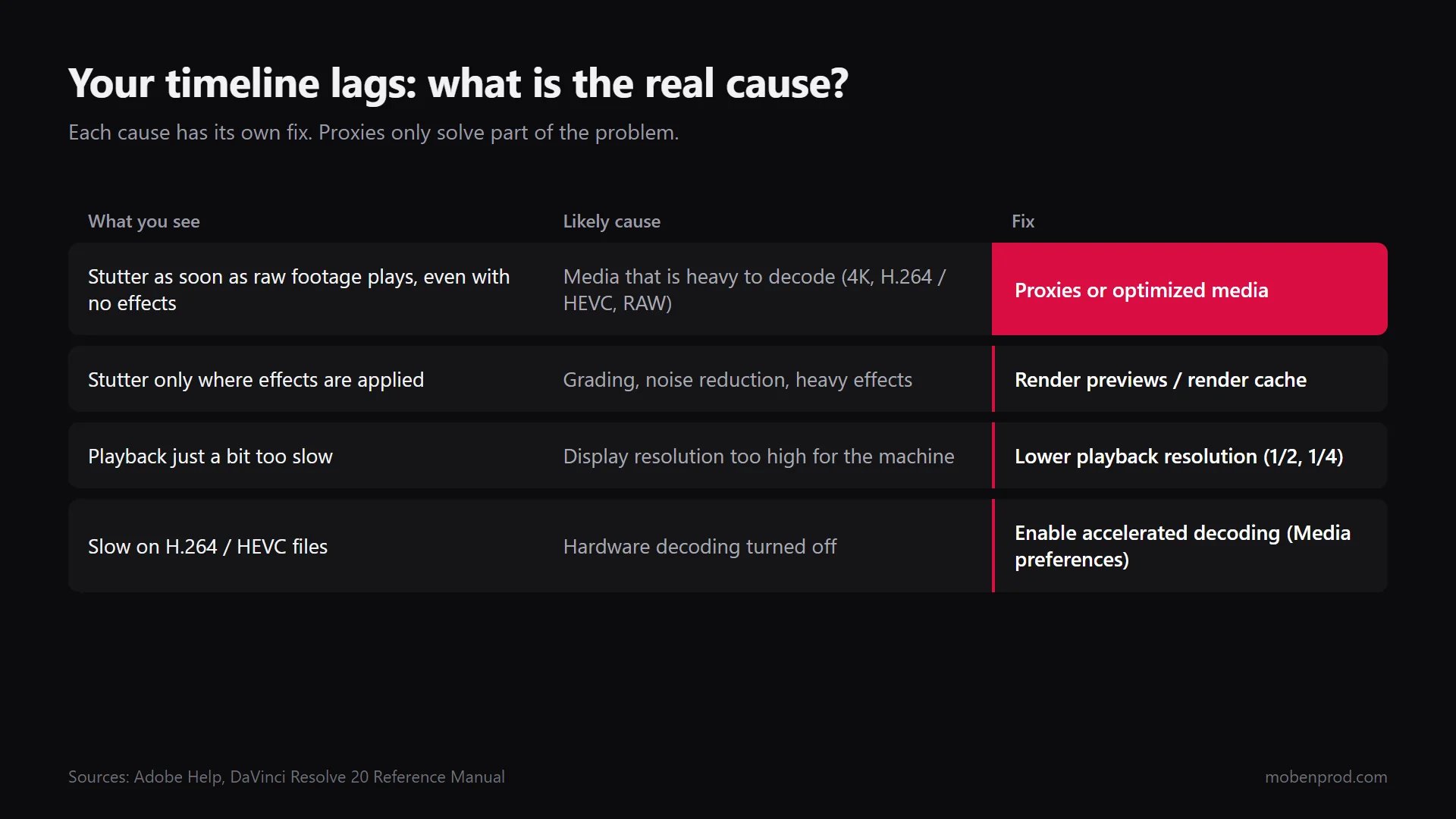
- Heavy effects: in Premiere, render previews over the section concerned; in Resolve, choose Playback > Render Cache > Smart to cache demanding effects automatically.
- Playback just a bit slow: lower the Program Monitor playback resolution (1/2, 1/4). Adobe recommends a low playback resolution with the paused resolution set to Full to check detail.
- H.264 and HEVC files: check that hardware decoding is on in Edit > Preferences > Media, H264/HEVC hardware accelerated decoding, which needs a restart (Adobe help).
- RAW footage: in Resolve, lowering Decode Quality in Project Settings > Camera Raw speeds up playback; switch back to full quality for the final render.
What mistakes should you avoid with proxies?
- Deleting the originals. Without them, you can only export at proxy quality. Keep them until delivery, and after that if the client may come back.
- Renaming or moving files by hand. The link between proxy and original depends on names and metadata. To link a proxy made elsewhere, Resolve requires the same file name, the same timecode and the same frame rate as the original.
- Judging sharpness in proxy. Switch to the originals before you approve focus, a reframe or a grade.
- Forgetting a box at export. Check that Use Proxies (Premiere) or Use proxy media (Resolve) is not ticked for the final export.
- Creating proxies too late. Start them at import, while you log footage: it saves time across the whole project. Good organization starts on set, as I explain in shooting for the edit.
On a multicam podcast, where three or four 4K streams play at once, proxies often make the difference between a usable timeline and a frozen one. I cover it in the video podcast editing workflow.
Frequently asked questions
Do proxies lower the quality of the final video?
No, as long as the export uses the originals. That is the default behavior in Premiere and DaVinci Resolve. In Final Cut Pro, switch back to Optimized/Original before sharing.
Do you need proxies for smartphone footage?
Often yes, if the files are 4K HEVC and playback stutters. If your timeline is already smooth, there is no need to add a step.
Where should you store proxies?
In one folder per project, ideally on a fast SSD. You can delete them after delivery without touching the originals.
Proxies, optimized media or cache: what is the difference?
A proxy is a light, portable copy linked to the original. Resolve’s optimized media is managed internally and stays inside the project. The render cache speeds up playback of effects, not of the footage itself.
Is your timeline still lagging after all this, or would you rather hand off the edit? That is my daily work in editing and post-production. Tell me about your project.
Go further