
Runway plugin in Premiere and After Effects: install, use and prompts
Runway’s free plugin adds a panel to Premiere and After Effects to generate images, video and B-roll, or edit a shot with Aleph 2.0, then import the result in one click. Install steps, settings, credits, limits and 28 prompts.

MoBenFreelance video creator
Contents
- What does the Runway plugin do in Premiere and After Effects?
- How do you install the Runway plugin in Premiere?
- How do you generate an image, a video or B-roll without leaving Premiere?
- How do you edit a timeline shot with Aleph 2?
- Which prompts should you use? 28 prompts ready to copy
- How much does the Runway plugin cost?
- What are the plugin’s limits?
- What are the alternatives for generating without leaving your editor?
- My take as an editor
- Frequently asked questions
Since September 8, 2026, Runway has offered a free plugin that opens a Runway panel right inside Adobe Premiere (formerly Premiere Pro) and After Effects. You generate images, video and B-roll there, edit a shot that is already in your cut with Aleph 2.0, and the Import button drops the result into your project. The download is free, but generating needs a paid Runway plan (Standard or higher), and every generation uses credits.
Until now, changing a shot with Runway meant leaving Premiere: export, open the website, upload the clip, wait, download the result and import it back into the project. The plugin removes that round trip. Everything happens in a panel next to your timeline.
The official plugin link: runway.com/plugins/premiere-pro. One download covers both Premiere and After Effects. The official help page is here: Using Runway Plugins in Adobe Premiere Pro.
What does the Runway plugin do in Premiere and After Effects?
The panel has three tabs: Image, Video and Edit Video. According to Runway’s help center, it gives you these tools, with the same models as your plan on the web:
- Generate image: backgrounds, plates, overlays, title cards and scene elements. Image models listed: Gen-4 Image, Nano Banana and GPT Image 2.
- Generate video: scenes, B-roll, inserts and camera moves, with reference images or a start frame. Video models listed: Gen-4.5, Seedance 2.5, Kling 3.0 Pro and Veo 3.1.
- Edit Video (Edit Studio): select a clip on the timeline, the panel captures it with no export, and Aleph 2.0 re-renders it at the same duration, with a before/after view.
- Video-to-video and HDR: change the look of a shot from references, including HDR conversion with the Ruby model.
- Remove background: key out a subject without a green screen by describing it in a prompt.
- Upscale: enlarge a clip or a frame. To compare with other tools, see my article on video upscaling.
- Generations feed: your past generations, including the ones made on the web, ready to re-import in one click.
“Generate, edit and extend footage with Runway’s models directly inside Premiere Pro. No exports, no round trips.” (Runway)
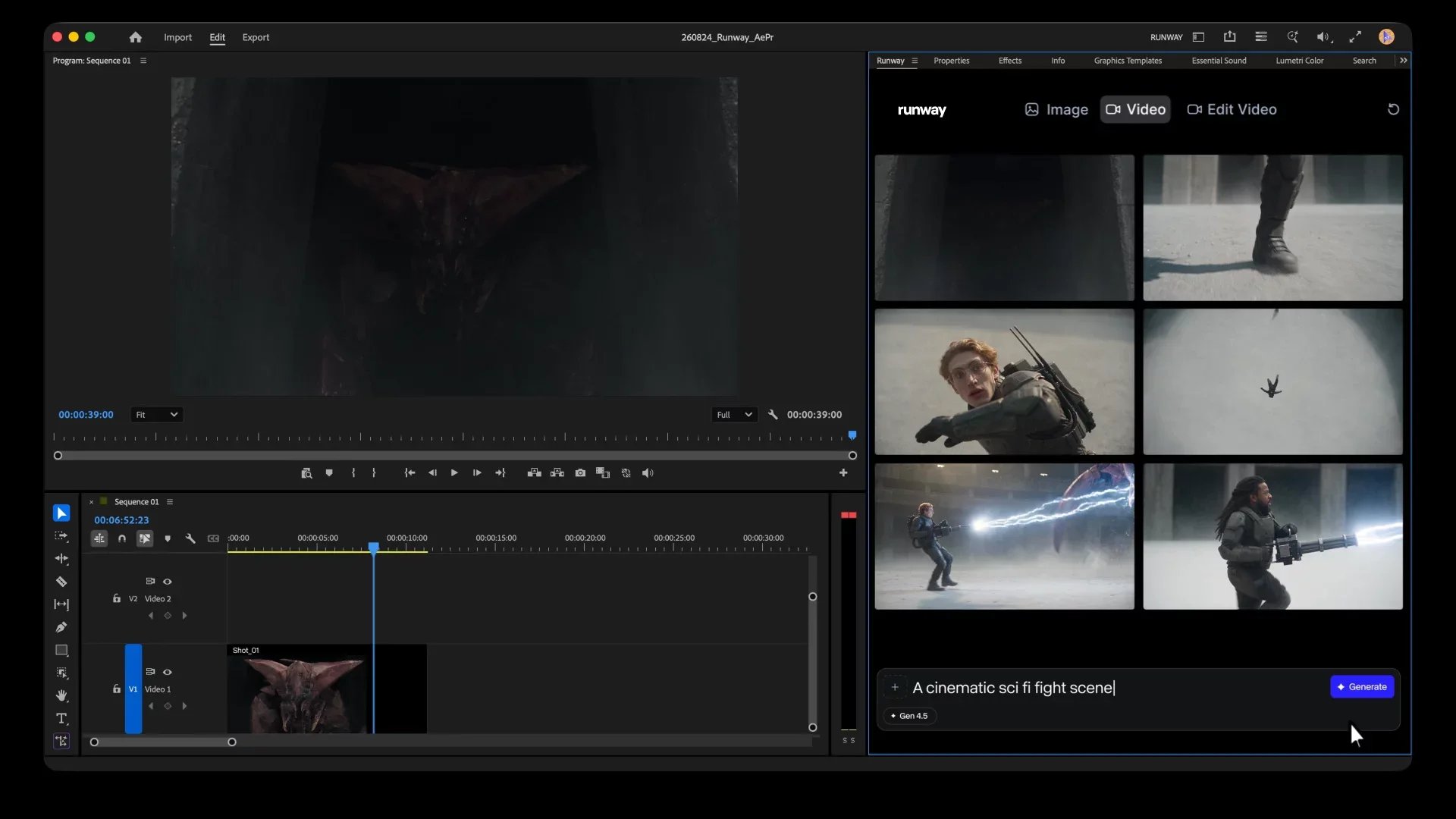
Runway shows the plugin in its own launch video:

How do you install the Runway plugin in Premiere?
What you need first, according to the official help:
- Premiere or After Effects on macOS or Windows. Runway does not publish a list of supported versions on its pages, so update your apps from the Creative Cloud app first.
- A Runway account on a paid plan. On the Free plan you can sign in, but the panel asks you to upgrade before you can generate.
- An internet connection: generations run on Runway’s servers, not on your computer.
The steps:
- Quit Premiere and After Effects completely. The installer handles both apps at once.
- Download the installer from Runway’s plugin page with the Download button: an .exe file for Windows, a .pkg file for macOS (Apple Silicon and Intel).
- Run the installer and follow the screens. It detects your Adobe apps. The plugin does not come through Adobe Exchange or the Creative Cloud app: Runway’s own installer sets it up.
- Open Premiere, then Window > Extensions > Runway.
- Click Sign in. Your browser opens so you can log into Runway. You never type your password into the panel itself.
- Pick your workspace from the switcher at the top of the panel if you have more than one. That workspace pays for the credits, and your results also appear in its feed on the web.
- Dock the panel next to Properties or Effects, then save the layout with Window > Workspaces > Save as New Workspace so it is there in every project.
To update, Runway shows a banner in the panel: you then download the new installer.
What about After Effects?
It is the same installer. Open After Effects, go to Window > Extensions > Runway and sign in: After Effects keeps its own session, so you sign in a second time. For Edit Video, select a single footage layer in the active comp, otherwise the panel cannot read your selection. Import adds the result to the project and the active comp; if no comp is open, it goes to the Project panel.
The panel does not show up?
- Quit Premiere and After Effects, then run the installer again.
- On Windows, run the installer as administrator.
- On macOS, if the installer is blocked: System Settings > Privacy & Security > Open Anyway.
- Look for Runway under Window > Extensions, not in the Effects panel.
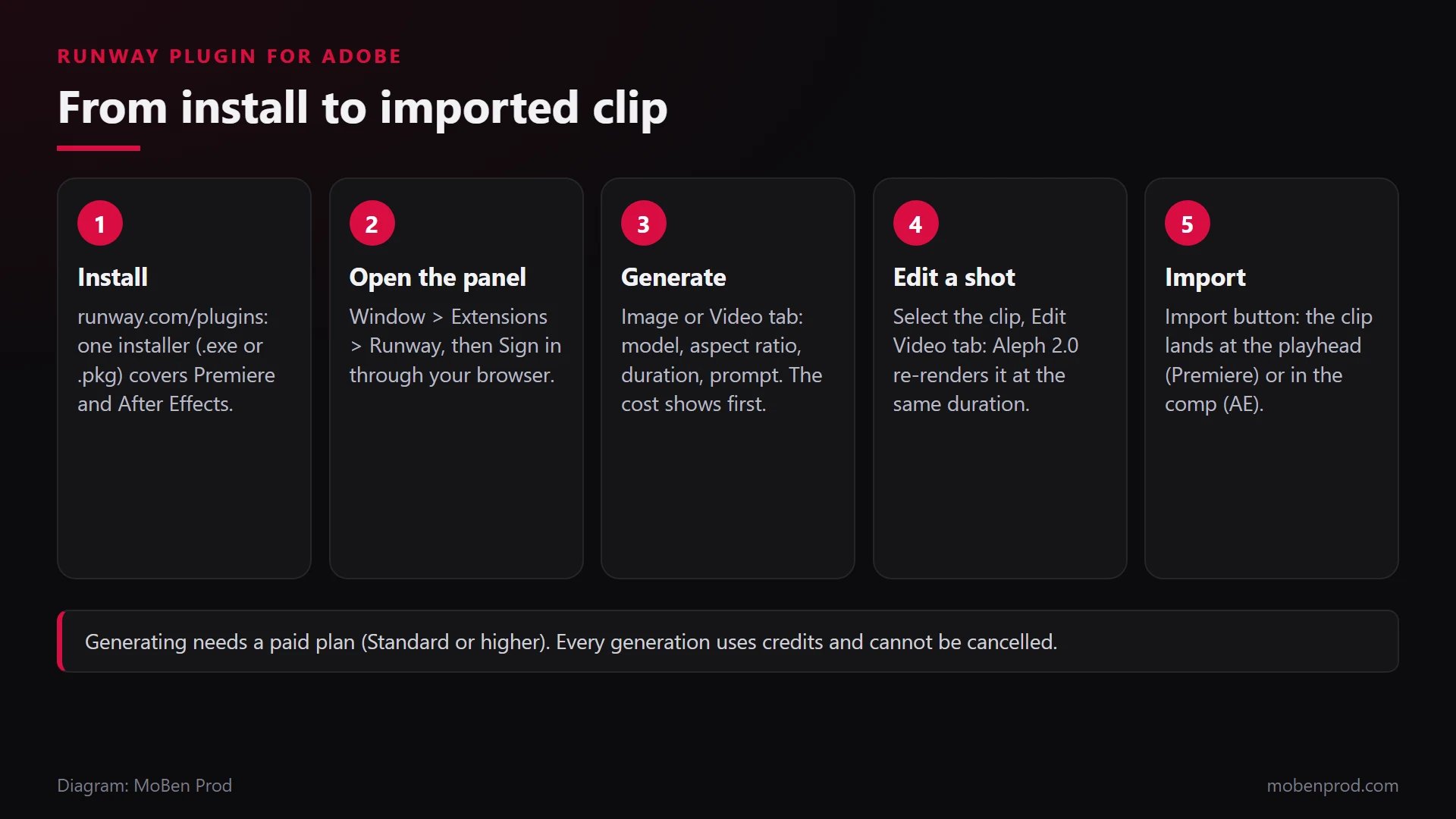
How do you generate an image, a video or B-roll without leaving Premiere?
- Park the playhead where the shot should go, on a free, unlocked track.
- Open the Video tab for a moving shot, or Image for a background, a plate or a title card.
- Pick the model. Duration, aspect ratio and resolution options change with each model. For example, Gen-4.5 generates 2 to 10 seconds at 720p, at 24 or 25 fps, according to the official model page.
- Match the aspect ratio to your sequence: 16:9 for YouTube, 9:16 for a Reel. Add a reference image or a start frame if needed (for example a frame exported from the previous shot, to keep the same light).
- Write the prompt (see the list below) and check the cost shown next to your credit balance before you start.
- Click Generate and keep editing. The generation progresses in the panel’s feed. Note: according to Runway, a generation cannot be cancelled once it starts.
- Click Import under the result. In Premiere, the clip lands at the playhead. If no track is free at that point, tracks are locked or no sequence is open, it only goes to the bin: drag it in by hand.
How do you edit a timeline shot with Aleph 2?
Aleph 2.0 is Runway’s model for editing existing video. You change one frame, and it applies the same change to the whole clip while keeping the rest: framing, motion, duration. In the plugin, this happens in the Edit Video tab:
- Select the clip in the sequence (in After Effects: one footage layer in the active comp).
- Open the Edit Video tab. The panel captures the clip and frame-accurate anchor frames from your timeline, with no manual export.
- Describe the change on an anchor frame, or set up to five keyframes for a more precise edit. You can add a reference image (a product, a style).
- Start the generation. Aleph 2.0 re-renders the full clip at the same duration as the original.
- Compare before and after in the panel, then click Import to place the new version in your edit.
Edit Studio limits listed in Runway’s help: a clip longer than 2 seconds and no longer than 30 seconds (longer clips are trimmed), between 480p and 1080p (720p or 1080p recommended), between 24 and 30 fps, and no more than 10 cuts. So I trim the shot as tight as possible before sending it: you pay by the second.
Which prompts should you use? 28 prompts ready to copy
For a text-to-video shot, Runway advises describing both what is visible and the motion. For Aleph 2.0, its guide recommends an action verb (add, remove, change, replace, relight, restyle) followed by the change you want. Replace the parts in brackets with your own subject.
Text-to-video B-roll (Video tab)
- City at sunrise: Slow aerial drone shot over a coastal city at sunrise, warm golden light on white buildings, gentle forward camera movement, cinematic, realistic.
- Coffee: Close-up of a barista pouring milk into a cup of coffee, steam rising, soft window light, shallow depth of field, slow push-in, film look.
- Office at night: Close-up of hands typing on a laptop keyboard in a modern office at night, screen glow on the hands, slight handheld camera movement, realistic.
- Product: A (perfume bottle) on a black reflective surface, slow orbit around the product, soft rim light, dark studio background, commercial look.
- Market: Busy market street at dusk, people walking past colourful stalls, warm lamp light, slow lateral tracking shot from left to right, documentary style.
- Nature transition: Waves crashing on dark rocks in slow motion, overcast sky, static camera on a tripod, moody cinematic colour grade.
- Real estate: Slow dolly forward into a bright modern living room with large windows, afternoon sunlight, minimal furniture, real estate video style.
- Food: Top-down shot of fresh vegetables falling onto a wooden cutting board, bright natural light, slow motion, clean commercial look.
- Opening shot: Wide establishing shot of a desert road at golden hour, a single car driving toward the horizon, camera slowly tilting up to the sky.
Image to video (with a start frame)
- Slow push: The camera slowly pushes in toward the subject while the background stays still.
- Parallax: Subtle parallax, the foreground drifts slightly to the left, light dust floating in the air.
Stills (Image tab)
- Empty office plate: Clean background plate of an empty modern office at night, city lights through the windows, no people.
- Title card background: Minimal title card background, dark charcoal texture with a soft red light leak on the left side, empty space in the centre for text.
Aleph 2: change the style
- Restyle the shot as a 1970s film with warm grain and faded colours.
- Restyle as a black and white film noir with strong contrast.
- Restyle as a hand-drawn watercolour animation, keep the subject’s movement.
Aleph 2: change the background
- Change background to a sunny beach with palm trees.
- Replace the background with a modern glass office at night.
- Change background to a snowy mountain landscape, keep the person unchanged.
Aleph 2: relight
- Relight the scene with warm golden hour sunlight coming from the left.
- Relight with soft blue neon light from behind the subject, dark room.
- Relight with dramatic chiaroscuro lighting, one hard key light from the side.
Aleph 2: weather and time of day
- Change to heavy overcast and raining, wet ground with reflections.
- Change the time of day to night, street lamps on, keep the camera move.
- Add light snowfall and change the season to winter.
Aleph 2: objects, wardrobe and extra motion
- Change the outfit to a dark navy suit.
- Replace the (coffee cup) with a (red soda can).
- Extra motion (optional): Fog slowly rolls in from the right. Use this field only when the edit needs motion that is not in the original shot.
How much does the Runway plugin cost?
The plugin is free. Generations are what you pay for, in credits from your Runway plan, exactly as on the web. These are the individual plans listed on Runway’s pricing page in November 2026:
- Free: $0, 125 one-time credits. You can sign in to the plugin, but not generate.
- Standard: $15 a month, or $12 a month billed yearly, 625 credits a month.
- Pro: $35 a month, or $28 a month billed yearly, 2,250 credits a month, with credit top-ups at any time.
- Max: $95 a month, or $76 a month billed yearly, 9,500 credits a month, unused credits roll over for one month, plus HDR, ProRes and image sequence outputs.
Costs listed by Runway: Gen-4.5 uses 12 credits per second (60 credits for 5 seconds), Aleph 2.0 uses 140 credits for 5 seconds, and a 1080p Gen-4 Image uses 8 credits. On Standard, that is about 52 seconds of Gen-4.5 a month, or 22 seconds of shots edited with Aleph 2.0. On Standard and Pro, monthly credits do not roll over. Extra credits you buy never expire, with a minimum purchase of 1,000 credits.
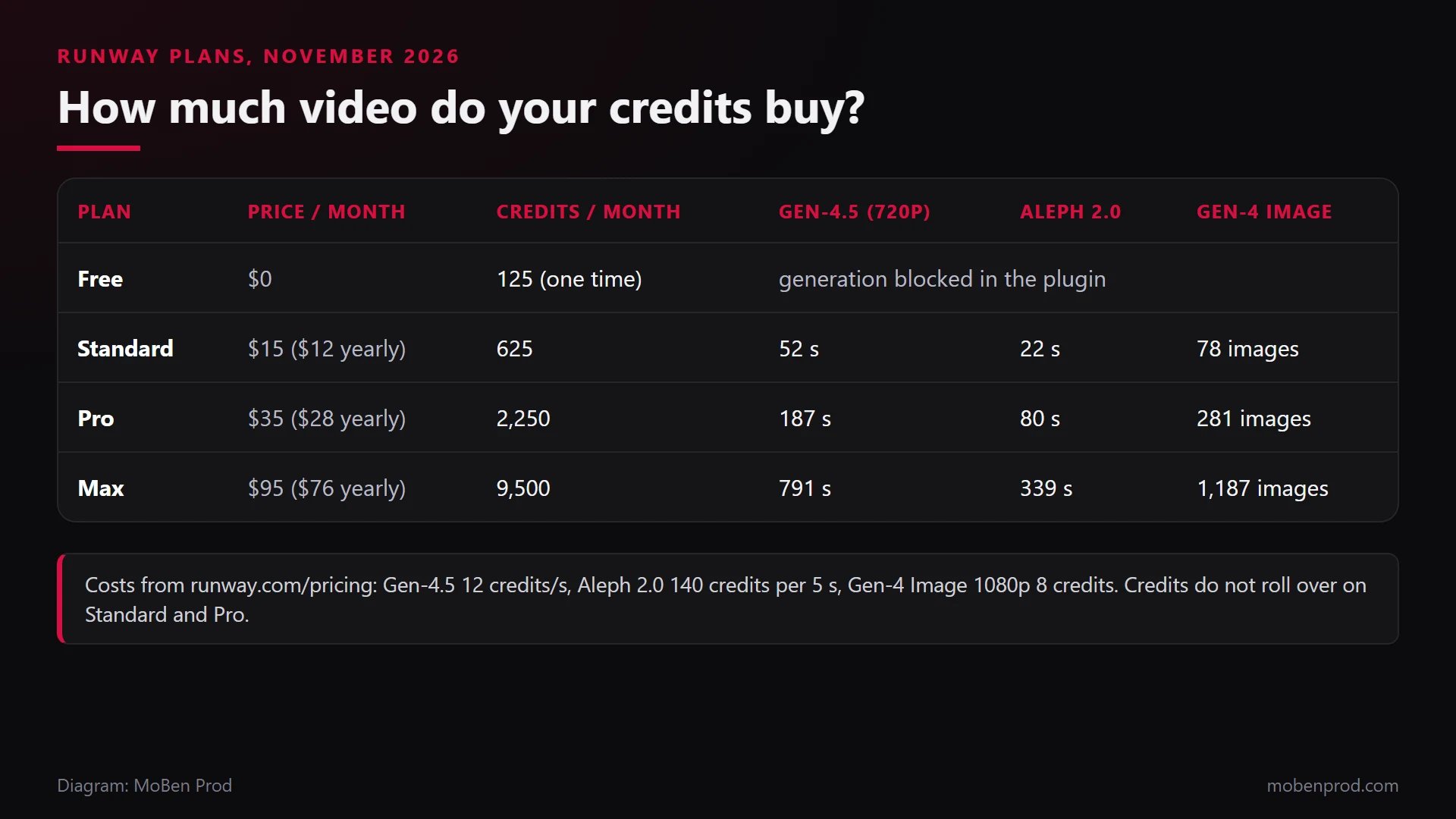
The panel shows your balance and the cost of each generation before you click. Check the pricing page when you subscribe: prices change often.
What are the plugin’s limits?
- Paid plan required to generate, and every attempt uses credits, even a failed one.
- No cancel: a generation runs to the end and uses its credits.
- Duration and resolution: Gen-4.5 generates 2 to 10 seconds at 720p; Aleph 2.0 handles clips of 2 to 30 seconds, from 480p to 1080p. For a shot delivered in 4K, you will need to upscale.
- Not in the plugin yet, according to Runway: outpainting (Expand), drag-and-drop from the feed, and in After Effects, ProRes or image sequence delivery.
- Sessions expire: you may be asked to sign in again.
- Internet required, since everything runs on Runway’s servers.
- Commercial use: allowed on paid plans, under the same terms as the web, according to Runway’s help.
What are the alternatives for generating without leaving your editor?
Runway’s plugin is not the only way to generate from the timeline. Here is what I checked on official pages in November 2026.
Built into Premiere by Adobe
- Generative Media Tool: a tool in the Premiere toolbar. You drag a range on the timeline, pick a model (Firefly or a partner model, Veo 3.1 by default), describe the shot, and Premiere inserts it into the sequence. It also generates sound effects. Adobe moved it out of beta in September 2026, and generations use Adobe credits.
- Generative Extend: lengthens a clip that is too short, by up to 2 seconds of video and 10 seconds of audio according to Adobe, for 12 to 30 fps clips in 8-bit SDR. Handy to hold a shot to the end of a sentence.
Other plugins and panels
- Runway for DaVinci Resolve: the same idea in DaVinci Resolve Studio, with Aleph 2.0, background removal and upscaling; results land in the Media Pool and the timeline.
- Sonilo: a Premiere extension that creates custom music for a range of your timeline. I covered it in my article on Sonilo.
- Topaz Video: upscaling and enhancement, as a standalone app or as a plugin for After Effects and DaVinci Resolve, with a panel for Premiere.
Staying on Runway’s website
The website still has tools the plugin does not have yet, such as Expand, and the Runway Ads app for turning one ad into several versions, which I covered in my article on Runway Ads.
My take as an editor
The real gain is the time lost between two apps: no more export, upload and re-import for a 5-second shot. For a replacement B-roll, a background or a shot to relight, it is much smoother. On the other hand, every attempt costs credits, and a 5-second Aleph 2.0 shot costs more than twice a Gen-4.5 shot of the same length.
My method: I lock the cut, list the shots to generate or fix, test a short prompt at the minimum duration, then run the final version. I keep 720p generated shots for uses where resolution matters less (backgrounds, quick inserts, Reels). And before putting a team on a plan, I measure the time actually saved on a full project, with my checklist for testing a tool.
Frequently asked questions
Is the Runway plugin free?
The download and install are free. To generate, you need a paid Runway plan from Standard up, and every generation uses credits from that plan.
Is the plugin on Adobe Exchange?
No. Runway distributes it from its own page, with an .exe or .pkg installer that detects Premiere and After Effects. You then find it under Window > Extensions > Runway.
Do I need a separate account for After Effects?
No, it is the same Runway account, but After Effects keeps its own session: you click Sign in once in each app.
Can I use generated shots for a client?
Yes on paid plans, according to Runway’s help: plugin generations follow the same terms as the web, commercial use included. Still, tell your client when a shot was generated or edited.
A tool can generate a shot; deciding where it serves the story is still the editor’s job. If you have a project to edit, with or without generated shots, here is how I work on editing and post-production.
Go further