Will AI replace video editors? What it speeds up, what stays human
AI won’t replace video editors, but it does speed up transcription, captions, audio cleanup, silence removal and the first rough cut. Pacing, emotion and structure remain human calls. Here’s where AI helps at each editing stage, where it hurts, and which tools are worth knowing.

MoBenFreelance video creator

Contents
No, AI won’t replace video editors. What it does well is the mechanical work: transcribing footage, generating captions, cleaning up a voice, cutting silences and assembling a first rough cut. The decisions that make a good video (what to keep, what pacing, what emotion) still belong to the editor.
In this guide, you’ll see where AI genuinely helps at each stage of the edit, where it hurts the result, which tools are worth knowing and what to watch out for with cloned voices, rights and AI disclosure. Every feature mentioned was checked against the vendors’ official pages in October 2026.
Will AI replace video editors?
A good editor doesn’t just cut shots together. They build an experience: the shot that carries the emotion, the line that works as a hook, the pause that lets a moment breathe, the music that supports the message. Those choices depend on the brand, the audience and the intent, and no tool knows them for you.
What AI changes is where the time goes. Fewer hours go into transcribing, syncing, cleaning and roughing out, and that time can go back into the substance: structure, pacing, message. AI prepares the raw material; the creator keeps the direction.
So the real risk isn’t that AI edits for you. It’s that a video assembled too quickly from automated steps ends up looking like everyone else’s. The work that makes the difference usually starts after the automation.
What AI does well in video editing
The most useful AI features aren’t the flashiest ones. They’re the ones that remove repetitive tasks:
- Transcription and captions: Premiere Pro’s Speech to Text works in 18 languages and tells speakers apart.
- Voice cleanup: less background noise and clearer dialogue (Enhance Speech in Premiere, Studio Sound in Descript).
- Silences and filler words: spot pauses, “ums” and repetitions, then cut them straight from the text.
- First rough cut: build an assembly by selecting sentences in the transcript.
- Footage search: find a shot by describing it in plain language (Media Intelligence in Premiere).
- Masking: isolate and track a subject without frame-by-frame rotoscoping (Object Mask in Premiere, Runway’s tools).
- Versioning: auto reframing for vertical, caption translation, dubbing into another language.
- Image enhancement: upscaling, denoising and stabilizing difficult footage.
These gains matter most in high-volume formats: Reels, TikTok, Shorts, video podcasts, interviews, training videos and corporate content. But saving time doesn’t mean publishing without a review.
AI in the editing workflow: where it helps and where it hurts
To use AI well, think in editing stages rather than in tools. At every stage the question is the same: what can I hand off, and what do I need to check myself?
1. Logging and organizing footage
AI helps by transcribing all your footage in one go, tagging audio (dialogue, music, sound effects, ambience) and finding a shot from a description. On a one-hour interview, reading a transcript is far quicker than listening to everything again.
It hurts when the transcript replaces actually watching the footage. A glance, a laugh, a reaction or a B-roll shot with no dialogue never shows up in text, so watch the footage anyway to catch those moments.
2. Rough cut
AI helps through text-based editing: you select the useful sentences in the transcript, delete the pauses, and the assembly builds itself on the timeline. It’s ideal for laying out the structure of a podcast or an interview.
It hurts when the logic of the text is mistaken for the logic of the picture. A cut placed on a word can land in the middle of a gesture or a breath, and the structure (hook, tension, payoff) is still yours to build.
3. Fine cut and pacing
AI helps very little here, apart from one-off fixes such as smoothing a jump cut in an interview with Premiere’s Morph Cut.
It hurts when automatic silence removal is pushed too far: the video turns into one continuous stream with no room to breathe, and viewers drift off. A hesitation can make someone sound more human; a pause can give a line its weight. Pacing is an editorial choice, as the guide to retention and pacing in video editing explains, and the best cuts are the ones nobody notices: that’s the whole idea of invisible editing.
4. Sound: voice, noise and music
AI helps to rescue a voice recorded in a noisy room, to lower the music automatically under dialogue (Auto Ducking) or to retime a music track to the length of your edit (Remix in Premiere).
It hurts when the processing is pushed all the way: an over-cleaned voice sounds metallic and artificial. Dial the effect back and always compare with the original on headphones. The right result isn’t the most “perfect” sound, but the most natural and believable one for the video.
5. Captions
AI helps you produce a first version in minutes and then translate it: Premiere translates captions into 27 languages. Check first that your language is supported: Adobe’s published transcription list has 18 languages, including English and French but not Arabic.
It hurts if you publish that raw version. Proper names, brand terms, slang and passages where speakers switch languages are the first sources of errors. Once the draft exists, the editor’s job is to:
- fix typos and proper names
- break lines to match the rhythm of speech
- highlight the key words
- style and animate captions to fit the brand
- keep text inside the safe zone on Reels, TikTok and Shorts
6. Image, formats and localization
AI helps to set a starting grade (Auto Color, Color Match), turn a 16:9 edit into 9:16 with Auto Reframe, improve blurry or noisy footage, or dub a video into another language.
It hurts when the starting point becomes the final result. An automatic grade doesn’t create a look, an automatic reframe can crop out on-screen text or a logo, a generative upscale can invent detail (textures, faces), and a dub that no native speaker has reviewed lets mistranslations through.
What stays human: the creative decisions
Even when AI cuts the silences and generates the captions, it doesn’t know your style, your brand, your sense of humor or the emotion you want to create. These questions remain yours:
- What’s the hook in the first seconds?
- Which shot do you keep, and which one tells the idea best?
- Where do you slow down, where do you speed up, which moment needs to breathe?
- Which music truly supports the message?
- Which passage deserves a zoom or a styled caption?
- What message should stick, and which CTA comes naturally?
A professional video can’t just be technically clean. It needs an identity, a recognizable rhythm and a clear intent. AI provides the raw material and the creator provides the signature: that’s how good professional video editing splits the work, with automation for the prep and human judgment for every decision the viewer will feel.
AI video editing tools worth knowing
Here are the tools that come up most often in an editing workflow, with what they do according to their makers and where they fall short. For a broader list that also covers graphic design, see the guide to AI tools for video editing and graphic design.
Adobe Premiere Pro
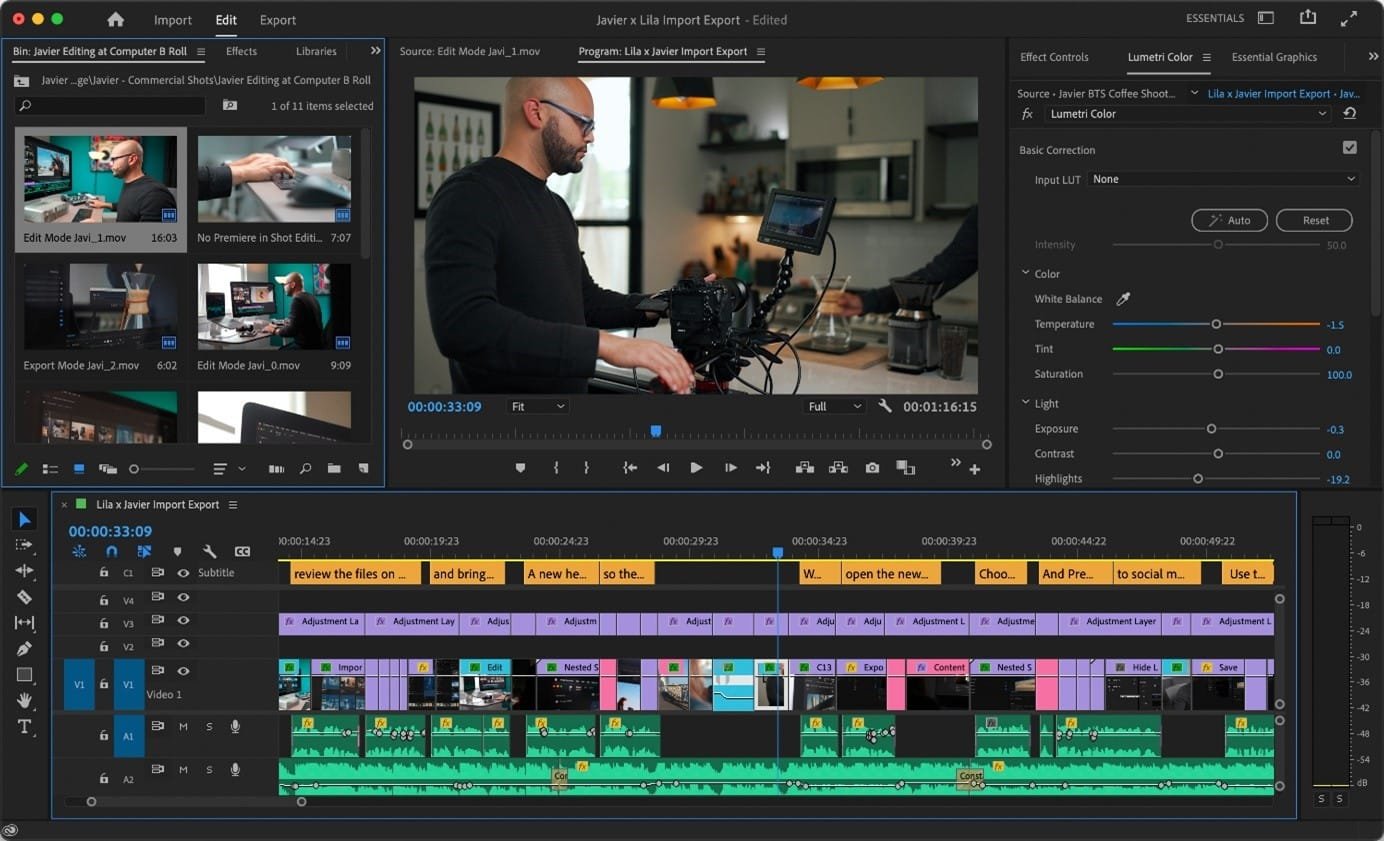
It’s the most complete option for bringing AI into a professional edit. Adobe’s page on Premiere’s AI features lists Speech to Text (18 languages), Text-Based Editing, caption translation (27 languages), Enhance Speech, Media Intelligence for searching footage, Object Mask and Generative Extend (powered by Firefly), which lengthens a shot that’s too short.
Best for: corporate videos, podcasts, interviews, YouTube, ads. Watch out: Generative Extend creates frames that were never filmed, so keep it for discreet fixes.
Descript
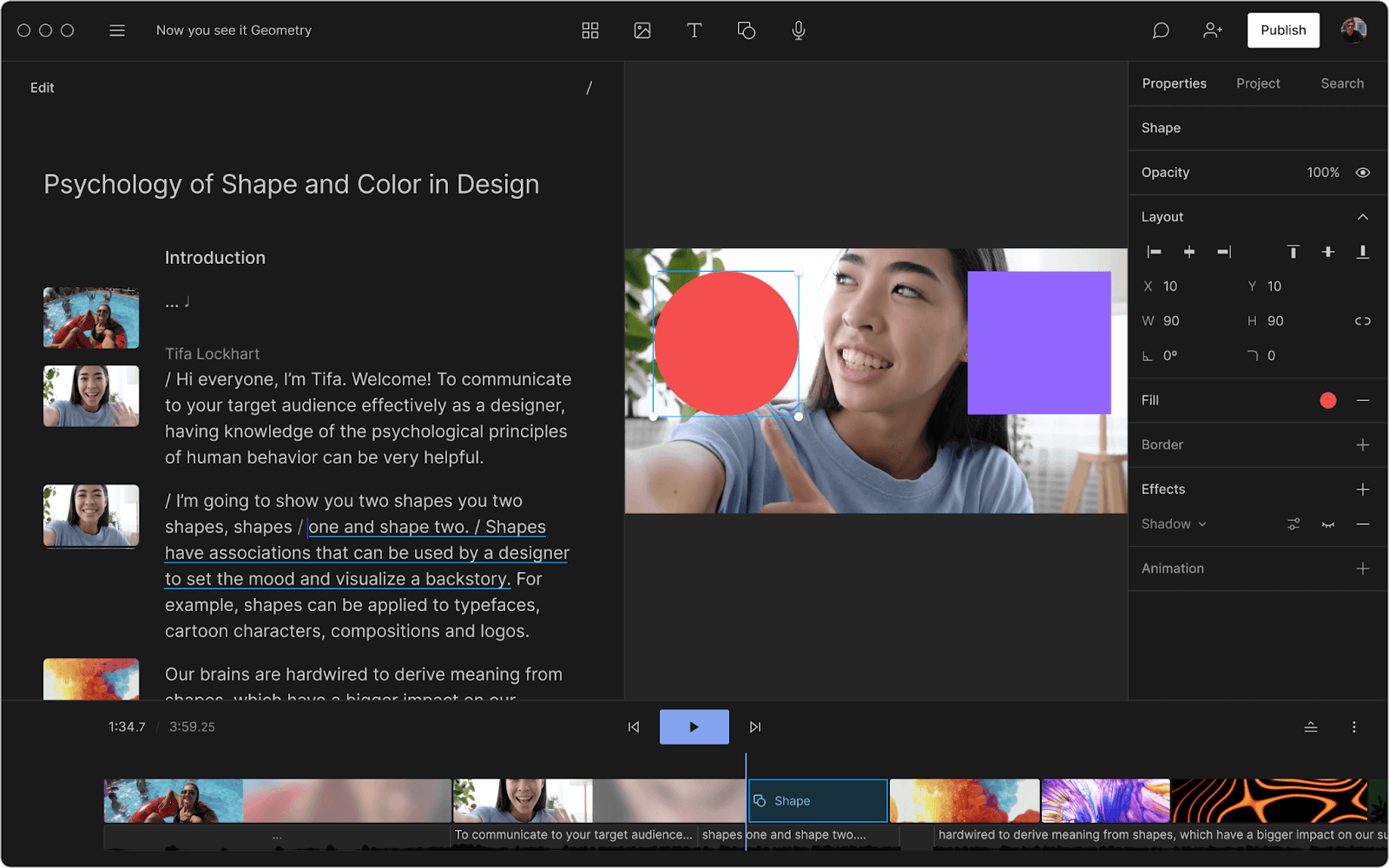
You edit in Descript the way you edit a text document: delete a sentence from the transcript and it disappears from the video. It adds Studio Sound for audio cleanup, captions, retake removal and Underlord, an AI assistant that proposes a first cut. One caveat: according to Descript’s help center, filler-word detection only works on English transcripts.
Best for: video podcasts, interviews, courses, short clips cut from long videos. Watch out: it’s built around speech rather than color grading or motion design.
CapCut
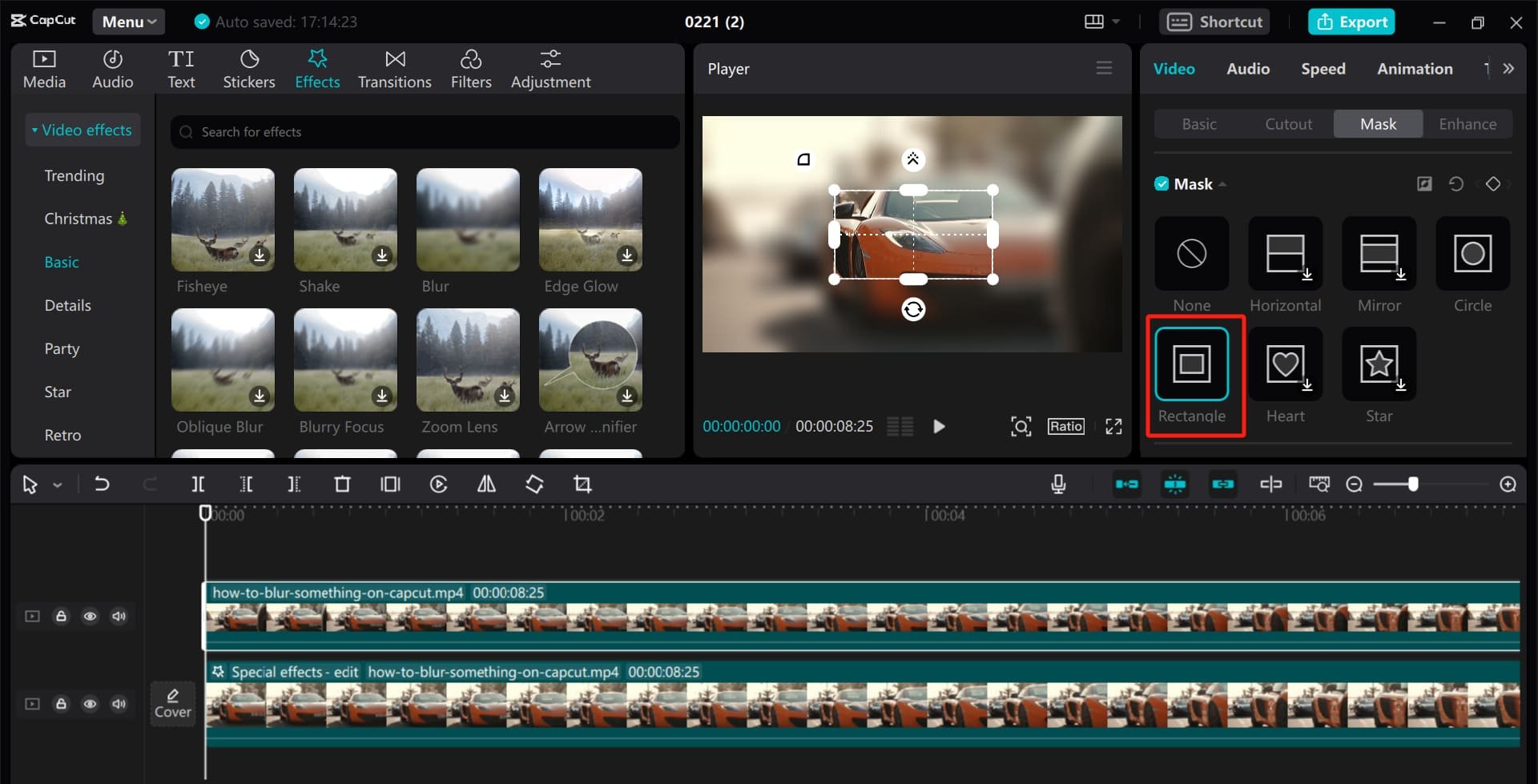
CapCut targets short-form creators: auto captions, ready-made effects and templates, and a filler-word remover that detects “um”, “uh”, “like” or “you know” and lets you preview each cut before export.
Best for: Reels, TikTok, Shorts, quick social content. Watch out: popular effects and templates are instantly recognizable; customize them to keep your own identity.
Meta Edits
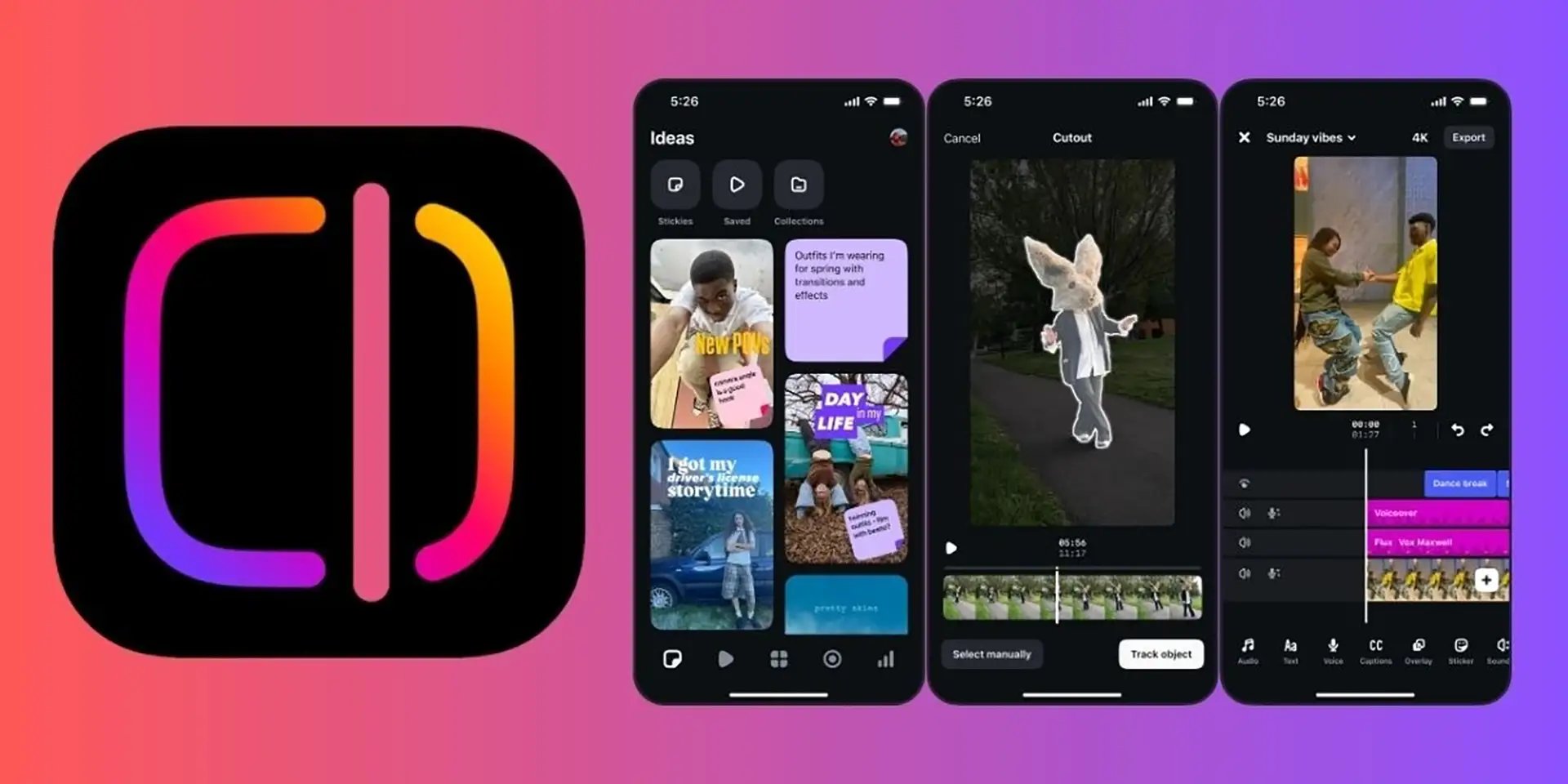
Edits is the mobile editing app Meta launched in April 2025 for Instagram creators. According to Meta’s announcement, it offers a frame-accurate timeline, effects such as green screen, watermark-free export, direct sharing to Instagram and Facebook, and insights like skip rate. A December 2025 update added AI effects you can apply to a specific person or object (to blur it, for example), title cards, storyboards and a library of text and caption styles.
Best for: Reels and Instagram content edited on a phone, format tests. Watch out: you sign in with an Instagram account, and the app is built for mobile; for long-form or multicam work, desktop software is still more comfortable.
Runway

Runway is an AI video generation platform. Its Aleph model can also edit existing footage: add, remove or transform objects, generate a new angle of the scene, change the style or the lighting. Runway also offers a background removal tool that isolates a subject without a green screen; it works best on a well-defined subject shot with a steady camera.
Best for: compositing, creative backgrounds, shots you can’t film, experimental ads. Watch out: every generated shot raises the question of transparency with your audience (see below).
ElevenLabs
ElevenLabs covers synthetic voice-over, voice cloning and dubbing. According to its dubbing documentation, the Dubbing v2 model translates audio and video into more than 90 languages while keeping each speaker’s tone, timing and characteristics, with regional variants for some languages such as Spanish, French and Arabic.
Best for: dubbing, voice-overs, localizing training videos or ads. Watch out: have every version checked by a native speaker, and never clone a voice without the person’s written consent.
Topaz Video
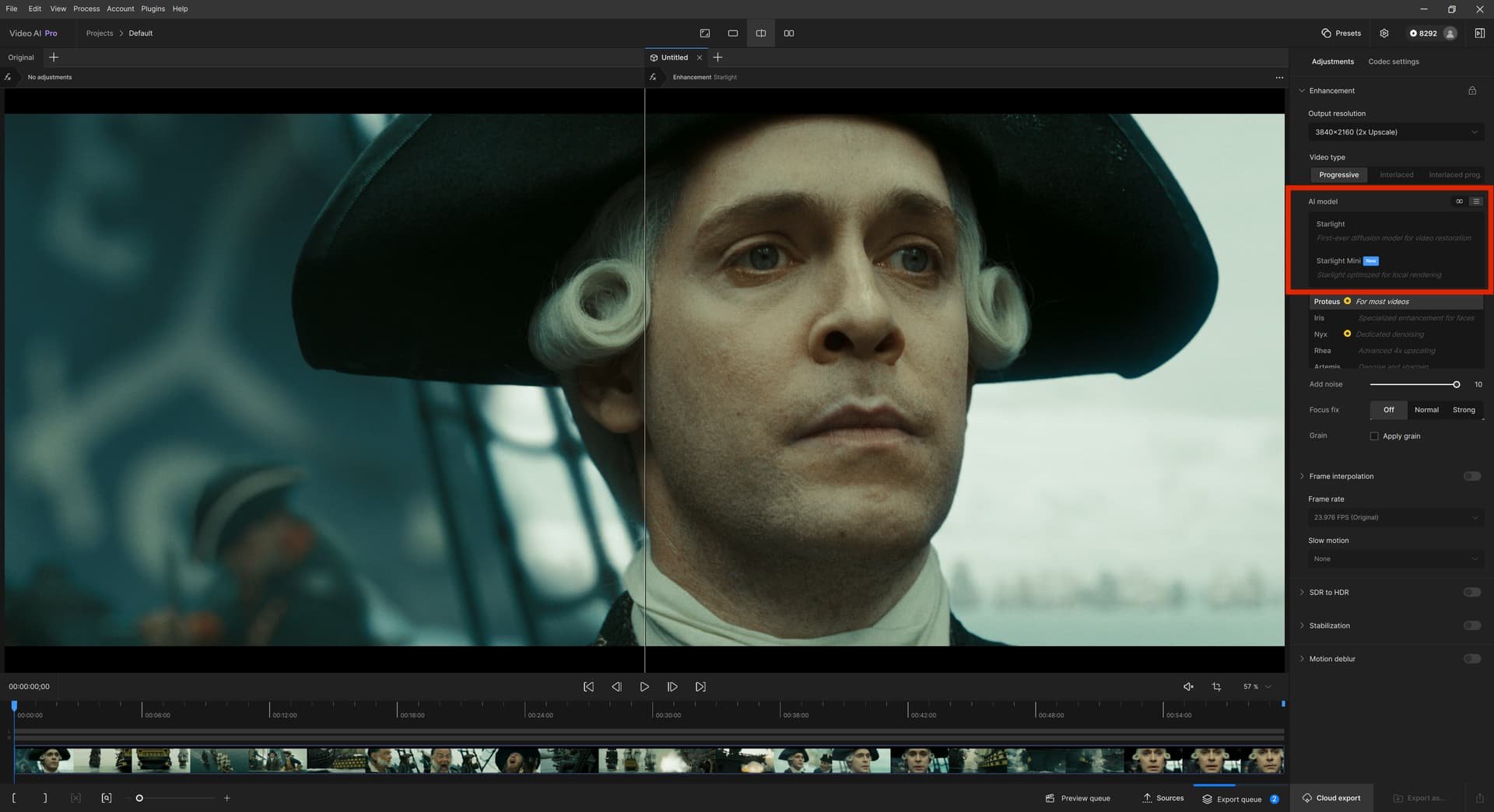
Topaz Video is desktop software (Windows and macOS) for improving the picture: upscaling to 4K and 8K, denoising, stabilization, frame interpolation for slow motion and SDR-to-HDR conversion. Processing runs locally on your GPU, and there are plugins for Premiere Pro and DaVinci Resolve.
Best for: rescuing blurry, noisy or shaky footage, restoring archives. Watch out: the Personal plan limits commercial use to organizations with under 1 million US dollars in annual revenue; above that, you need the Pro plan.
Risks and ethics: voices, faces, rights and disclosure
The more AI touches what viewers see and hear, the more trust is at stake. Four rules to apply on every project:
- Consent: only clone someone’s voice or face with their written consent, for a specific use. Making a real person say something they never said, even as a joke, can damage their reputation and yours.
- Rights and licenses: read each tool’s terms before a client project. Some licenses restrict commercial use (like Topaz Video’s Personal plan), and what you can do with generated music or visuals depends on the tool’s terms.
- Disclosure: YouTube asks creators to disclose realistic altered or synthetic content (a real person saying or doing something they didn’t, a real event altered, a realistic scene that never happened), but not captions, color correction, upscaling or cloning your own voice for a voice-over. TikTok also requires creators to label AI-generated or significantly edited content that shows realistic-looking scenes or people.
- Confidentiality: before uploading a client’s footage to an online service, check where it’s processed and stored. Tools that run locally, like Topaz Video, sidestep the question.
Key takeaways
- AI speeds up the mechanical side of editing: transcription, captions, audio cleanup, silences, the first rough cut.
- Pacing, structure, shot selection and emotion remain human decisions.
- At every stage, hand off the prep and check the result: watch the footage, proofread the captions, listen to the voice on headphones.
- Check language support: Premiere’s transcription covers 18 languages, and Descript’s filler-word detection only works in English.
- Consent, licensing and AI disclosure are part of the job, not optional extras.
FAQ
Can AI edit a video on its own?
It can assemble a first cut: remove silences, keep the sentences you selected in the transcript, add captions. But it doesn’t know which hook will hold your audience, which shot carries the emotion or where the pacing should slow down. For a brand video or an ad, that first pass is a working draft, not the final version.
What is the best AI tool for video editing?
It depends on the format. For full professional editing, Premiere Pro packs the most AI features into a traditional editor. For podcasts and interviews, Descript’s text-based editing saves a lot of time. For Reels edited on a phone, CapCut or Edits are enough. For voice and dubbing, ElevenLabs; to rescue damaged footage, Topaz Video.
How accurate are auto-generated captions?
They give you a solid first draft when the audio is clean and the speaker articulates. Errors cluster around proper names, technical terms, slang and passages where speakers switch between languages. Always plan a full proofread before publishing, and check that your language is on the tool’s supported list: Premiere’s transcription, for example, doesn’t currently include Arabic.
Do you have to disclose AI use in a video?
On YouTube and TikTok, yes, as soon as a video shows realistic people or scenes generated or significantly altered with AI: a real person made to say something they didn’t, a real event altered, an invented scene that looks real. On YouTube, technical uses like captions, color correction or upscaling don’t need a label. When in doubt, disclose it.
Go further