Captions for Reels, TikTok and Shorts: methods, style and Arabic
Auto captions, burned-in captions or an SRT file: how to caption a Reel, a TikTok or a Short, which tool to use, what size and where to place the text. Readability rules from Netflix’s style guide, Arabic and Darija specifics, and a checklist before you publish.
MoBenFreelance video creator
Contents
- Why caption your Reels, TikToks and Shorts?
- Three ways to add captions
- Step-by-step workflow, from transcript to export
- Caption style rules: size, contrast, position, line length and speed
- Word-by-word (karaoke) captions: when to use them
- Multilingual captions: one language per version
- Arabic captions: fonts, RTL, Darija and rendering bugs
- Pre-publish checklist
- Common mistakes
- Key takeaways
- FAQ
To caption a Reel, a TikTok or a Short, you have three options: the platform’s auto captions, burned-in captions added in your editor, or an SRT file uploaded where the platform supports it (mainly YouTube). For most creators and brands, the winning workflow is: auto-transcribe, correct by hand, apply a readable style inside the safe zone, export burned in.
Below: the three methods compared, the workflow in the main editing tools, numeric style rules, and how to handle Arabic, right-to-left text and Darija (features checked October 2026).
Why caption your Reels, TikToks and Shorts?
Accessibility. According to the WHO fact sheet on deafness and hearing loss, over 5% of the world’s population, or 430 million people, require rehabilitation to address disabling hearing loss. TikTok introduced auto captions in 2021 precisely for deaf and hard-of-hearing viewers.
Sound-off viewing. On public transport, at work, late at night: part of your audience scrolls with the sound off. Without text, a talking video tells them nothing.
Comprehension. Accents, background noise, brand names: text removes the ambiguity, and the first words on screen reinforce your opening, as covered in the guide to visual hooks for Reels and Shorts.
Three ways to add captions
1. Platform auto captions
According to TikTok’s official announcement, you turn on auto captions on the editing page, you can edit the generated text, and viewers can hide them from the share panel. YouTube generates automatic captions on long-form videos and Shorts, in English, French, Arabic and dozens of other languages; its help page on automatic captions warns they can misrepresent speech because of accents, dialects or background noise. Instagram can also show auto-generated captions on Reels.
- Pros: fast, free, viewers can turn them off.
- Cons: style and position set by the app, frequent errors on names, numbers, dialects and mixed languages.
2. Burned-in captions
You create the captions in your editor and burn them into the picture on export (also called open captions). It is the dominant approach on Reels and TikTok because it gives you full control of the look.
- Pros: identical rendering everywhere, on-brand styling, word-by-word animation possible.
- Cons: viewers can’t turn them off, one language per export, and any typo means re-uploading.
3. Uploading an SRT file
An .srt file holds the text and timecodes of each caption. On YouTube, you add it in YouTube Studio (Subtitles, then Add language), as described in YouTube’s guide to adding subtitles and captions, with one track per language. The supported formats include SRT and WebVTT; an SRT file must be plain UTF-8 with no styling. As of October 2026, neither TikTok nor Instagram documents SRT upload for a regular post.
Which one should you use? On Reels and TikTok, burn in your main language and switch off the platform’s auto captions to avoid double text. On YouTube, a clean version with SRT tracks is more flexible if you target several languages (check how it looks on mobile). Either way, always keep a “clean” export with no text at all.
Step-by-step workflow, from transcript to export
- Get the audio right: mic close to the mouth, music ducked under the voice. Transcription quality depends on it.
- Lock the edit before captioning, or every new cut will shift your captions.
- Run auto transcription in the right language.
- Correct by hand: names, brands, numbers and dialect words. It is the step people skip most, and the one viewers notice most.
- Split into short segments, apply your saved style and place the text in the safe zone.
- Export the burned-in version, an SRT for your archive or YouTube, and a clean version, then check everything on a phone with the sound off.
Premiere Pro, DaVinci Resolve, CapCut or Descript?
Premiere Pro: according to Adobe’s page on Premiere’s AI features, Speech to Text transcribes in more than 18 languages and captions can be auto-translated into 27 languages. You set line length, minimum duration and number of lines when creating captions, then choose at export between burning them in and a separate sidecar file.
DaVinci Resolve: the official Edit page overview says you can transcribe clips for subtitles and import SRT or TTML files; on the Deliver page, subtitles export burned in or as a separate file. Some AI tools are reserved for the paid Studio version, so check what yours includes.
CapCut: its auto caption generator is the fastest option on mobile, with animated templates and translation. Check the detected language and adapt the template to your brand.
Descript: you edit the transcript like a document, the captions follow, and you can export a subtitle file too. Ideal for talking formats such as video podcast clips.
Caption style rules: size, contrast, position, line length and speed
The most solid reference is Netflix’s Timed Text Style Guide: 2 lines maximum, 42 characters per line in English, French and Arabic, and 5/6 of a second to 7 seconds per subtitle event. Reading speed is capped at 20 characters per second for adult programs in the English (USA) guide and in the Arabic one, and 17 in French. For 9:16, adapt them like this:
- Line length: a vertical frame is 1080 px wide versus 1920 px in 16:9. At the same text size, Netflix’s 42 characters shrink to about 23 to 25. One short line, two at most.
- Reading speed: a caption on screen for 2 seconds should not exceed 40 characters in English (2 x 20). If it does, shorten the sentence.
- Size: as a starting point, not a standard, a bold sans-serif font around 55 to 65 px on a 1080 x 1920 timeline (the frame covered in the guide to Reels, TikTok and Shorts format, length and resolution) fits about 25 characters across the usable width. Always check on a real phone.
- Contrast: the WCAG criterion on minimum contrast requires at least 4.5:1 for regular text and 3:1 for large text. Video moves, so add an outline, a shadow or a semi-opaque box, and check the brightest shot.
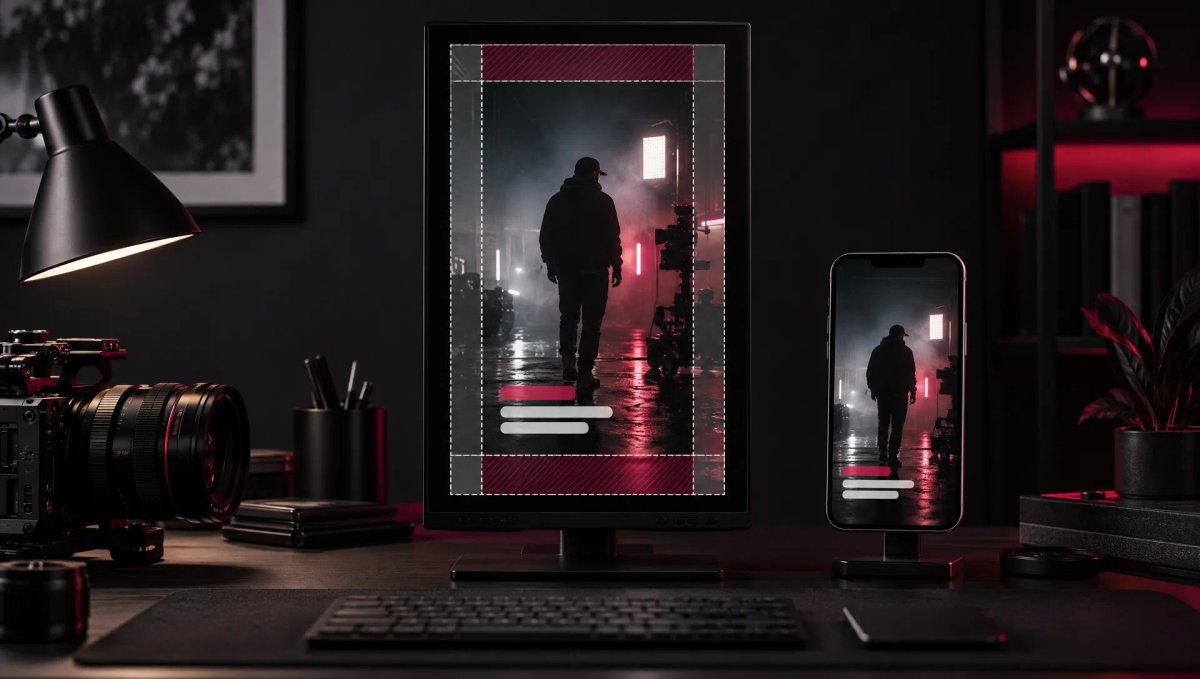
- Position: lower centre, above the post description. Meta’s and Google’s templates keep roughly 670 px clear at the bottom of a 1920 px frame, so keep the bottom of your captions above about 1250 px, away from the buttons on the right and off the speaker’s mouth. Platform details are in the Reels, TikTok and Shorts safe zone guide.
- Line breaks: break after punctuation or before a conjunction, never between an article and its noun or between a first and last name.
- Consistency: same font, size and position from start to finish.
Word-by-word (karaoke) captions: when to use them
Karaoke captions show or highlight each word as it is spoken. They suit talking heads, educational videos and hooks, with an accent colour on one or two key words. Avoid them for brand films or emotional testimonials: full sentences read more easily than flashing words. Keep 1 to 3 words on screen, one subtle animation and the same reading-speed cap. In Arabic, animate word by word, never letter by letter.
Multilingual captions: one language per version
On TikTok and Instagram, the reliable method is one version per language: start from the clean export and burn each language into its own export. On YouTube, you can keep one video with several SRT tracks. Two languages on screen at once (English above Arabic, for example) only work with very short lines: one language per line, never mixed. Machine translation is only a first draft: have a native speaker review it and re-time the captions.
Arabic captions: fonts, RTL, Darija and rendering bugs
Arabic is written right to left (RTL), with joined letters that change shape depending on their position in the word. Most bugs come from a tool that ignores one of these two rules.
Fonts, punctuation and digits
Pick a font designed for Arabic that stays legible at small sizes, such as Noto Sans Arabic, IBM Plex Sans Arabic, Cairo or Tajawal (free on Google Fonts). Empty boxes or a fallback font mean yours lacks Arabic glyphs. Allow more line spacing than in English so diacritics don’t get clipped. Use Arabic punctuation (the comma ، the semicolon ؛ and the question mark ؟) and one digit system throughout. The Netflix Arabic style guide adds two useful rules: no italics, and closing punctuation where relevant.
Bidirectional text: Arabic with Latin words
When an Arabic line contains a brand, a number or a French or English word in Latin script, the Unicode bidirectional algorithm decides the display order. Typical result: the full stop jumps to the wrong end of the line, or a line starting with “TikTok” is laid out left to right. Set the paragraph direction to right-to-left, avoid ending a line with a Latin word followed by punctuation, and if needed add the invisible RLM character (U+200F) after the final punctuation, as the W3C explains on its page about Unicode bidi control characters. Always check the exported file, not just the preview.
Darija or Modern Standard Arabic?
Modern Standard Arabic is understood across the Arab world: it is the choice for a pan-Arab audience and the only variety Netflix’s Arabic subtitle guide allows. Moroccan Darija sounds closer to a creator or brand speaking to a Moroccan audience, but it has no official spelling: fix one spelling per word and keep it, write French loanwords in Arabic or Latin script but always the same way, and keep Arabizi (Latin letters and digits) for very informal content. Auto transcription struggles with Darija and French-Arabic code-switching; Clipchamp offers a Moroccan Arabic option, covered in the guide to captioning Darija with Clipchamp, but plan a full manual review.
The most common rendering bugs
- Disconnected letters or reversed words: the software doesn’t apply Arabic shaping. In After Effects, switch the text engine to “South Asian and Middle Eastern” in the Type preferences, and never use online converters that reverse the text.
- Broken joins caused by a letter-by-letter animation or by tracking set above 0.
- Clipped diacritics inside a tight caption box: increase padding and line spacing.
- Garbled characters in an SRT (like “ال”): save the file as UTF-8, the encoding YouTube requires.
Pre-publish checklist
- Text proofread: names, brands and numbers checked.
- Every caption appears with the voice, not before or after.
- Two lines maximum, no orphan word, reading speed respected.
- Captions inside the safe zone, tested with the app interface.
- Readable on the brightest shot, not overlapping a title, price or CTA.
- Platform auto captions switched off if yours are burned in.
- In Arabic: joined letters, punctuation on the right side, consistent digits, no empty boxes.
- Video watched in full on a phone with the sound off: the message gets through.
Common mistakes
- Publishing the auto transcript without proofreading: a typo in your brand name shows more than a weak shot.
- Placing captions at the very bottom, behind the post description, or stacking three lines or more.
- Showing captions twice: yours and the platform’s.
- Overloading with animations, emojis and colours.
Captioning in English, French and Arabic is part of every Reels, TikTok and Shorts production and video editing and post-production project at MoBen Prod.
Key takeaways
- Three methods: auto captions, burned-in captions, or an SRT file (mainly YouTube).
- On Reels and TikTok, burn in your main language and switch off auto captions.
- In 9:16: one or two lines of about 25 characters, 20 characters per second at most in English.
- Lower centre, above the post description, with strong contrast.
- In Arabic: a proper font, right-to-left direction, word-level animation, UTF-8 files and one spelling for Darija.
FAQ
Should every TikTok and Reel have captions?
Every video where someone speaks, yes. Captions make it accessible to deaf and hard-of-hearing viewers, understandable with the sound off, and clearer when accents or technical terms come up. You can skip them only if the video is purely musical or visual, or if on-screen text already carries the whole message.
Can you upload an SRT file to TikTok or Instagram?
As of October 2026, neither TikTok nor Instagram documents SRT upload for a regular post, so you choose between their auto captions and burned-in captions. YouTube, on the other hand, accepts SRT and WebVTT files in YouTube Studio, with one track per language, which makes it the easiest platform for multilingual captions.
What font size should Reels captions be?
No platform sets a size. As a starting point, a bold sans-serif font around 55 to 65 px on a 1080 x 1920 timeline fits about 25 characters per line. Then test on a phone held at arm’s length: if you squint, go bigger; if the text covers the face, shorten the sentence rather than shrinking the font.
How do you caption a video in Darija?
Choose the script first: Arabic script suits most Moroccan audiences, with one spelling per word. Run an Arabic auto transcription (Clipchamp offers Moroccan Arabic), then proofread everything, because tools often confuse Darija, Standard Arabic and French. Finally, check how Latin words display inside Arabic lines before you export.
Go further