“I don’t like it”: turning vague client feedback into clear changes
“I don’t like it” doesn’t mean starting over. Ask what isn’t working and what the client expected, rephrase it, get it approved, then group every change in one message. Questions, templates and tools included.

MoBenFreelance video creator
Contents
- Why does “I don’t like it” keep you going in circles?
- A change request is not always the solution
- How do you turn vague feedback into a clear change?
- What questions should you ask the client? The full list
- What if the client can’t say what’s wrong?
- Why group every change in a single message?
- Which tools give you precise feedback on a video or a visual?
- Your job is not to read the client’s mind
- Frequently asked questions
When a client says “I don’t like it”, don’t redo everything. Ask what isn’t working for them and what they expected instead, rephrase their need in your own words, get them to confirm it, then group every change in a single message. You are then fixing an identified problem instead of guessing what might please them.
Have you ever redone the same job a first, a second, then a third time, only to hear: “Actually, the first version was better”? In design as in video editing, one sentence is enough to get you into that loop.
Why does “I don’t like it” keep you going in circles?
After that comment, you change the colours, the music, sometimes even the idea. But at that point you are not fixing a clear problem: you are trying to guess what might please. Each new version becomes a bet, and the client still hasn’t said what bothered them.
“I don’t like it” doesn’t mean you have to start again from scratch. Most of the time, one or two specific things bother them, and they can’t name them yet.
A change request is not always the solution
Even when the client gives you a precise change, first understand the problem they want to solve with it. They don’t have to speak like a designer or an editor: they often give you the first solution that comes to mind.
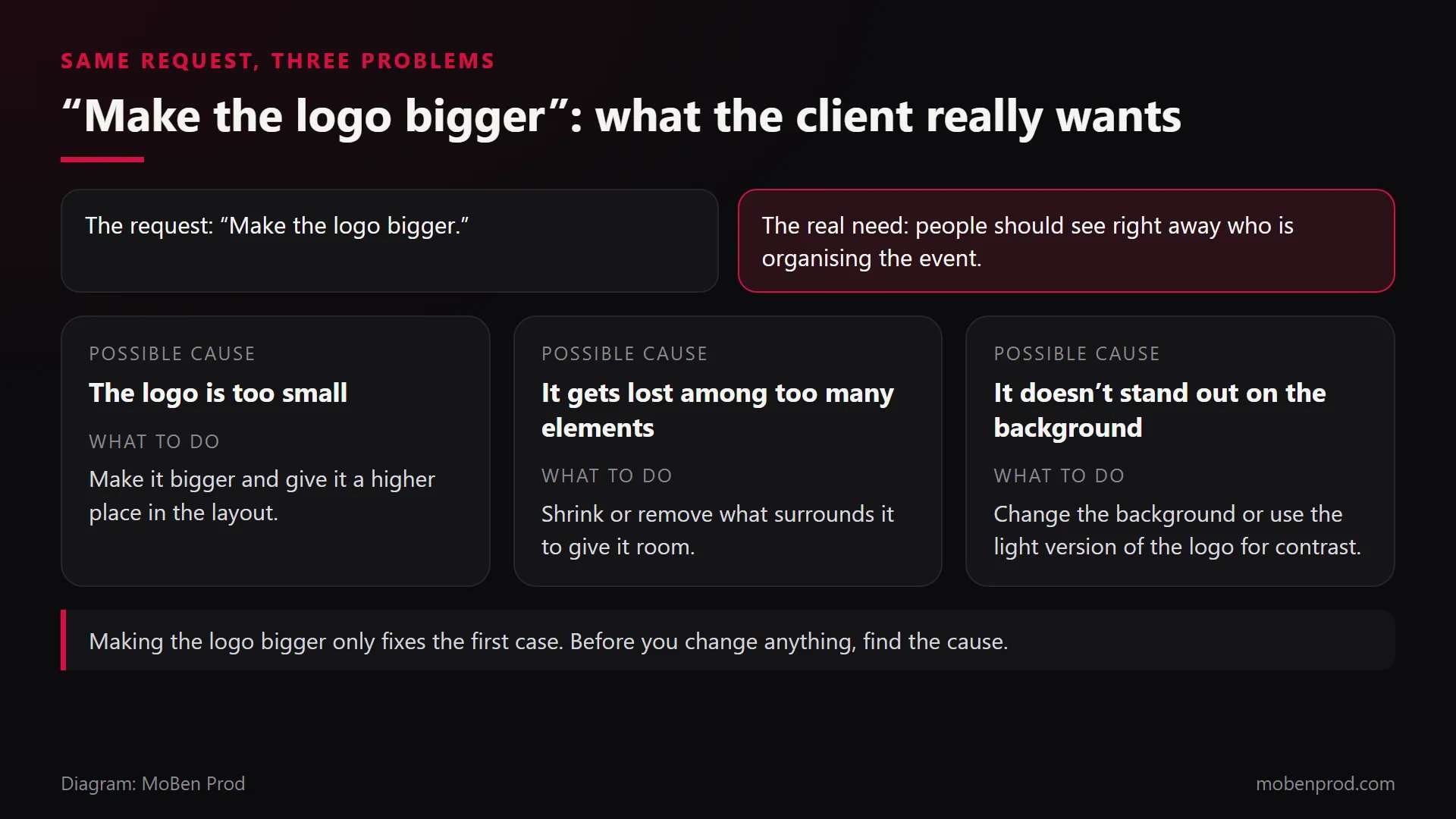
Example: on an event poster, they write “Make the logo bigger”. What they really want is for people to see clearly who is organising the event. On your side, the problem can come from three places:
- the logo is too small;
- it gets lost among too many elements;
- it doesn’t stand out on the background you chose.
The request is the same, but the fix depends on the cause. If the logo gets lost among the elements, making it bigger solves nothing: it needs room around it.
How do you turn vague feedback into a clear change?
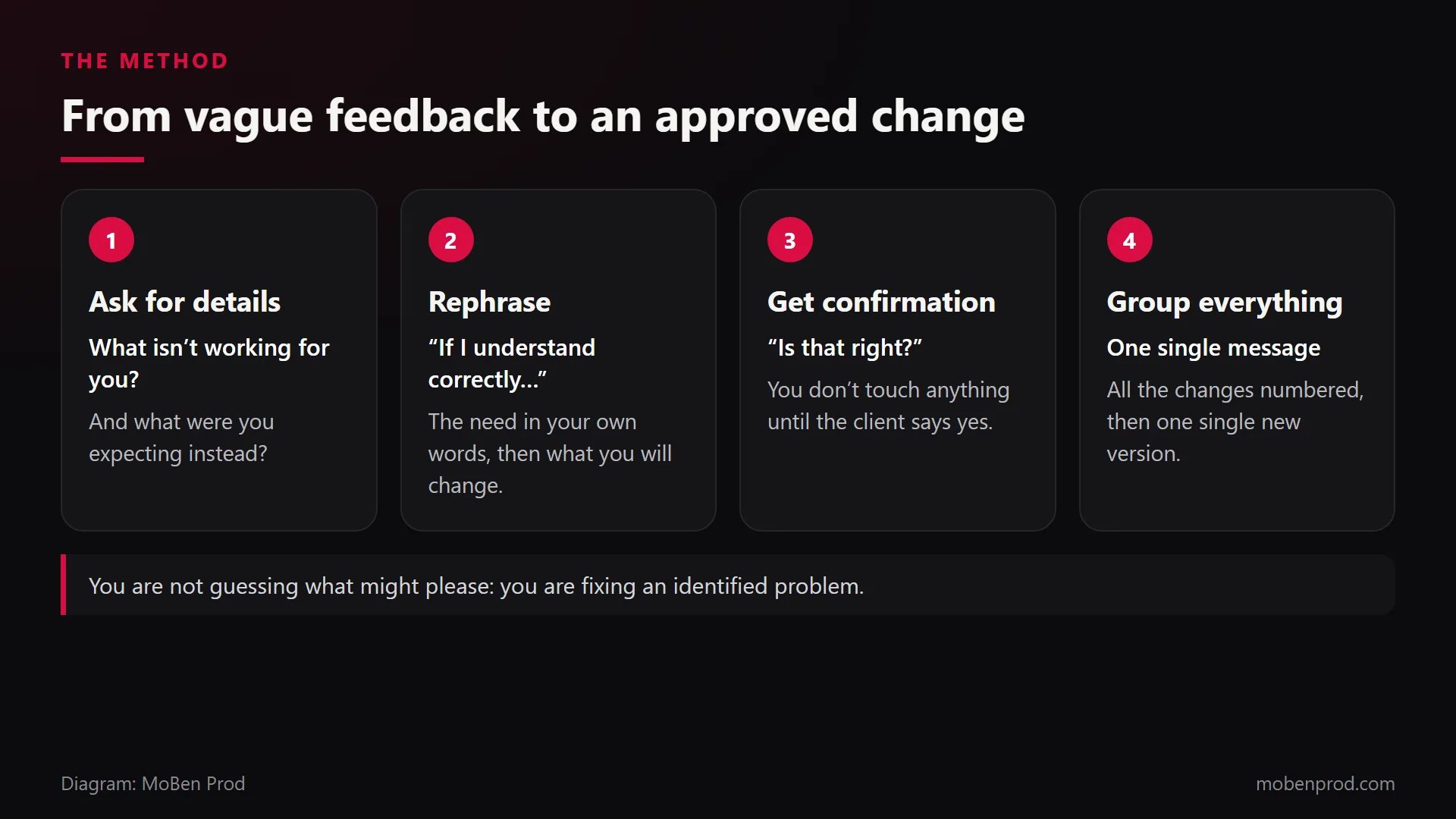
Before touching the file, I always follow the same four steps:
- Ask for details. Ask what isn’t working for them, and what they expected instead.
- Rephrase. Say their need back in your own words, then what you plan to change.
- Get confirmation. Wait for their “yes” before changing anything.
- Group everything. Put every change in one numbered message, then deliver one single new version.
Back to the logo. Once you have found the cause, the rephrasing can look like this:
“If I understand correctly, what matters is that the organiser stands out more. I’ll bring that part forward and trim the elements around it a little, so the logo shows better. Is that right?”
This message shows the client you understood their need, not just their sentence. And if they answer “No, that’s not it”, you find out before spending an hour on the wrong version.
What questions should you ask the client? The full list
Don’t send them all at once: pick the two or three that match the feedback you received. They are grouped by topic.
To start, whatever the feedback
- What bothers you first when you look at this version?
- What were you expecting instead?
- What do you like that we should keep?
- If you could change only one thing, what would it be?
- Where exactly does it go wrong? Give me the timecode in the video, or the area on the visual.
- Do you have an example, yours or someone else’s, that looks like what you have in mind?
- Who else needs to approve this version on your side?
On the idea and the message
- Is the main message clear from the start?
- What should the viewer remember, or do, by the end?
- Does the tone feel too serious, too light, or right?
On pace and length
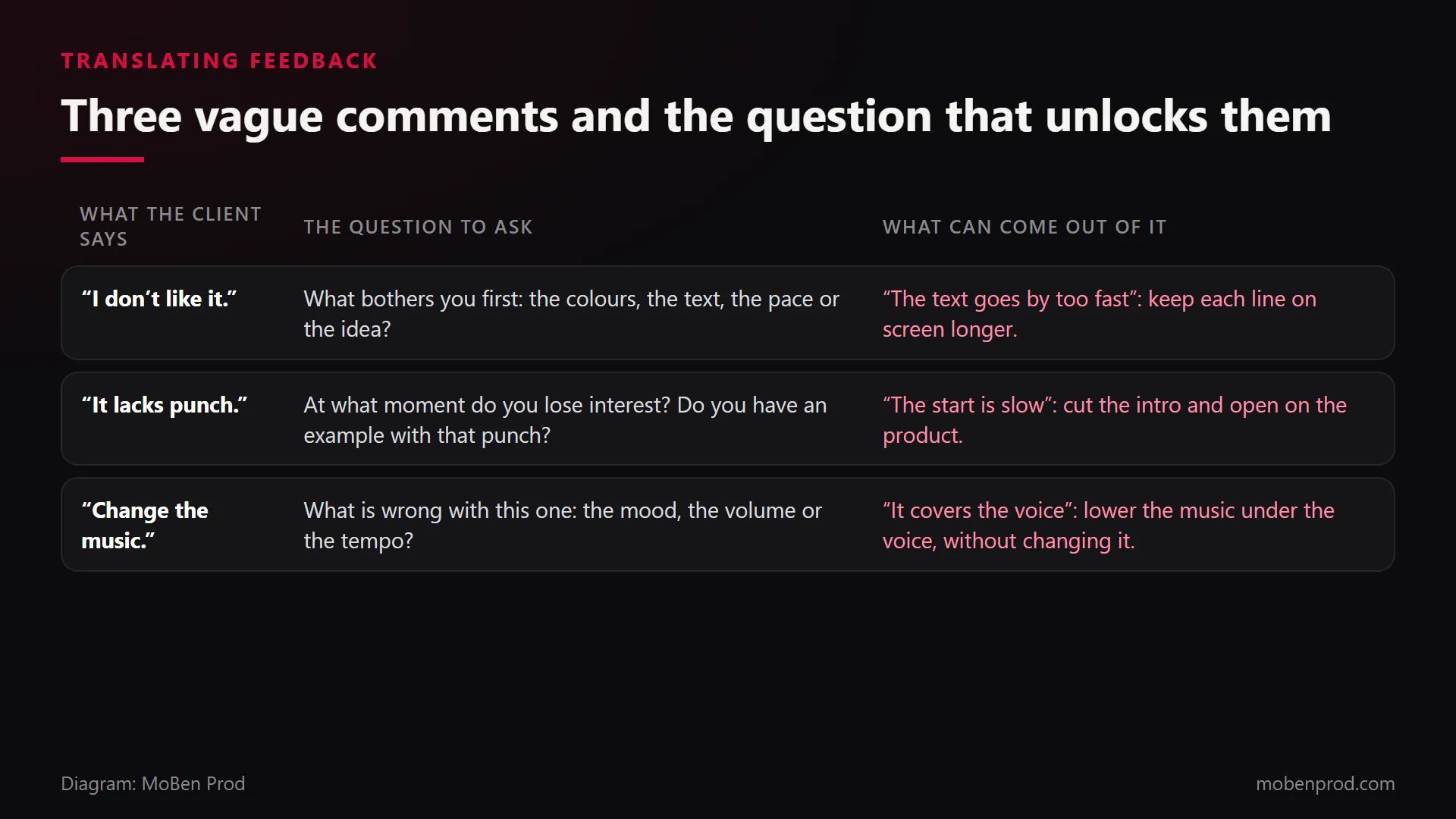
- Is there a moment where you lose interest?
- Does the video feel too long everywhere, or only in one place?
- Do the texts and subtitles stay on screen long enough to be read?
On music and sound
- What is wrong with this music: the mood, the volume or the tempo?
- Does the music cover the voice at certain moments?
- Do you have a reference track you like?
On colours and style
- Do the colours feel too dark, too bright, or far from your brand?
- Are there colours or fonts required by your brand guidelines?
- Does the visual feel too busy, or too empty?
On the logo, the text and the information
- What should people see first?
- Is the problem the size, the position, or the contrast with the background?
- Is all the information correct: date, price, address, spelling of names?
What if the client can’t say what’s wrong?
It happens, and it isn’t bad will. Offer them an easier way to answer:
“No problem, it’s often easier to show than to say. Watch the video and just note the moments where you hesitate, even if you don’t know why. Or send me a video you like: we’ll start from there.”
With two or three noted moments and one example, you have enough to ask the right questions and suggest a rephrasing.
Why group every change in a single message?
When feedback arrives bit by bit, on WhatsApp, by email and on the phone, you redo the same version several times, and some requests end up contradicting each other. One numbered message, approved by the client, becomes your roadmap for the next version. Here is the template I send:
“Here are the changes I will make on version 2: 1. [Bring the logo forward by lightening the elements around it]. 2. [Lower the music under the voice between 0:12 and 0:25]. 3. [Fix the date: Saturday 14th instead of Sunday 15th]. Is the list complete? As soon as you confirm, I’ll start the new version, due on [Thursday].”
This message also protects the number of revision rounds in your quote: each version matches an approved list, and a request outside the list is visible right away. It is the same logic as the first message to a client: make the work visible and precise before doing it.
Which tools give you precise feedback on a video or a visual?
Part of the vagueness comes from the channel. A voice note saying “around the middle, the part with the music” already needs an investigation. Review tools let the client comment at the exact spot, and most don’t even ask them to create an account. Vimeo sums up the change well:
“‘Fix the third scene’ becomes ‘at 2:14 the color is off.’” (Vimeo, Video review page)
Here are the ones whose features and plans I checked on their official pages in November 2026. Prices and limits change often: check again before subscribing.
For video
- Frame.io (Adobe): comments on an exact frame or a range, drawings on the frame (arrow, box, freehand), two versions side by side. The client comments from a link without creating an account. Free plan: 2 members, 2 GB, 2 projects.
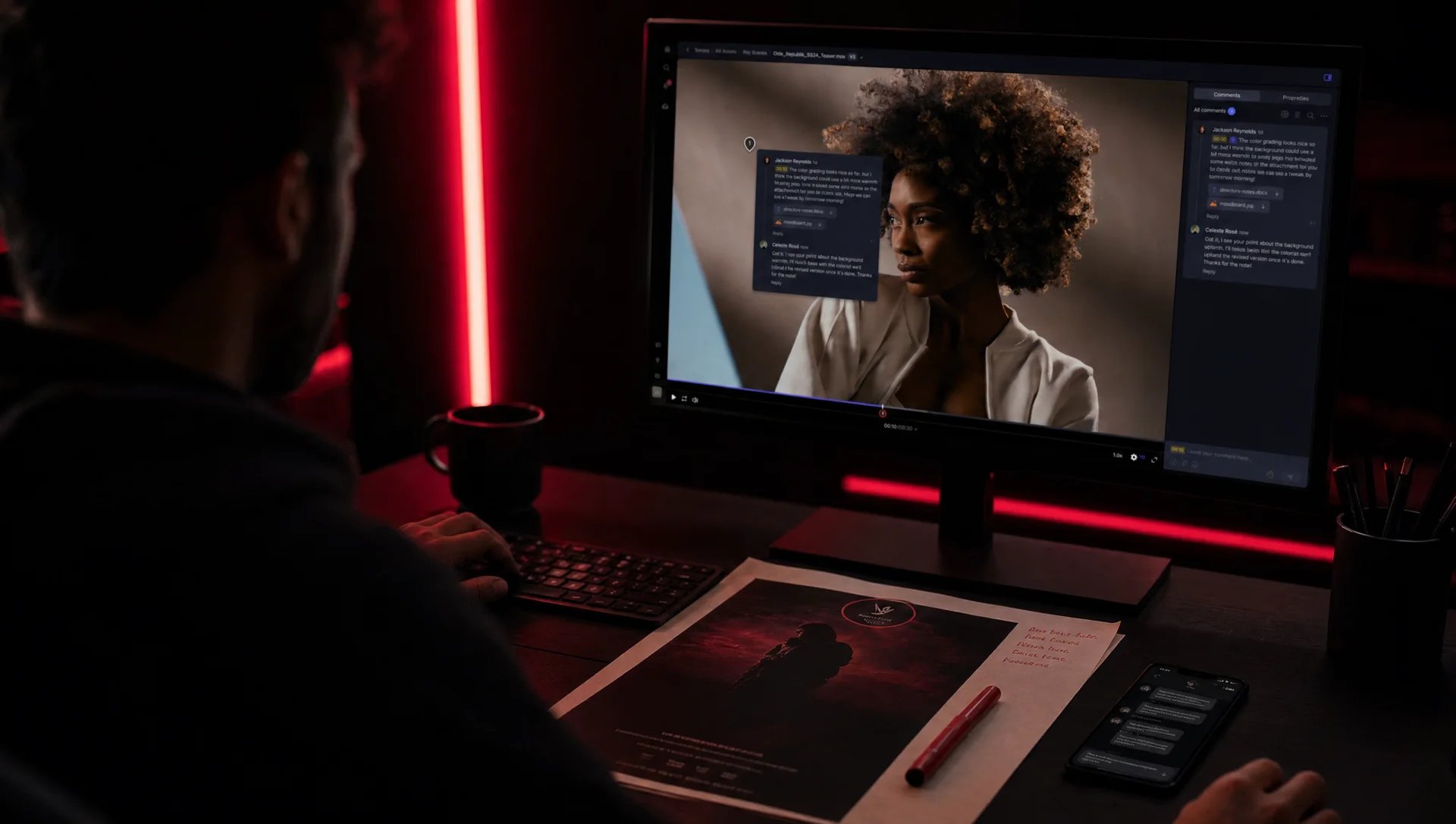
- Frame.io panel in Premiere Pro (version 25.6 and later): the client’s comments show as markers in the timeline, and clicking a comment moves the playhead to that moment.
- Vimeo review links: time-coded comments shown on the timeline, and an “Approved” status if you turn it on. The client doesn’t need a Vimeo account. The free plan allows one review link per video.
- Dropbox Replay: comments placed on the timeline, drawing directly on the video, reactions on a frame, version tracking. No Dropbox account needed to comment. With Dropbox Basic (free), features are limited to 4 files.
- Blackmagic Cloud Presentations (DaVinci Resolve): markers, comments and drawn annotations that land automatically in the Resolve timeline. The client needs no account. Up to 20 presentations with a free personal account.
- Google Drive: since August 2026, comments on a video can be timestamped and show as markers on the player timeline, on the web version.
- Loom: useful the other way round, when the client prefers to record their screen while talking. Comments are tied to a moment in the video. Free plan: 25 videos, 5 minutes per recording.
For approval in several steps
- Filestage: frame-accurate comments, “approve” or “request changes”, approval stages, version comparison. Reviewers don’t create an account. Free plan: 1 active project, 5 new files a month, 2 GB.
- Ziflow: feedback tied to a frame or a range of the video, drawing tools, pixel-level version comparison. Guests comment and approve without an account. Free plan: 2 users, 2 GB, one approval stage.
- ReviewStudio: markups on a frame or a range, synced comparison, decisions “Approved”, “Approved with changes” or “Revisions required”. Guest access by link. Free plan: 3 active reviews, 5 GB.
- Krock.io: write, draw and attach a file on a timecode, overlay comparison. Free plan: 1 user, 2 GB, 2 projects, unlimited reviewers.
- Wipster: frame-accurate comments, multi-step approvals, two versions side by side. Reviewers need no account. No free plan: a trial, then from $9.95 a month billed yearly.
- Kitsu: built for animation and visual effects, with drawing on the frame and two versions side by side or overlaid. Paid, with a two-week trial.
For visuals, PDFs and websites
- Figma: comments pinned to a point or an area of the design; people with view-only access can comment too.
- Canva: comments on an element, a text or a page, and approval requests with “Approve” or “Request changes”. The client has to log in to comment.
- Adobe Acrobat shared review: comments, highlights and annotations on a PDF, with a review deadline.
- Pastel: comments right on a website, an image or a PDF, with no login for the client. Free plan: 1 user, 1 active canvas.
- Markup.io: pins on websites, images, PDFs and videos (down to the timestamp), guest access without sign-up. 14-day trial, then from $79 a month.
- BugHerd: for websites, each comment is pinned to the page element, with an automatic screenshot. Clients don’t need an account. 7-day trial, then from $50 a month.
A tool doesn’t replace the questions: it shows where the problem is, not always why. Use it to locate, then apply the method to understand. Here Adobe shows how feedback lands in the Premiere timeline:

Your job is not to read the client’s mind
Nor to keep changing things until you stumble on what they like. Before you answer “OK, I’ll change it”, everything about what will be fixed must be clear. Otherwise you both go round in circles, in the same place, without moving forward.
Frequently asked questions
How many revision rounds should a quote include?
There is no universal number, but write a precise one in the quote and say what a round is: an approved list of changes, delivered as one new version. Beyond that, each new round is discussed before it starts.
What if the client wants to go back to the first version?
Always keep previous versions and name them clearly (V1, V2, V3): going back then takes a few minutes. And ask what V1 did better. It is often the real answer to the original “I don’t like it”.
Should you accept feedback by voice note?
Yes, if it is easier for the client. But always turn it into a written list and get it approved: that list is what counts for the next version.
Is vague feedback a sign of a bad brief?
Partly, often. The more precise the brief is at the start (goal, audience, examples, constraints), the less vague the feedback. I explain from the client’s side how to prepare it in how to choose a freelance video editor and prepare the brief.
And if you are a brand looking for an editor who asks these questions before touching your video, here is how I handle editing and post-production. Tell me about your project.
Go further