Closed eyes in a photo: can Lightroom really open them?
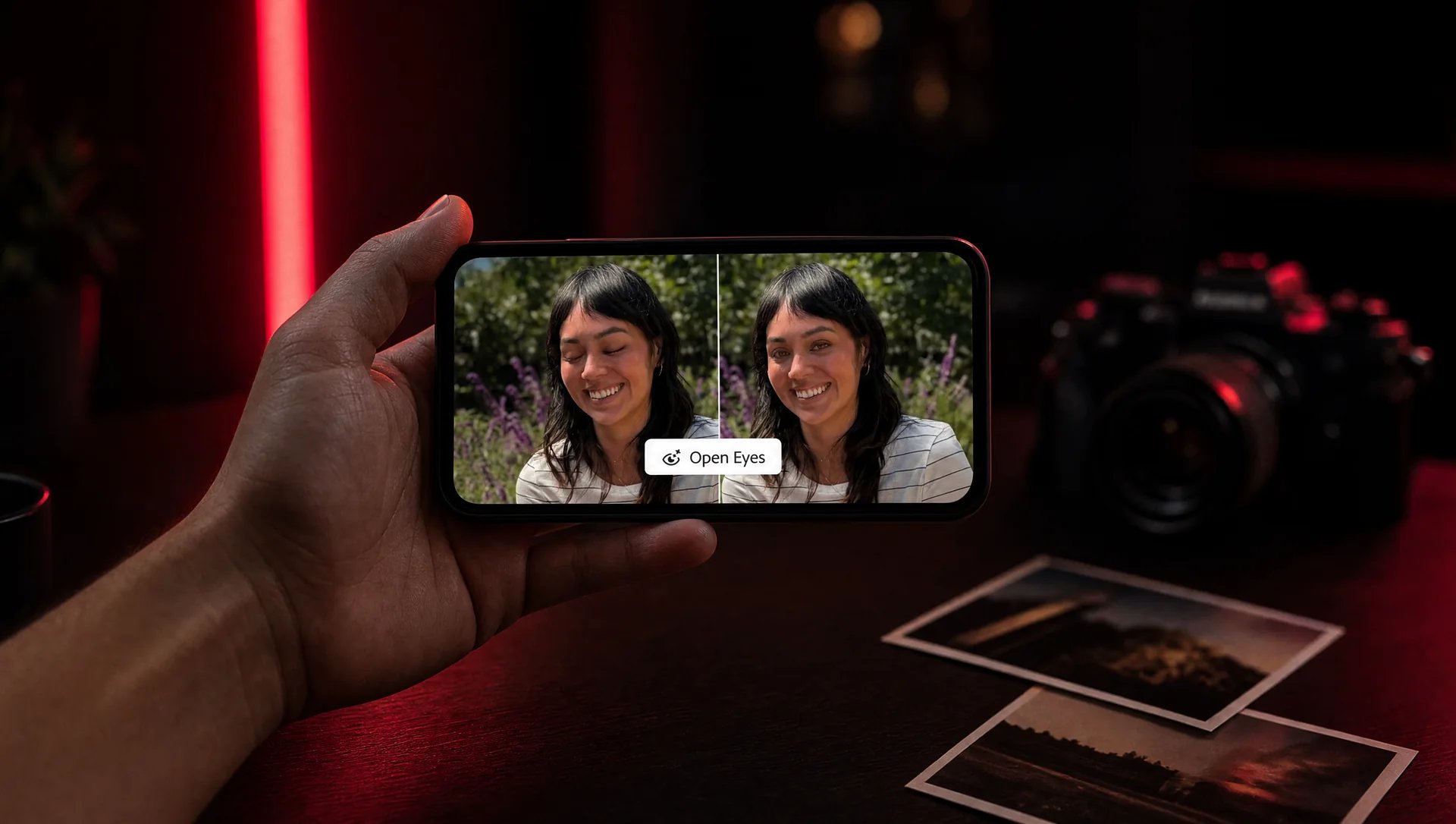
Adobe added Open Eyes to Lightroom on mobile: the app detects closed eyes and offers to open them with a generated fix. It is an invented correction, not the real moment recovered, so check the result before you post or deliver.

MoBenFreelance video creator
Contents
- What is the Open Eyes feature in Lightroom?
- How does Open Eyes use your other photos?
- Is Open Eyes really free?
- How do you open closed eyes with Lightroom mobile?
- When does the result not work?
- What other ways are there to fix closed eyes?
- Can you use Open Eyes on a client’s photos?
- Frequently asked questions
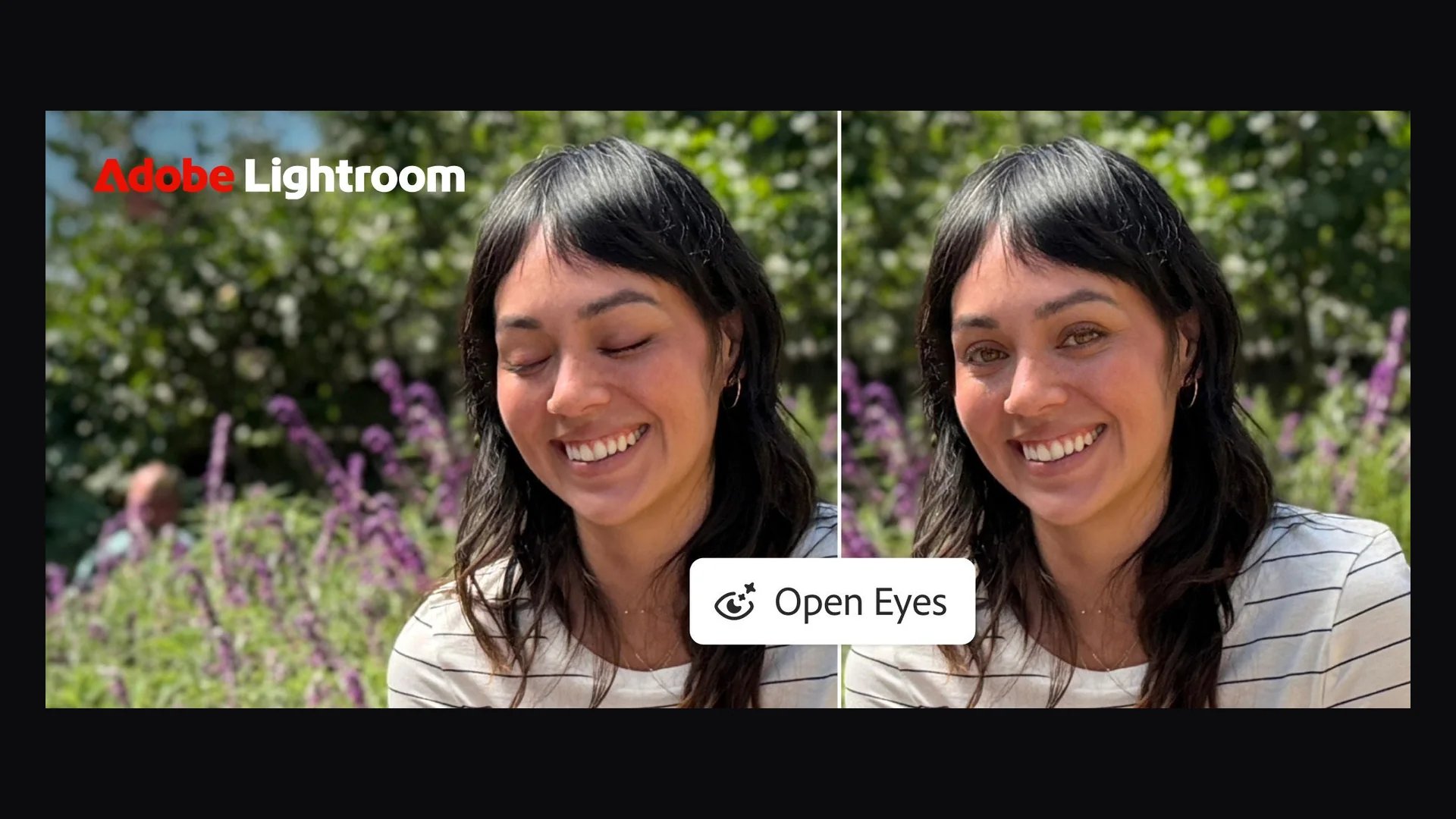
Yes, partly. Since October 2026, Lightroom on mobile offers Open Eyes: when the app detects closed eyes in a photo, it offers to generate open eyes in one tap. But it is not the person’s real gaze at that moment, it is a reconstruction. Before you post it or deliver it to a client, look at the result closely.
You know the scene: the light is good, the framing too, everyone is smiling, and one person blinked. For a group photo, a wedding moment or a team portrait, you cannot always take it again. Don’t delete the photo straight away: there are several ways to save it, with very different levels of faithfulness.
What is the Open Eyes feature in Lightroom?
Adobe introduced it on 19 October 2026 on its official blog. When Lightroom automatically detects closed eyes in a photo, the Open Eyes icon appears among the Quick Actions. You then choose whether to generate the fix.
“In one tap, Open Eyes creates a natural-looking result on any photo, for free.” Adobe, announcement of 19 October 2026
The same announcement also introduces Generative Expand, which extends an image beyond its frame to fit another format, such as a square or a vertical story. Both tools aim at the same need: saving a photo you cannot take again.
How does Open Eyes use your other photos?
This is the most interesting part. According to Adobe, if your Lightroom library holds other photos of the same person, Open Eyes can use them to match the colour, shape and size of their eyes. The goal is a result that looks like that person, not like generic eyes.
Without reference photos the feature still works, but it has to invent more. Adobe’s announcement does not explain how the person is recognised from one photo to another. If that matters to you or your clients, check your account settings before using it on their photos.
Is Open Eyes really free?
Adobe says the fix is free. DPReview, which tested it on 20 October 2026, adds that the free version of Lightroom mobile gives two uses before asking you to subscribe to an AI or Creative Cloud plan. Terms can change, so check what your app shows before relying on it for a large batch of photos.
Also according to DPReview, the feature did not appear to be available in desktop Lightroom at the time of the test. It lives in the mobile app.
How do you open closed eyes with Lightroom mobile?
Here is the method as Adobe describes it, with the checks I add on my side:
- Open the photo in the Lightroom app on your phone or tablet.
- If the app detects closed eyes, the Open Eyes icon appears in the Quick Actions. Tap it to generate the fix.
- If you have other sharp photos of the person, add them to your Lightroom library first: according to Adobe, they make the result more accurate.
- Zoom to 100% on every corrected face: gaze direction, catchlights, eyelids, symmetry.
- Compare with the original, then export a copy and always keep the original file.
When does the result not work?
Adobe does not publish a list of limits for Open Eyes. However, the Photoshop Elements feature that opens eyes using another photo has its own help page, and it lists the traps I also see in retouching: faces too close together, tilted heads, partly hidden faces, low light, glasses.
I add three cases where I stay careful:
- The gaze drifts. In a group photo everyone looks at the lens. If the generated eyes look elsewhere, the picture feels wrong.
- The catchlights don’t match the light. The small bright points in the eyes must come from the same source as the rest of the face.
- The face is small or blurry. The fewer pixels on the face, the more the fix invents.
What other ways are there to fix closed eyes?
Open Eyes is not the only option. I rank the methods from the most faithful to the most invented.
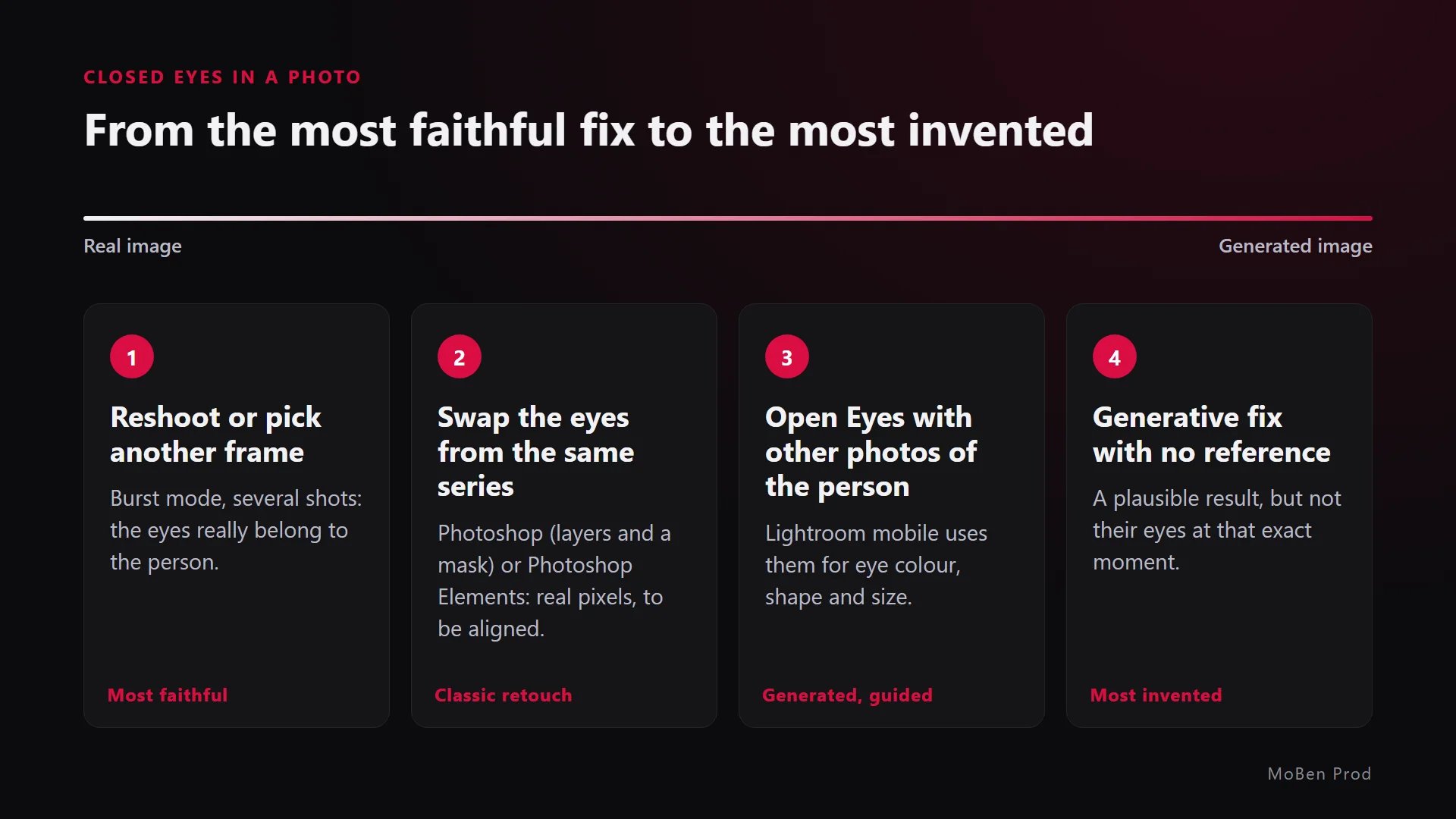
Swap the eyes from a photo of the same series
This is the classic retoucher’s method. In Photoshop, you stack the good photo and the one where the person’s eyes are open as layers, align them, then paint a mask to keep only the eye area. The pixels are real, taken a few seconds earlier or later, so the result stays faithful if the head did not move too much.
Photoshop Elements: open closed eyes
Photoshop Elements has offered for several years a feature that opens eyes by taking them from another photo of the person, picked from your computer or the Organizer catalog, according to Adobe’s help. The result depends a lot on how close the two photos are: same angle, same light.
Photoshop: Generative Fill
In Photoshop, you select the eyes and run Generative Fill. According to Adobe, the result is created on a separate Generative Layer, which leaves the original image untouched. It takes more work than Open Eyes, but you control the selection and can delete the layer at any time.
On a Pixel phone: Best Take
In Google Photos, Best Take combines expressions from a series of photos taken seconds apart. According to Google, the tool uses the faces from your own photos instead of generating new expressions. It launched on Pixel 8 and Pixel 8 Pro.
The best method: avoid the problem on set
- For a group photo, shoot in burst mode or take several frames in a row: you will often get one where everyone has their eyes open.
- Take two or three frames of every pose, even when the first one looks fine.
- Zoom in on the faces on the camera screen before letting the group go.
It is the same logic as on a video shoot: you cover the scene so you have choices later. I explain it in my article on the shots to film for the edit.
Can you use Open Eyes on a client’s photos?
Yes, with one simple rule: the client must know what was generated. A team photo for a website or a portrait for a professional profile shows real people. If I changed their eyes with a generated fix, I say so, and I keep the original.
For an ID photo, an official document, a news report or an image used as evidence, I don’t use this kind of fix. In those cases it is better to pick another frame or take the photo again.
If you want to see the other tools I use for photo and video, I gathered the AI tools for editing and graphic design that I find useful day to day.
Frequently asked questions
Does Open Eyes recover the person’s real gaze?
No. The feature generates open eyes that look like the person, especially if you have other photos of them in Lightroom. It is not an image the camera recorded at that moment.
Is Open Eyes available on desktop?
Adobe announced it for Lightroom on mobile. According to DPReview, it did not appear to be available in desktop Lightroom during its test on 20 October 2026.
How much does Open Eyes cost?
Adobe presents it as free. DPReview reports two uses in the free version of Lightroom mobile before a subscription prompt. Check in your app, as terms can change.
Does it work on group photos?
Yes, Adobe uses exactly that example: the group shot where one person blinked. Still check every face at 100%, one by one.
Planning a shoot, team portraits or content for your brand? Let’s talk about your project: I will tell you what to sort out on set and what can be fixed afterwards.
Go further