Canva Craft and Magic Layers: keeping an AI visual editable
A good-looking generated image is not enough when the client asks you to change one word. Canva Craft plans the composition before generating, and its images suit Magic Layers, which splits them into editable elements. Check texts and layers before you deliver.

MoBenFreelance video creator
Contents
- What is Canva Craft?
- Why does Craft plan the composition before the image?
- What is Magic Layers and how does it connect to Craft?
- Are Craft and Magic Layers free?
- How do you handle a revision request on a generated visual?
- What limits should you know about?
- Which other tools give you editable layers?
- Frequently asked questions
An AI-generated visual is often a flat image: the day the client asks you to change one word, you start over. Canva offers a two-part answer. Craft, its image model announced on 22 October 2026, organises the composition, the elements and the text before generating the image. Its results are designed for Magic Layers, the tool that splits an image into editable elements. It helps a lot, but every text and every layer needs checking before delivery.
I know the scene by heart: you show the visual, the client likes it, then says “Great. Just change this word.” With a flat image, that one word costs a new generation, and nothing guarantees the rest of the image will stay the same.
What is Canva Craft?
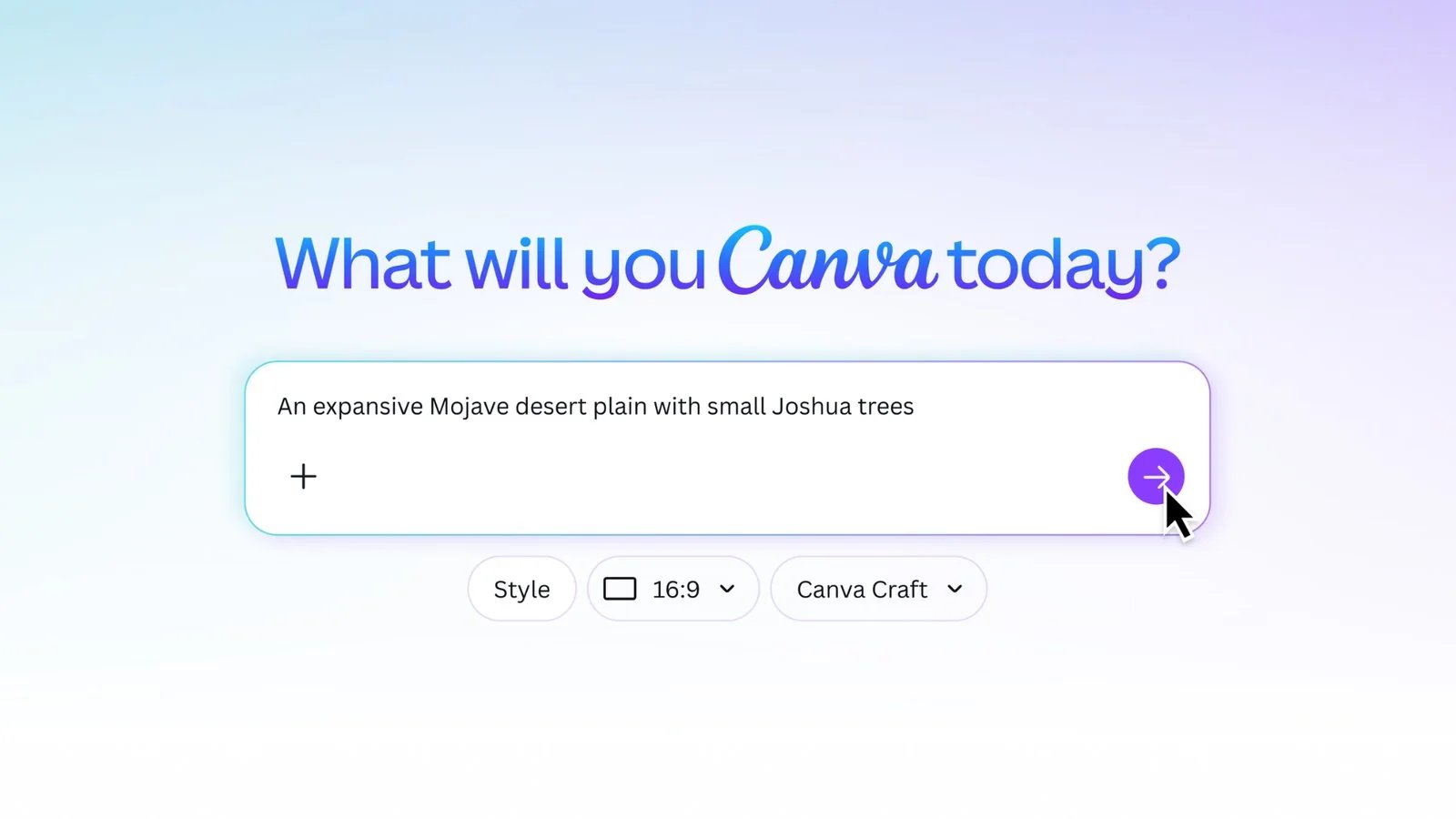
According to Canva’s official announcement, Craft is the first image generation model built and trained by Canva Research, Canva’s in-house AI lab. It generates images up to 2K, in more than 30 aspect ratios, and can write text in 55 languages.
Canva says its training leans heavily on design: millions of human-made templates, posters, social posts, presentations, infographics, menus and typography-rich layouts. The idea is to learn how layout, hierarchy and text fit together, not just what a finished image looks like.
Why does Craft plan the composition before the image?
This is the real difference. Instead of producing pixels straight from the prompt, Craft works in two stages, according to Canva:
- A plan first. A first model reads your request and writes a detailed plan: which elements appear, where they sit, their relative size, the visual hierarchy and the text to display.
- Then the image. A second model turns that plan into a high-fidelity image.
For a designer this makes sense: you set the layout before polishing the render. Canva explains that this structure also allows changing one element without altering everything else, and that it will support the advanced editing and reference images planned for future releases.
“Craft delivers exceptional results for jobs where the layouts and text need to be perfect.” JJ Fiasson, Head of Generative AI, Canva
What is Magic Layers and how does it connect to Craft?
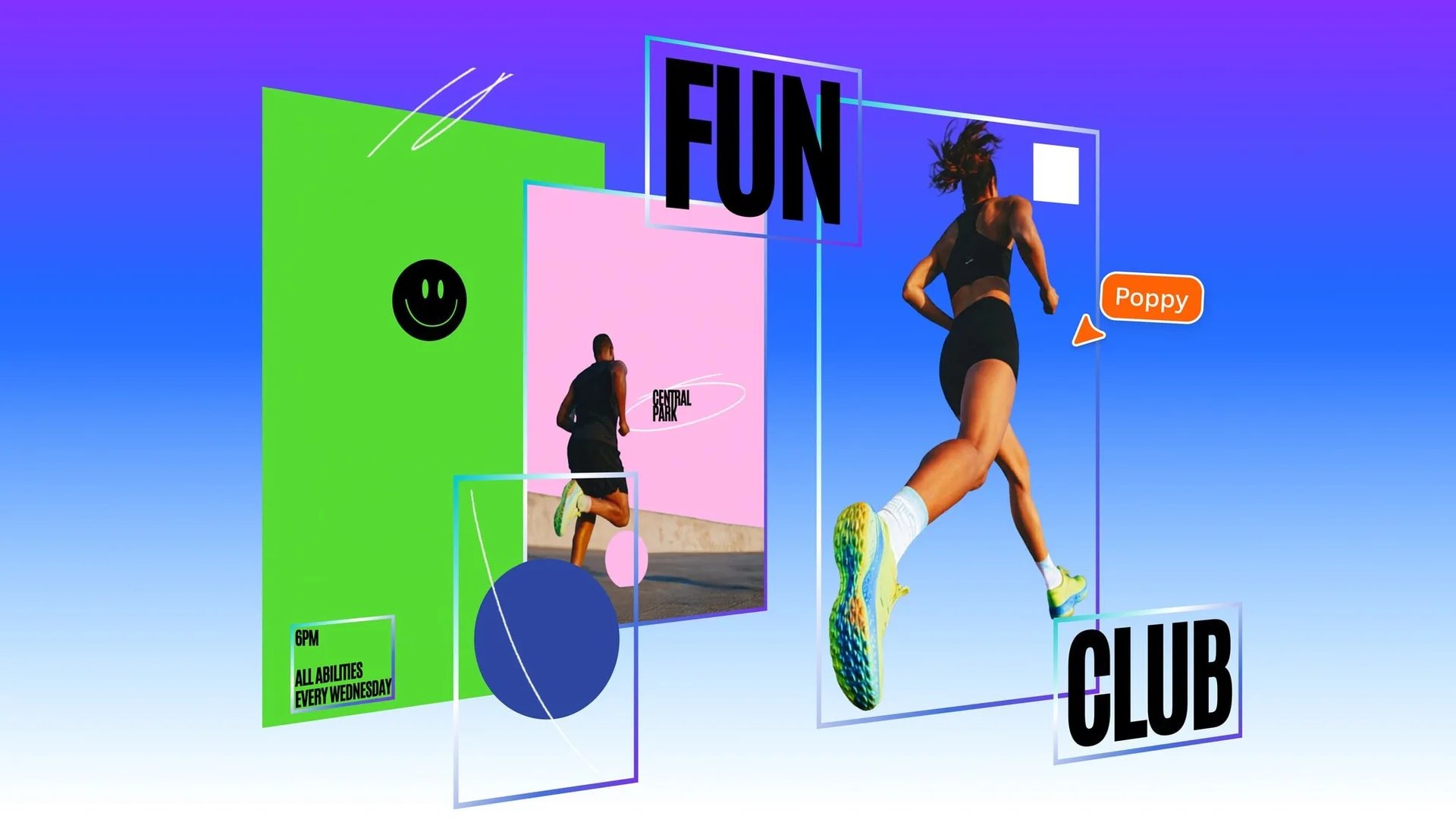
Magic Layers launched on 11 March 2026. According to Canva, the tool reads a flat image and rebuilds it as layers in the editor: text becomes editable text again, objects become elements you can move, and the background stays behind. Layout relationships are preserved.
The link with Craft is direct. Canva writes that the structure of Craft images makes them particularly well suited to Magic Layers, and that the JSON bounding boxes the model produces make the conversion into layers faster and more accurate.

Are Craft and Magic Layers free?
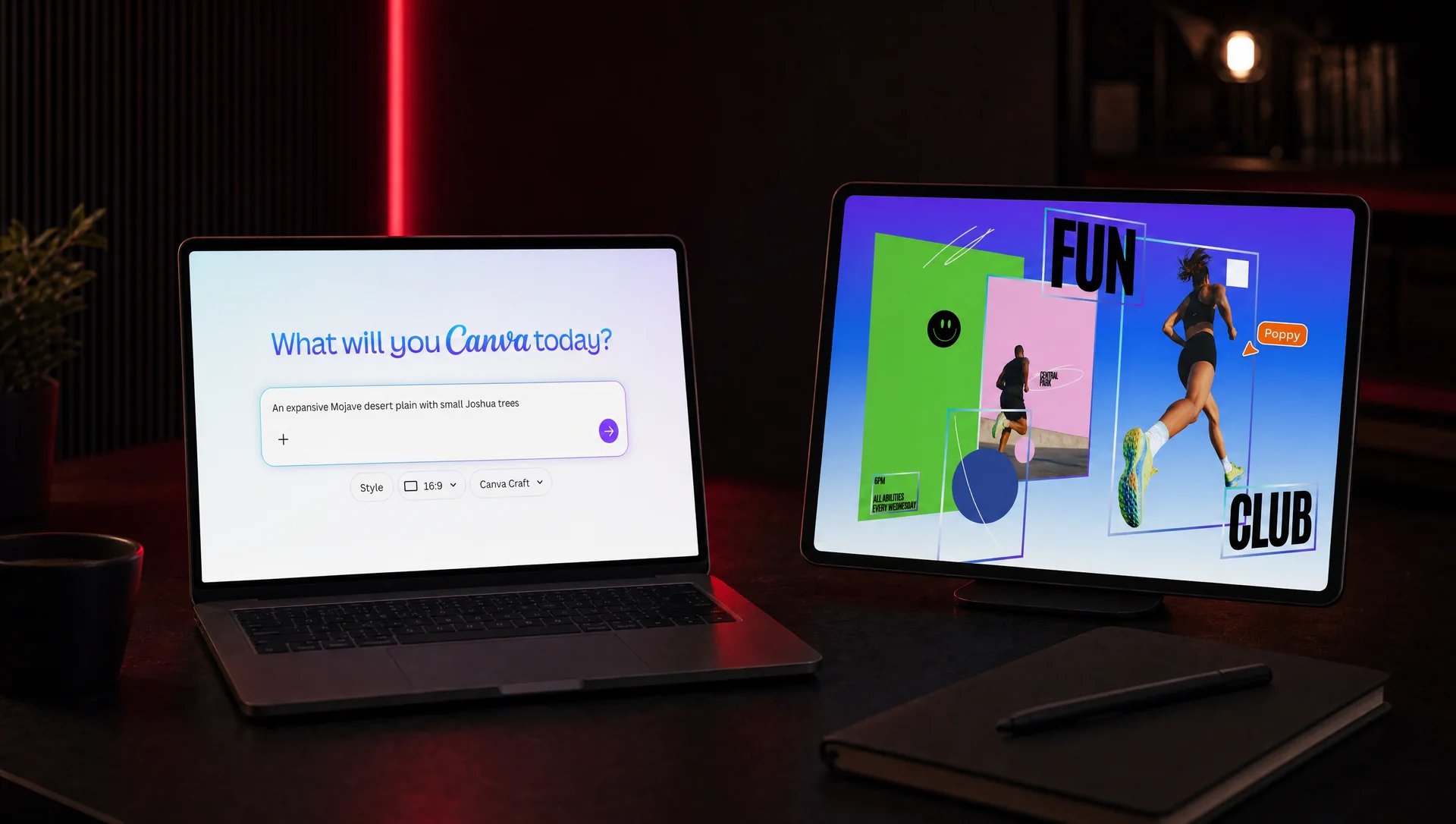
Canva says Craft is available to all its users worldwide, from Dream Lab (bottom left panel), and to developers through its public API. The announcement does not give a Craft-specific quota.
For Magic Layers, the tool’s page says it is a premium AI tool: each use counts toward your monthly AI usage allowance, which varies by plan. It is still labelled beta. At launch, the public beta was open in the United States, the United Kingdom, Canada and Australia, with global availability to follow. Check that it shows up in your account before building a process around it.
How do you handle a revision request on a generated visual?
This is the method I follow so that “just change this word” does not turn into half a day of work:
- Keep an editable source file. Never keep only a PNG. Keep the Canva design with its layers, or the file from your own software.
- Separate text from the image from the start. Even if the model can write, I often prefer to set the headline, price or slogan as real text on top of the image. It changes in seconds.
- Apply the brand guidelines. Official fonts, colours and logo, stored in Canva’s Brand Kit if you use it. Text recovered by Magic Layers will not always be in the right font.
- Check every layer. After Magic Layers, move the elements one by one: a leftover piece of an object in the background, a rough edge or a misread text shows up right away.
- Proofread every text. Spelling, accents, numbers, phone number, brand name. A model can get one letter wrong.
- Export in the right format. PNG or JPG for web and social media, PDF for print, and a link or copy of the editable file if the client needs to reuse it.
Also set the number of revisions included in the quote: it protects the client as much as you. To build a solid base, my article on visual identity, brand guidelines and the brandbook lists the deliverables to ask for.
What limits should you know about?
- Not everything is ready to deliver. Canva itself names fine print and technical drawings among the areas to improve. Very small text deserves a check at 100%.
- No reference images yet. According to Canva, advanced editing and reference-image input will come in future releases.
- A split is still an interpretation. When you move an element, the area it was hiding has to be rebuilt. Look at it closely before exporting.
- The logo comes from official files. A client’s logo is never generated: you import it from the source files.
Which other tools give you editable layers?
Canva is not alone here. These are the tools I could verify on their official pages.
Adobe Photoshop: Generative Fill
Each generation is created on a separate Generative Layer, according to Adobe. You retouch an area without touching the original image, with all of Photoshop’s layer tools. Paid, included in Photoshop plans.
Adobe Firefly: Layered Image Editing
In October 2025, alongside Firefly Image Model 5, Adobe announced Layered Image Editing for precise compositing. It was then described as in development (Adobe announcement), so check whether it is available in your account.
Affinity: Scene Decomposition
In the Canva ProSuite announcement of 16 September 2026, Canva describes Scene Decomposition in Affinity: an AI-assisted feature that splits a flattened image back into editable layers, so you rebuild elements instead of starting from scratch. The core software stays free, and the Canva AI Studio features in Affinity require a Canva premium plan.
Cavalry: Image to Layers (announced)
For motion design, the same announcement plans new AI tools in Cavalry, including Image to Layers. At the time of writing it is listed as coming soon.
Qwen-Image-Layered: an open model
Released in December 2025 by the Qwen team, this model decomposes an image into several RGBA layers you can edit separately, according to its official repository. It is aimed at technical users: you install and run it in Python.
Recraft: vector visuals
Recraft highlights the generation of complex, editable vector graphics. For an icon or a simple illustration, a vector file is far easier to retouch than a pixel image.
For a wider view, I also listed 15 AI tools for video editing and graphic design.
Frequently asked questions
Does Magic Layers work with images from other tools?
Yes. Canva says Magic Layers works with images from any image generator, and recommends JPEG or PNG files.
Where do you find Craft in Canva?
Canva says to open Dream Lab from the bottom left panel of the interface. Developers can also reach it through Canva’s public API.
Is generated text always correct?
No. Craft is built to place and render text better, but proofread every word. After Magic Layers, also check that the recovered text is really editable and in the right font.
Do these tools replace a designer?
No. They speed up the first version and make revisions simpler. Choosing the message, staying consistent with the brand and the final check are still human work.
Want brand visuals that stay easy to edit? Let’s talk about your visual identity: I prepare files you can pick up again without starting over.
Go further